




Welcome to FRC Scouting System - 7632! This is a data collection and management system designed specifically for FIRST Robotics Competition (FRC). This manual will guide you through everything from data synchronization to on-site sampling.
Before scouting, please log in using your Google Account.

On the home page, you will see three buttons:
- Create New Room
- Join Server Room
- Fetch TBA Schedule
- Allows users to create a custom room with specific team numbers and matches.
- Enter a ROOM IDENTIFIER and click LAUNCH DATA HUB.
- The host can manage team assignments by clicking the shield icon in the top right.
- Join an existing room created by a host to start scouting assigned teams.
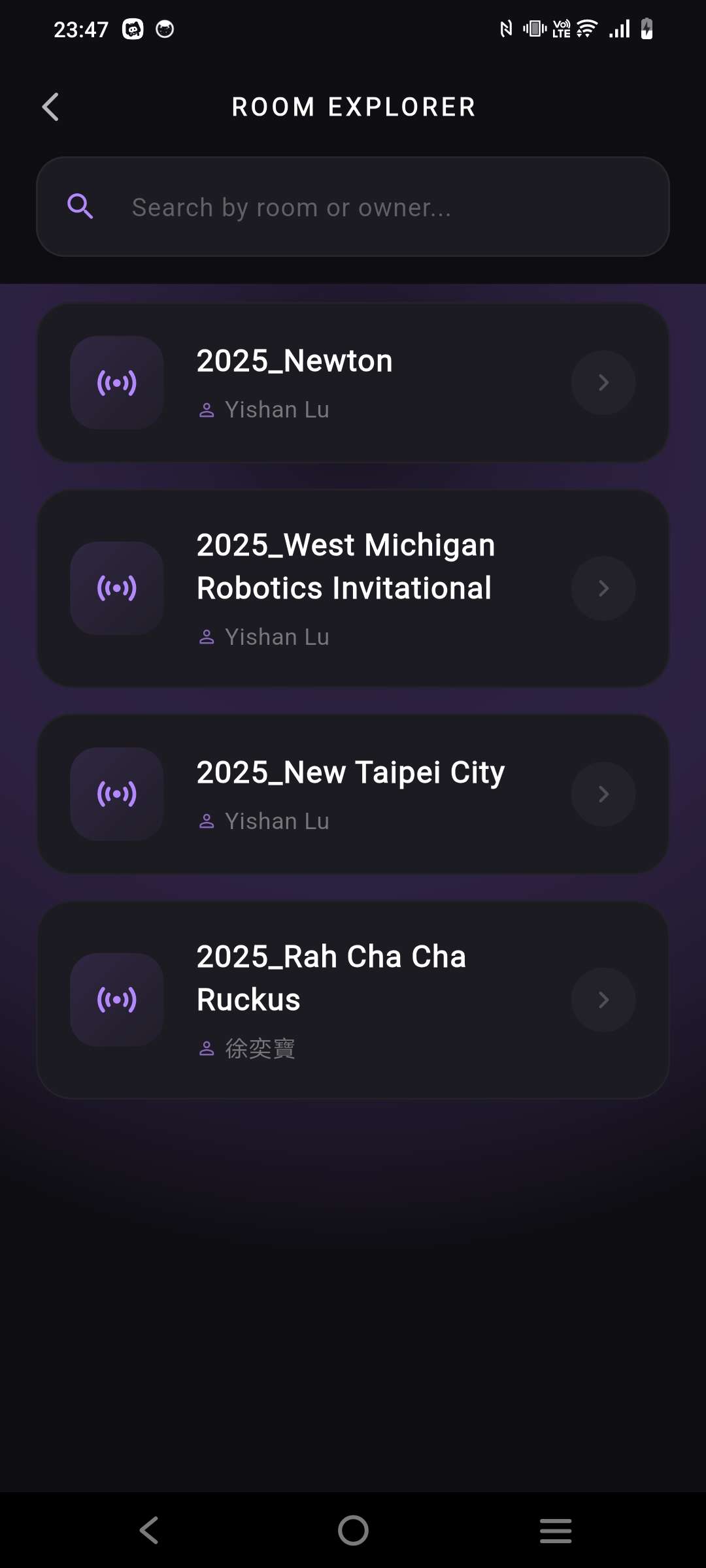
For automated task distribution:
- Search for the year and event (e.g., 2025, New Taipei City).
- If successful, the system displays TBA PAYLOAD READ and preloads all qualification match data.
- Click LAUNCH DATA HUB to create the room.
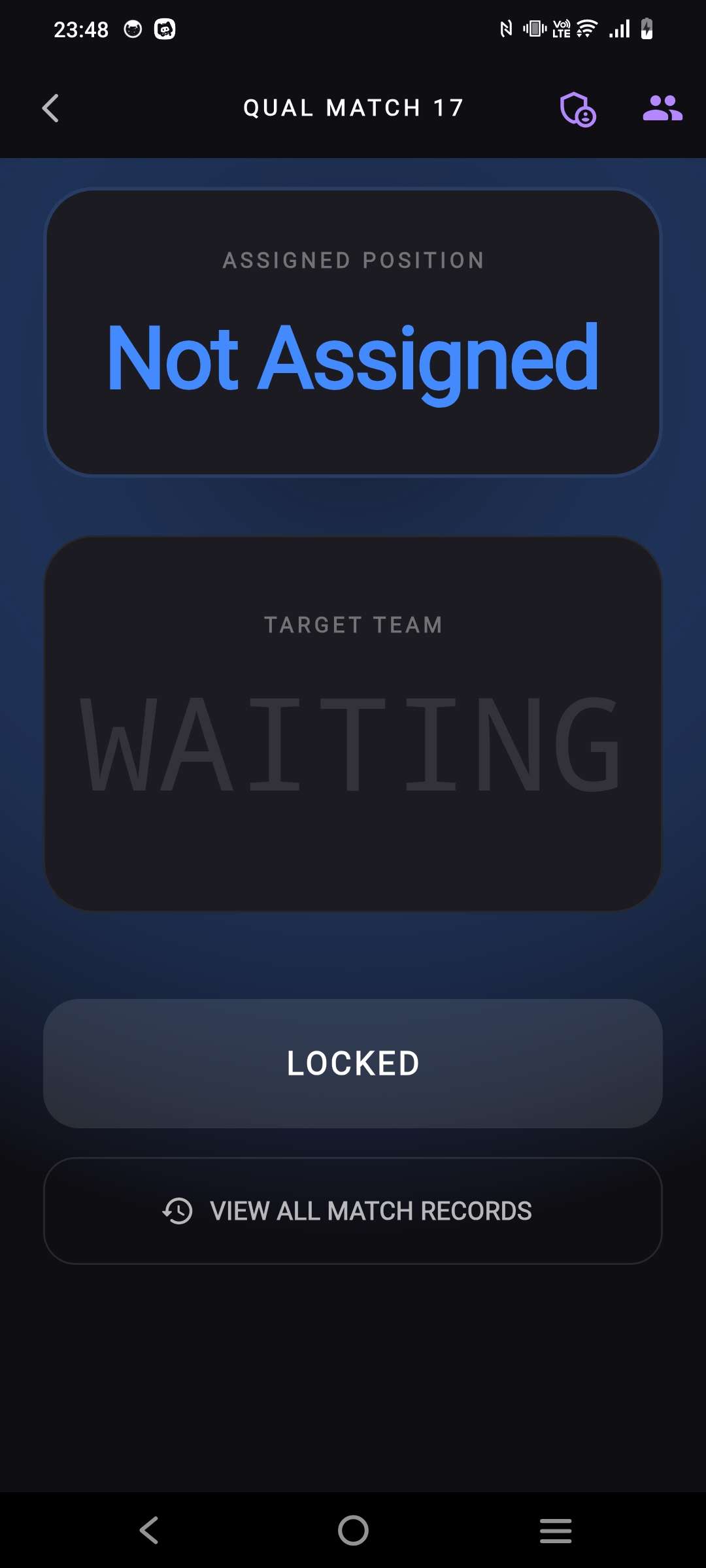
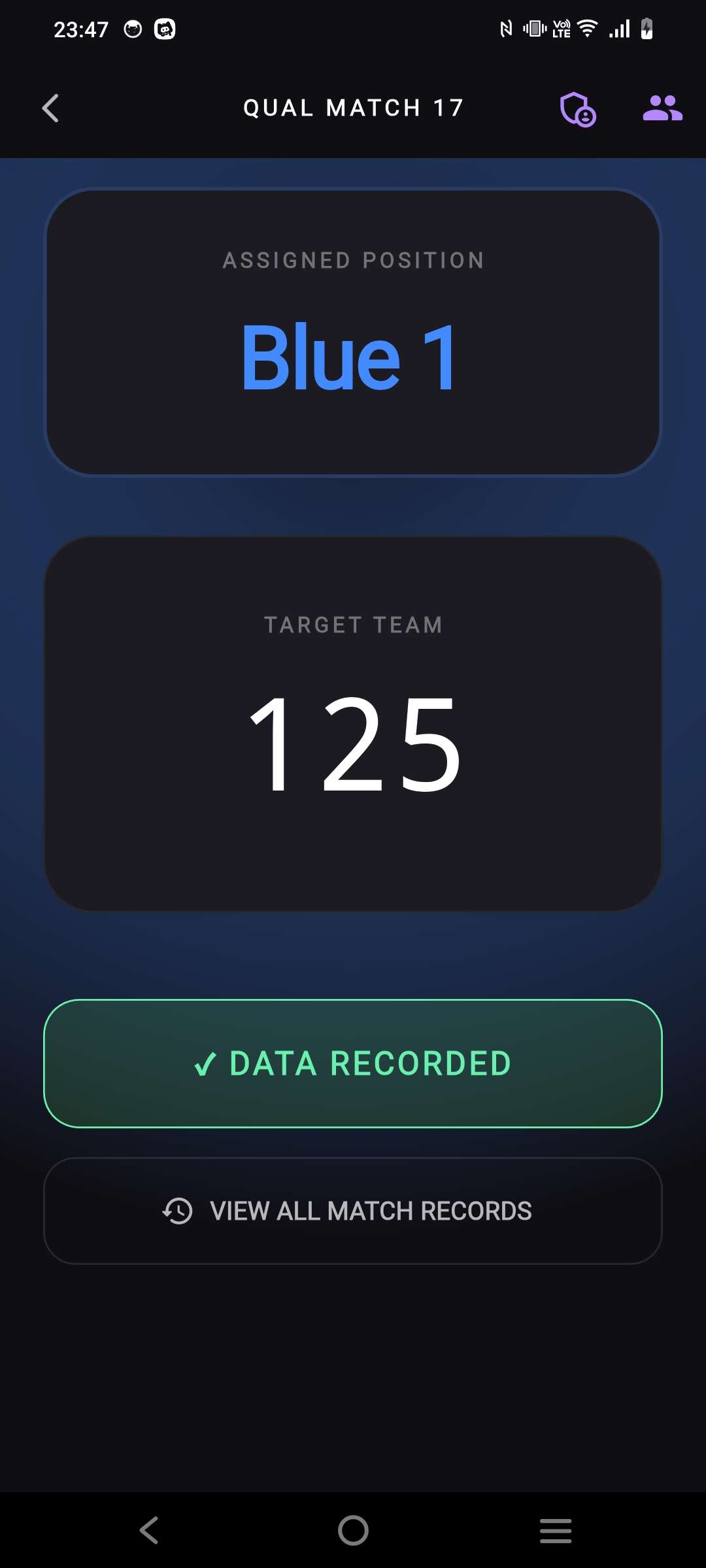
- After joining a room, wait for the host to assign a team.
- When the screen shows a team color and number, click START SCOUTING, verify the match info, and click READY.
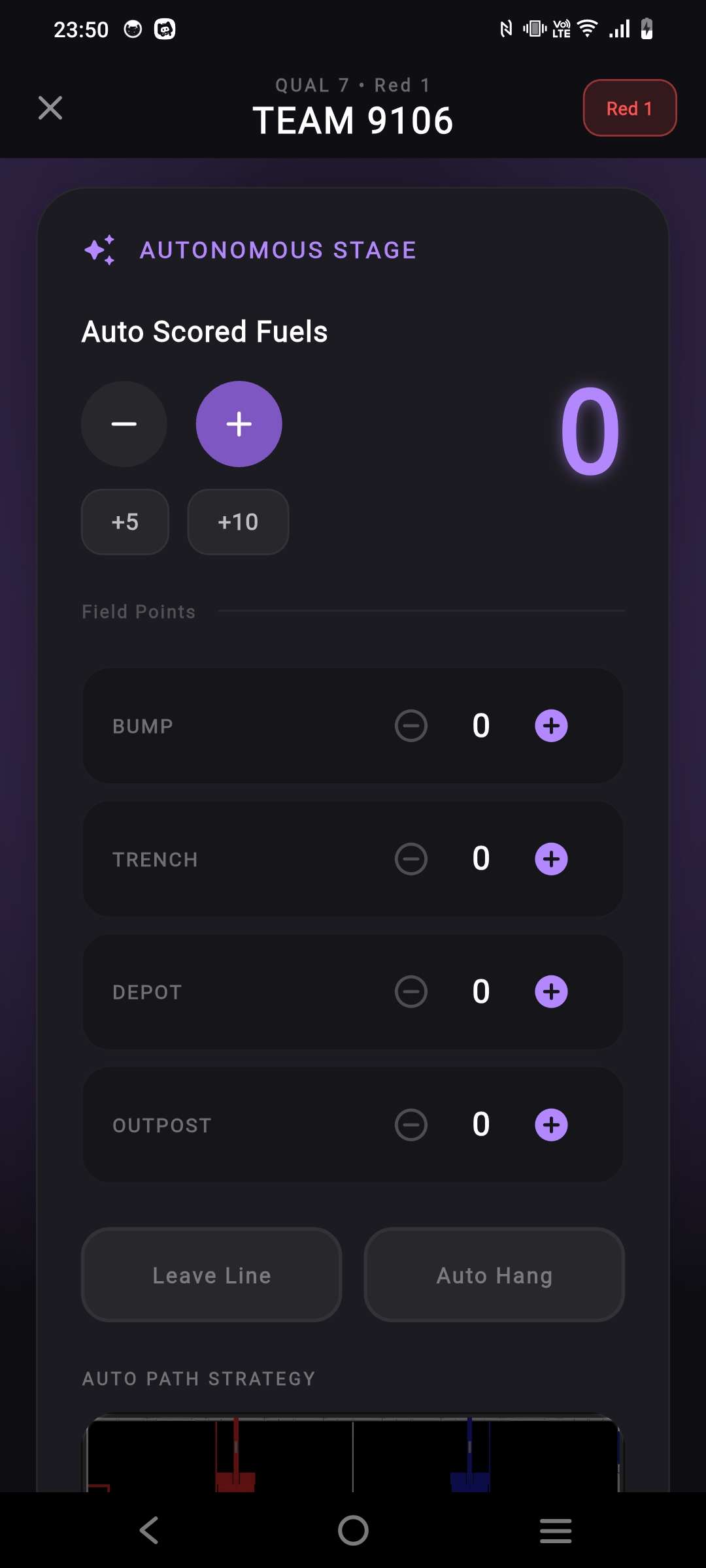
- Use "+" and "-" to record scores.
- Toggles available for Leave Line and Auto Hang.
- Path Drawing: Tap the map to create a path, use Command for actions, and Play to review.
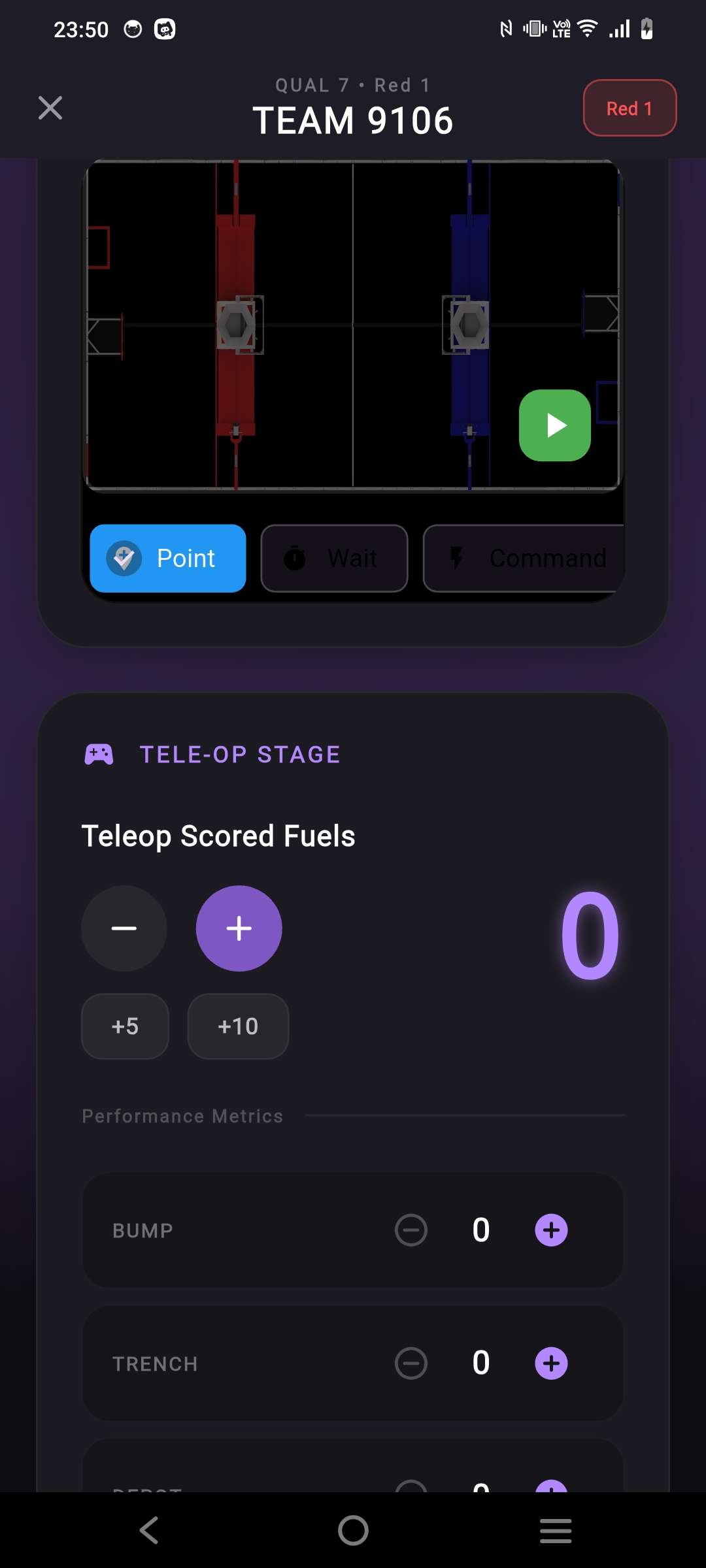
- Record scores as in the AUTO phase.
- In the ENDGAME STATUS section, select the robot's hanging level (or "NONE").
- Click COMPLETE & SYNC DATA once the match ends.
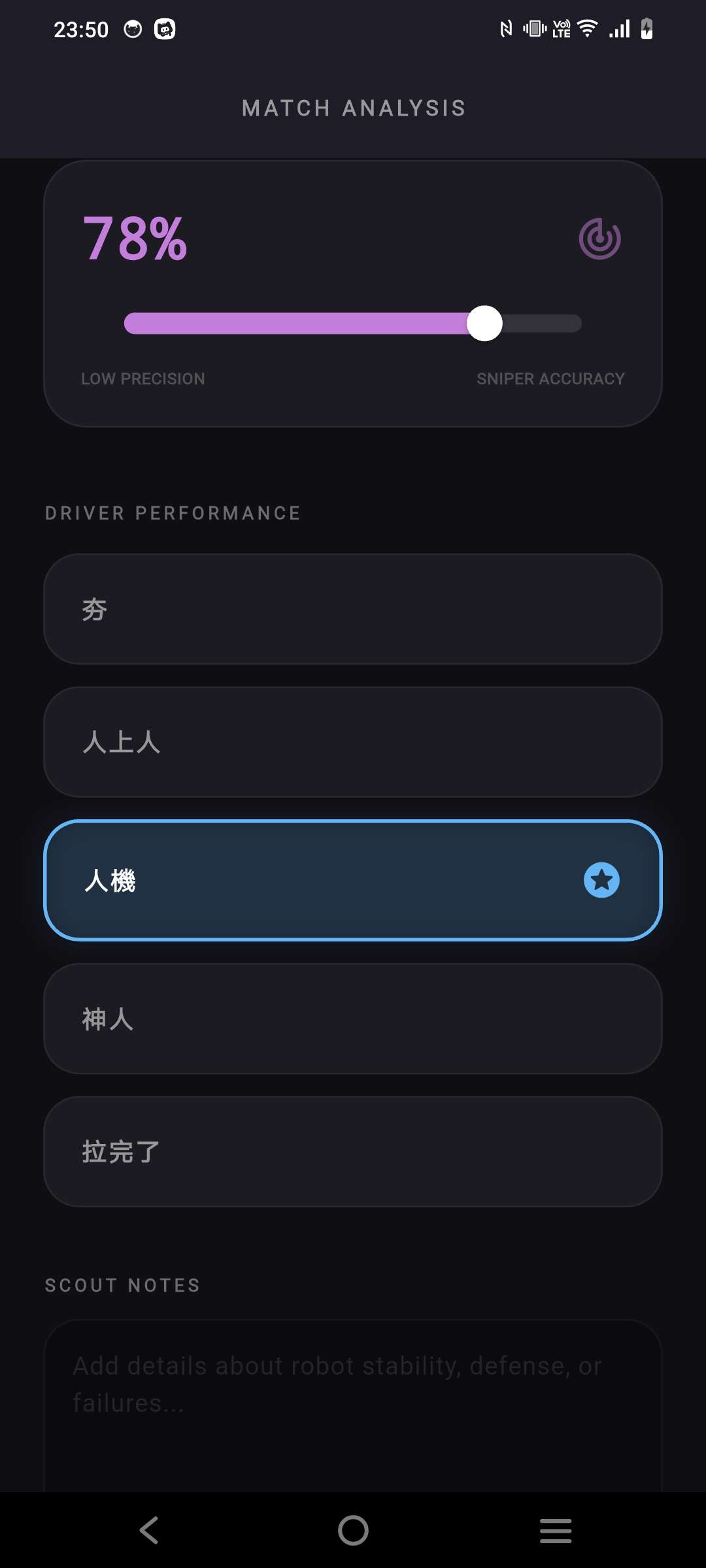
- Shooting Accuracy: Slider from "Low Precision" to "Sniper Accuracy."
- Driver Performance: Quick tags for evaluation.
- Scout Notes: Free-text for stability, defense, or mechanical issues.
- Click FINISH MATCH ANALYSIS to upload to the cloud.
Access Pit Mode via the four-square icon on the home screen.
- Pit Tracker: Overview of scouting progress and team list.
- Photo: Capture or upload robot images for visual identification.
- Spec: Record hardware like Drivetrain Type and Max Capacity.
- Path: Map out the team's intended autonomous routines with
Point,Wait, andCommandtools.
Sync: Click UPLOAD PIT DATA to save the technical profile to the database.