A Home Assistant Custom Integration - Know exactly what triggered your smart devices.
Ever found a light on that shouldn't be, or a switch that tripped unexpectedly, and wondered: was that an automation, someone on the dashboard, a physical button press, or something else? Whodunnit answers that question with a dedicated diagnostic sensor for each entity you choose to monitor. Whodunnit can also trigger automations based on the detected source.
- What It Does
- How It Works
- Installation
- Setup
- Use Cases
- History Log Attribute
- Cache Debug Attribute
- Caveats and Limitations
- History
Whodunnit creates a diagnostic sensor for any supported entity in your Home Assistant setup. Each time that entity changes state - or a meaningful attribute changes (such as brightness or colour) - the Whodunnit sensor updates to record:
- What caused the change (automation, script, scene, dashboard, physical press, service account, or the system itself)
- Who did it (the person's name if triggered via the UI)
- Which specific automation, script, or scene was responsible (including its name and entity ID)
- When it happened (ISO timestamp)
- How confident Whodunnit is in its answer (High, Medium, or Low)
- A rolling history of the last 25 trigger events
- Cache debugging indicates how an event state was determined
This information is available as sensor attributes and persists across Home Assistant restarts.
Home Assistant attaches a Context object to every state change. This context carries:
- A unique context ID for the event
- A parent ID linking it to the action that caused it (e.g. the automation run that fired a service call)
- A user ID when a human directly triggered the action via the UI or app
Whodunnit listens to automation, script, and scene events before they fire their service calls, caches them by context ID, and then when the target entity's state changes, looks up that change's context in the cache to identify the source.
The detection cascade works in this order:
-
Cache hit on the context ID -> The state change was caused by an automation, script, or scene that Whodunnit pre-cached. This is a direct, reliable match. Confidence: High.
-
No cache hit, but a
user_idis on the context -> A user acted directly via the dashboard, mobile app, or similar UI. Whodunnit resolves the user ID to a friendly name. If the user ID belongs to a service account (Node-RED, AppDaemon, a custom script, etc.) rather than a real person, it is classified as a Service Account trigger instead. Confidence: High. -
No cache hit, but a
parent_idexists -> HA was involved (something upstream caused this). Whodunnit first attempts to resolve the source by looking up the parent context ID in the cache - this successfully identifies the source in common chains such as automation -> script -> entity. If the parent is also not cached, the event is classified as Automation (Indirect). Confidence: High if parent resolved, Medium if not. -
No user, no parent, no cache hit -> The change originated entirely from the device with no Home Assistant involvement. Physical button presses, remote controls, hardware timers (inching), and device-internal firmware events all land here, classified as Device. Confidence: High.
Note on attribute-only changes: Whodunnit also fires when a state stays the same but a monitored attribute changes - for example, dimming a light without turning it on or off. The same detection cascade applies. To avoid flooding the log on continuously-changing sensors, attribute-only changes are debounced to one update per 2 seconds per entity.
The sensor's main state is a short, human-readable label describing the source type:
| State | Displayed As | Meaning |
|---|---|---|
monitoring |
Monitoring | Sensor is active but no change has been recorded yet |
automation |
Automation | An automation triggered the change |
script |
Script | A script triggered the change |
scene |
Scene | A scene activation triggered the change |
ui |
Dashboard/UI | A human user acted via the Lovelace dashboard or HA app |
service |
Service Account | A service account tool (Node-RED, AppDaemon, etc.) triggered the change |
device |
Device | A physical switch, button, or device-internal event triggered the change |
Each Whodunnit sensor exposes the following attributes:
| Attribute | Description | Example |
|---|---|---|
source_type |
The category of trigger | automation, user, device, service |
source_id |
The entity ID or user ID of the trigger | automation.morning_lights |
source_name |
Human-readable name of the trigger | Morning Lights |
context_id |
Home Assistant's internal event ID for this change | 01HS3B... |
user_id |
The HA user UUID (only populated for UI triggers) | 8f2b... |
event_time |
ISO 8601 timestamp of when the change was detected | 2026-02-30T06:47:43+07:00 |
confidence |
How reliable the classification is | high, medium, low |
history_log |
A list of the last 25 trigger events (newest first) | (see below) |
cache_debug |
Indicates why an event was classified the way it was | (see below) |
| Level | Meaning |
|---|---|
| High | Whodunnit is certain about the source. The context matched directly, or there was no HA context at all (physical button press). |
| Medium | Whodunnit knows HA was involved (a parent context exists) but cannot identify the specific automation. Commonly seen with sub-automations or chained scripts. |
| Low | The classification may be unreliable. Seen on ESPHome devices when a physical button press occurs shortly after a dashboard action - ESPHome reuses the prior UI context ID for the press, which Whodunnit detects via an internal flag. See Caveats. |
- Open HACS in your Home Assistant sidebar.
- Click the three-dot menu (top right) and choose Custom repositories.
- Paste
https://github.com/sfox38/whodunnitand select Integration as the category. - Click Add, then find Whodunnit in the HACS Integration list and click Download.
- Restart Home Assistant.
- Download the latest release zip from this repository and unpack it.
- Copy the
whodunnitfolder into yourconfig/custom_components/directory. The result should beconfig/custom_components/whodunnit/. - Restart Home Assistant.
After installation and a restart, Whodunnit is available as an integration:
- Go to Settings -> Devices & Services.
- Click + Add Integration and search for Whodunnit.
- Select the entity you want to monitor from the dropdown picker and click Submit.
- Whodunnit creates a sensor and attaches it to the entity's parent device page.
You can add Whodunnit to as many entities as you like - including multiple entities on the same physical device. Each tracked entity gets its own config entry and its own sensor. Already-tracked entities are automatically hidden from the picker to prevent duplicates.
The entity picker is filtered to domains that produce meaningful, actionable state changes:
Physical device domains: switch, light, fan, media_player, cover, lock, vacuum, siren, humidifier, climate, remote, water_heater, valve
Device-side controls: number, select, button
Helper domains: input_boolean, input_button, input_number, input_select, input_text
Other trackable domains: alarm_control_panel, timer
Read-only sensor entities are intentionally excluded because their state is driven entirely by the device and cannot be initiated by a user or automation.
Monitored attributes: When tracking certain entities, Whodunnit also detects attribute-only changes (state stays on but something else changes):
light:brightness,rgb_color,rgbw_color,xy_color,color_temp,hs_color,effectclimate:temperature,target_temp_high,target_temp_low,fan_mode,swing_mode,preset_mode,humiditymedia_player:volume_level,source,sound_modefan:percentage,preset_mode,direction,oscillatingcover:current_position,current_tilt_positionwater_heater:temperature,operation_modehumidifier:humidityvacuum:fan_speed
Helper entities (template entities, input_select, input_number, etc.) usually do not belong to a physical device. For these, Whodunnit automatically creates a virtual device to host the sensor in the HA UI. This virtual device appears in the Devices list under the Whodunnit integration and is automatically removed when you delete the Whodunnit entry for that helper.
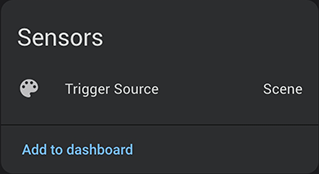
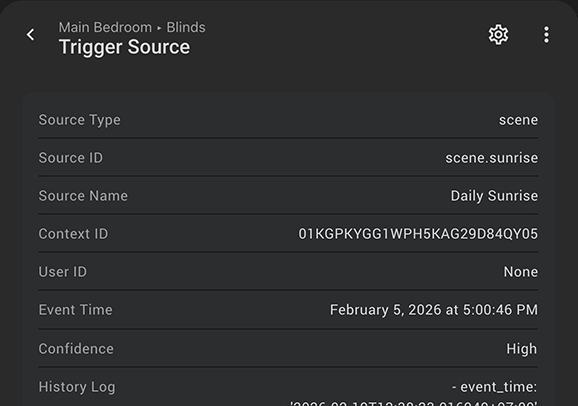
A quick look at the Whodunnit sensor on any device's page instantly tells you how the device was last activated. Expand the attributes for the full picture - who, what, when, and how confident the answer is.
 |
 |
Common debugging scenarios:
- "Why did my bedroom light turn on at 3 am?" - Check
source_nameto see which automation was responsible. - "Did someone manually turn this off, or did an automation do it?" -
source_type: devicevssource_type: automationanswers this immediately. - "Which Node-RED flow is affecting this switch?" - Service account triggers display the HA username of the account, helping you trace the flow.
| This card displays the current trigger source and all its attributes at a glance. Paste the entire block into your dashboard as a new card, and change only the entity ID on the `&target` line. | 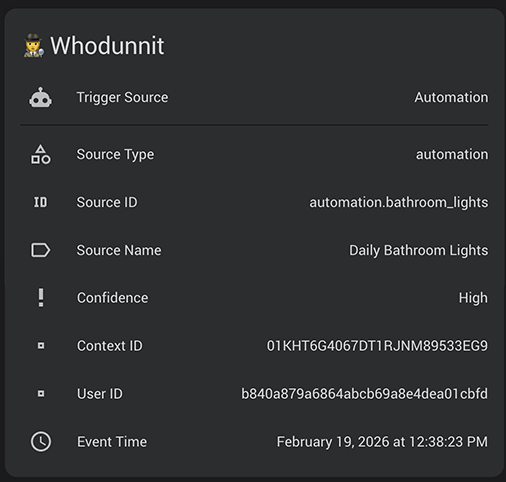 |
##############################################################################
# Whodunnit - Basic Status Card
# Change ONLY the entity ID on the "&target" line below.
##############################################################################
type: entities
title: 🕵️ Whodunnit
show_header_toggle: false
entities:
  - entity: &target sensor.whodunnit_trigger_source
    name: Trigger Source
  - type: divider
  - type: attribute
    entity: *target
    attribute: source_type
    name: Source Type
    icon: mdi:shape-outline
  - type: attribute
    entity: *target
    attribute: source_id
    name: Source ID
    icon: mdi:identifier
  - type: attribute
    entity: *target
    attribute: source_name
    name: Source Name
    icon: mdi:label-outline
  - type: attribute
    entity: *target
    attribute: confidence
    name: Confidence
    icon: mdi:exclamation-thick
  - type: attribute
    entity: *target
    attribute: context_id
    name: Context ID
    icon: mdi:vector-point
  - type: attribute
    entity: *target
    attribute: user_id
    name: User ID
    icon: mdi:vector-point
  - type: attribute
    entity: *target
    attribute: event_time
    name: Event Time
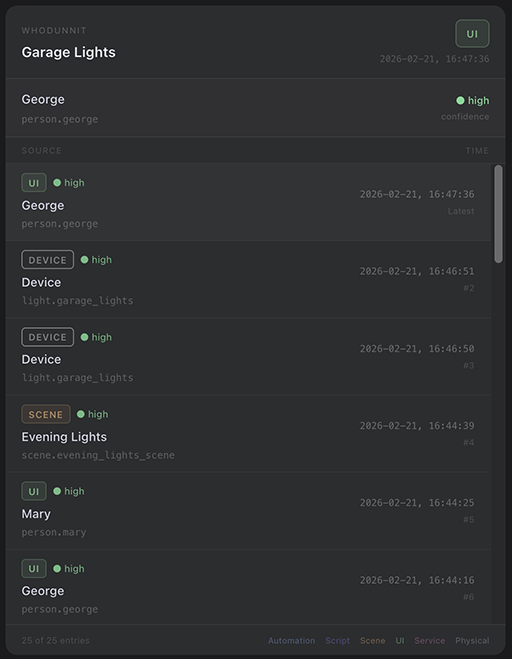
icon: mdi:clock-outline| This card displays a rich, colour-coded history of the last 25 trigger events. It requires the **Lovelace HTML Jinja2 Template card** (`custom:html-template-card`), which is available on HACS.
Change only the |
 |
##############################################################################
# Whodunnit - History Log Card
# Requires: custom:html-template-card (HACS)
# Change ONLY the entity_id variable on the first line of the content block.
##############################################################################
type: custom:html-template-card
ignore_line_breaks: true
content: |
{%- set entity_id = 'sensor.whodunnit_trigger_source' -%}
{%- set attr = state_attr(entity_id, 'history_log') or [] -%}
{%- set name = state_attr(entity_id, 'friendly_name') or entity_id -%}
{%- set cur_type = state_attr(entity_id, 'source_type') or '' -%}
{%- set cur_name = state_attr(entity_id, 'source_name') or '' -%}
{%- set cur_id = state_attr(entity_id, 'source_id') or '' -%}
{%- set cur_conf = state_attr(entity_id, 'confidence') or 'high' -%}
{%- set cur_time = state_attr(entity_id, 'event_time') or '' -%}
{%- set type_colors = {
'automation': '#6c8ebf',
'script': '#7b6bbf',
'scene': '#bf8e6c',
'user': '#6cbf8e',
'service': '#bf6c9a',
'device': '#8e8e9a'
} -%}
{%- set type_labels = {
'automation': 'Automation',
'script': 'Script',
'scene': 'Scene',
'user': 'UI',
'service': 'Service',
'device': 'Device'
} -%}
{%- set conf_colors = {'high': '#5ce0a0', 'medium': '#e0c85c', 'low': '#e05c5c'} -%}
{%- set conf_symbols = {'high': '●', 'medium': '◐', 'low': '○'} -%}
{%- set cur_color = type_colors.get(cur_type, '#888') -%}
{%- set cur_label = type_labels.get(cur_type, cur_type | title) -%}
{%- set conf_color = conf_colors.get(cur_conf, '#5ce0a0') -%}
{%- set conf_symbol = conf_symbols.get(cur_conf, '●') -%}
<style>
.wd { font-family: system-ui, sans-serif; text-align: left; margin: -16px; }
.wd-hdr { padding: 14px 16px 12px; border-bottom: 1px solid rgba(255,255,255,0.08);
display: flex; align-items: center; justify-content: space-between; }
.wd-lbl { font-size: 0.62rem; text-transform: uppercase; letter-spacing: 0.12em;
color: rgba(255,255,255,0.28); margin-bottom: 3px; }
.wd-title { font-size: 1rem; font-weight: 600; color: #e8e8f0; }
.wd-badge { display: inline-flex; align-items: center; border-radius: 6px;
padding: 5px 10px; border: 1px solid; font-size: 0.72rem;
font-weight: 600; text-transform: uppercase; letter-spacing: 0.06em; }
.wd-ts { font-family: monospace; font-size: 0.65rem;
color: rgba(255,255,255,0.22); margin-top: 4px; text-align: right; }
.wd-det { padding: 10px 16px; background: rgba(255,255,255,0.02);
border-bottom: 1px solid rgba(255,255,255,0.06);
display: flex; justify-content: space-between;
align-items: center; gap: 12px; }
.wd-det-name { color: #d8d8e8; font-size: 0.88rem; font-weight: 500; }
.wd-det-id { font-family: monospace; font-size: 0.7rem;
color: rgba(255,255,255,0.27); margin-top: 2px; }
.wd-conf { text-align: right; flex-shrink: 0; font-size: 0.72rem; font-weight: 500; }
.wd-conf-lbl { font-size: 0.62rem; color: rgba(255,255,255,0.2); display: block; margin-top: 1px; }
.wd-cols { display: grid; grid-template-columns: 1fr auto; gap: 0 10px;
padding: 6px 16px; border-bottom: 1px solid rgba(255,255,255,0.06); }
.wd-col { font-size: 0.6rem; text-transform: uppercase; letter-spacing: 0.1em;
color: rgba(255,255,255,0.18); }
.wd-list { max-height: 460px; overflow-y: auto; }
.wd-row { display: grid; grid-template-columns: 1fr auto; gap: 0 10px;
align-items: center; padding: 9px 16px;
border-bottom: 1px solid rgba(255,255,255,0.04); }
.wd-row.first { background: rgba(255,255,255,0.035); }
.wd-badges { display: flex; align-items: center; gap: 6px; margin-bottom: 3px; }
.wd-tbadge { font-size: 0.67rem; font-weight: 600; letter-spacing: 0.05em;
text-transform: uppercase; padding: 1px 6px;
border-radius: 4px; border: 1px solid; }
.wd-cpill { font-size: 0.69rem; opacity: 0.85; }
.wd-name { font-size: 0.87rem; color: #d8d8e8; font-weight: 500;
white-space: nowrap; overflow: hidden; text-overflow: ellipsis; }
.wd-id { font-family: monospace; font-size: 0.7rem; color: rgba(255,255,255,0.27);
margin-top: 1px; white-space: nowrap; overflow: hidden; text-overflow: ellipsis; }
.wd-right { text-align: right; flex-shrink: 0; }
.wd-rts { font-family: monospace; font-size: 0.68rem;
color: rgba(255,255,255,0.32); white-space: nowrap; }
.wd-idx { font-size: 0.62rem; color: rgba(255,255,255,0.18); margin-top: 2px; }
.wd-foot { padding: 8px 16px; border-top: 1px solid rgba(255,255,255,0.06);
display: flex; justify-content: space-between; align-items: center; }
.wd-cnt { font-size: 0.63rem; color: rgba(255,255,255,0.18); }
.wd-leg { display: flex; gap: 10px; flex-wrap: wrap; justify-content: flex-end; }
.wd-li { font-size: 0.6rem; opacity: 0.6; }
</style>
<div class="wd">
<div class="wd-hdr">
<div>
<div class="wd-lbl">Whodunnit</div>
<div class="wd-title">{{ name | truncate(40, true, '…') }}</div>
</div>
<div style="text-align:right;">
<div class="wd-badge"
style="color:{{ cur_color }};background:{{ cur_color }}22;border-color:{{ cur_color }}55;">
{{ cur_label }}
</div>
<div class="wd-ts">{{ cur_time[:19] | replace('T', ', ') if cur_time else '-' }}</div>
</div>
</div>
<div class="wd-det">
<div style="min-width:0;">
<div class="wd-det-name">{{ cur_name | truncate(42, true, '…') }}</div>
<div class="wd-det-id">{{ cur_id | truncate(46, true, '…') }}</div>
</div>
<div class="wd-conf" style="color:{{ conf_color }};">
{{ conf_symbol }} {{ cur_conf }}
<span class="wd-conf-lbl">confidence</span>
</div>
</div>
<div class="wd-cols">
<div class="wd-col">Source</div>
<div class="wd-col" style="text-align:right;">Time</div>
</div>
<div class="wd-list">
{%- if attr | length == 0 %}
<div style="padding:32px 16px;text-align:center;color:rgba(255,255,255,0.2);font-size:0.85rem;">
No history yet — waiting for first trigger
</div>
{%- else %}
{%- for entry in attr %}
{%- set ec = type_colors.get(entry.source_type, '#888') -%}
{%- set el = type_labels.get(entry.source_type, entry.source_type | title) -%}
{%- set ecc = conf_colors.get(entry.confidence, '#5ce0a0') -%}
{%- set ecs = conf_symbols.get(entry.confidence, '●') -%}
{%- set ets = entry.event_time[:19] | replace('T', ', ') if entry.event_time else '-' -%}
{%- set e_name = entry.source_name | truncate(32, true, '…') -%}
{%- set e_id = entry.source_id | truncate(38, true, '…') -%}
{%- set idx = loop.index -%}
<div class="wd-row{{ ' first' if loop.first else '' }}">
<div style="min-width:0;">
<div class="wd-badges">
<span class="wd-tbadge"
style="color:{{ ec }};background:{{ ec }}22;border-color:{{ ec }}44;">
{{ el }}
</span>
<span class="wd-cpill" style="color:{{ ecc }};">
{{ ecs }} {{ entry.confidence }}
</span>
</div>
<div class="wd-name">{{ e_name }}</div>
<div class="wd-id">{{ e_id }}</div>
</div>
<div class="wd-right">
<div class="wd-rts">{{ ets }}</div>
<div class="wd-idx">{{ 'Latest' if loop.first else '#' ~ idx }}</div>
</div>
</div>
{%- endfor %}
{%- endif %}
</div>
<div class="wd-foot">
<div class="wd-cnt">{{ attr | length }} of 25 entries</div>
<div class="wd-leg">
{%- for key, color in type_colors.items() %}
<span class="wd-li" style="color:{{ color }};">
{{ type_labels[key] }}
</span>
{%- endfor %}
</div>
</div>
</div>When using Whodunnit in automations, it is preferable to trigger from the whodunnit_trigger_detected event rather than watching the sensor's state directly. A standard state trigger will not fire when the same source type occurs consecutively (e.g. the same script runs twice, or a light is toggled on then off) because the sensor's state value has not changed. The event fires after every classification without exception.
The event payload contains all classification fields:
| Field | Description | Example |
|---|---|---|
entity_id |
The tracked entity that changed | light.garage_light |
state |
The trigger mechanism slug | script, ui, device |
source_type |
The source category | user, device, automation |
source_id |
Entity or person ID of the source | script.my_script |
source_name |
Human-readable name of the source | My Script |
confidence |
Classification reliability | high, medium, low |
context_id |
HA internal context ID | 01KHZ5... |
event_time |
ISO 8601 timestamp | 2026-02-30T11:04:00+07:00 |
state vs source_type: These are two different fields serving different purposes. state describes the trigger mechanism (e.g. ui - the dashboard was used), while source_type describes the source category (e.g. user - a human did it). For most automations, source_type is the more useful field to filter or act on. Use state when you specifically care about the mechanism (e.g. distinguishing a scene activation from a direct script call).
You can filter the event by any payload field using event_data:
trigger:
  - platform: event
    event_type: whodunnit_trigger_detected
    event_data:
      entity_id: light.garage_light   # filter to a specific entity
      source_type: user               # and/or filter by source category
Note:
event_datafiltering uses exact string matching. If a field's value may vary - for example asource_namethat could be a full name rather than a first name - use a template condition instead of anevent_datafilter. See the tip under Automations for an example.
Trigger the automation from the whodunnit_trigger_detected event rather than the sensor's state. This fires on every trigger event, including repeated triggers of the same source type.
automation:
  - alias: "Notify of unexpected garage light change"
    trigger:
      - platform: event
        event_type: whodunnit_trigger_detected
        event_data:
          entity_id: light.garage_light
    action:
      - service: notify.mobile_app
        data:
          title: "Garage Light Update"
          message: >
            The garage light was changed by
            {{ trigger.event.data.source_name }}
via {{ trigger.event.data.state }}.This prevents a common frustration: you turn a light on at the wall, then the motion sensor's "no motion" timer turns it straight back off.
automation:
  - alias: "Smart motion off - respect manual control"
    trigger:
      - platform: state
        entity_id: binary_sensor.office_motion
        to: "off"
    condition:
      - condition: not
        conditions:
          - condition: state
            entity_id: sensor.office_light_trigger_source
            state: "device"
    action:
      - service: light.turn_off
        target:
entity_id: light.office_lightautomation:
- alias: "Alert when child's bedroom light is turned on"
trigger:
- platform: event
event_type: whodunnit_trigger_detected
event_data:
entity_id: light.bedroom_light
source_name: Alex
action:
- service: notify.mobile_app
data:
message: "Alex just turned on the bedroom light."Tip:
event_datafiltering is an exact string match. If the person'ssource_namecould ever be"Alex Smith"rather than"Alex", replace theevent_datafilter with a template condition:{{ 'Alex' in trigger.event.data.source_name }}.
When a light is already on and someone changes its brightness or colour without toggling the power, the state remains on but Whodunnit still detects the change and updates.
automation:
  - alias: "Log who dimmed the living room light"
    trigger:
      - platform: event
        event_type: whodunnit_trigger_detected
        event_data:
          entity_id: light.living_room
    condition:
      - condition: state
        entity_id: light.living_room
        state: "on"
    action:
      - service: logbook.log
        data:
          name: "Living Room Dimmed"
          message: >
            Brightness adjusted by
            {{ trigger.event.data.source_name }}
            ({{ trigger.event.data.state }})
            - current brightness:
            {{ (state_attr('light.living_room', 'brightness') | int / 255 * 100) | round }}%.
Tip: Because Whodunnit rate-limits attribute-only updates to one per two seconds, rapidly sliding a brightness slider on the dashboard will produce a single log entry for the gesture rather than flooding the log with every intermediate value.
automation:
  - alias: "Warn on low confidence Whodunnit reading"
    trigger:
      - platform: event
        event_type: whodunnit_trigger_detected
        event_data:
          entity_id: light.garage_light
          confidence: low
    action:
      - service: notify.mobile_app
        data:
          message: >
            Whodunnit is uncertain about what triggered the garage lights.
            Source reported as {{ trigger.event.data.source_name }}
via {{ trigger.event.data.state }}.This monitors events from all Whodunnit instances currently enabled in your system.
automation:
  - alias: "Notify on any Whodunnit trigger"
    trigger:
      - platform: event
        event_type: whodunnit_trigger_detected
    action:
      - service: notify.mobile_app
        data:
          title: "Whodunnit Detection"
          message: >
            {{ trigger.event.data.entity_id }} was triggered
            by {{ trigger.event.data.source_name }}
            via {{ trigger.event.data.state }}
({{ trigger.event.data.confidence }} confidence).The history_log attribute records the last 25 trigger events for the tracked entity, newest-first. It persists across HA restarts.
You can inspect it on the entity's Attributes tab or in Developer Tools -> States, access it in templates and automations, or display it using the History Log dashboard card presented in the Use Cases section.
history_log:
  - event_time: '2026-02-29T11:31:33.075717+07:00'
    source_type: device
    source_id: light.garage_light
    source_name: Device
    confidence: high
    context_id: 01KHZ7F66K85779P10YCT7HXGE
  - event_time: '2026-02-29T11:29:44.735108+07:00'
    source_type: script
    source_id: script.my_lighting_script
    source_name: My Lighting Script
    confidence: high
    context_id: 01KHZ7BWCRFRN7WGY90FCT3Z6C
Each entry contains the same fields as the top-level sensor attributes:
| Field | Description |
|---|---|
event_time |
ISO timestamp of when the event was classified. |
source_type |
Category of the trigger source (user, device, automation, script, scene, service). |
source_id |
Entity or person ID of the source (e.g. person.george, script.my_script, or the tracked entity itself for device events). |
source_name |
Human-readable name of the source. |
confidence |
high, medium, or low. |
context_id |
The HA context ID of the triggering event, useful for correlating entries with cache_debug or HA logs. |
The history log can be accessed in templates via state_attr:
# Check the source of the most recent event
{{ state_attr('sensor.garage_light_trigger_source', 'history_log')[0].source_name }}

# Count how many of the last 25 events were device-originated
{{ state_attr('sensor.garage_light_trigger_source', 'history_log')
| selectattr('source_type', 'eq', 'device') | list | count }}The cache_debug attribute is a diagnostic tool for understanding why an event was classified the way it was. It is visible on the entity's detail page in Developer Tools -> States.
cache_debug:
  last_classification_ago: 1.2
  total_cache_entries: 4
  matched_entry:
    type: script
    source_id: script.my_lighting_script
    context_id: 9P2ARN0J
    age_at_match_seconds: 0.3
last_classification_ago - seconds since the last event was classified.
total_cache_entries - total number of HA actions currently cached system-wide. Gives a sense of activity level without exposing unrelated details.
matched_entry - the cache entry that identified the last trigger source. Contains the type, source_id, truncated context_id, and how old the entry was at the moment of matching. For UI entries on ESPHome devices, a seen flag shows whether the entry had already been matched once before - a signal that a later hit may be context bleed from a physical press rather than a new dashboard action (see Caveats).
If an event was classified as device when you expected an automation or script, check matched_entry. If it is null, the trigger event was not captured in the cache before the state change arrived - meaning Whodunnit correctly had no evidence of HA involvement and fell through to Step 4.
Common causes:
- The automation or script fired but its context event arrived after the state change.
- The entity is not on a supported platform.
- A timing edge case on a high-load system.
If matched_entry is present but shows the wrong source, the context ID was reused by a different action. Outside the known ESPHome bleed window (see Caveats), this should not occur under normal HA operation and may indicate an integration-level issue.
Home Assistant has some quirks that may affect Whodunnit's accuracy in specific, rare circumstances. These are limitations of how HA works internally, not bugs in Whodunnit.
System Restarts: Whodunnit's sensor state and history log persist across restarts thanks to HA's RestoreEntity mechanism. However, any state change that occurs while HA is offline will not be captured.
ESPHome Context Bleed: ESPHome devices reuse the last context received from HA for approximately 5 seconds after receiving a command. If a physical button is pressed within that 5-second window after an HA-triggered command, the physical press may inherit the prior HA context and be misclassified as a UI trigger. When Whodunnit detects this possibility, it reports confidence: low. After those 5 seconds, the ESPHome device generates its own fresh context, and accuracy returns to normal.
Indirect Automations (Medium Confidence): Whodunnit resolves common chains such as automation -> script -> entity by looking up the parent context in its cache, typically returning a HIGH confidence result with the script correctly named. If the parent context is also not cached - for example in deeply nested chains or third-party integrations that create their own context chains - Whodunnit can still correctly identify that something in HA caused the trigger, but reports it as Automation (Indirect) with confidence: medium rather than naming the specific source.
Overloaded or Slow Networks: Whodunnit caches contexts for 2 minutes to accommodate network latency and busy systems. On severely congested or slow local networks, events may occasionally arrive out of order or not at all.
Local Polling Devices (e.g. LocalTuya): Polling-based integrations take a short time to re-establish their state after HA restarts. Allow approximately 60 seconds after a restart before Whodunnit can reliably track these devices.
Advanced Tuning: Advanced users who need to tune Whodunnit for high-load or memory-constrained systems can adjust the constants in const.py: CACHE_TTL (context cache lifetime, default 120 seconds), CACHE_MAX_SIZE (maximum cached contexts, default 200), CACHE_CLEANUP_INTERVAL (minimum seconds between cache cleanup passes, default 30), USER_CACHE_TTL (user identity cache lifetime, default 300 seconds), and HISTORY_LOG_SIZE (history log length, default 25 entries).
Physical vs. Internal Events: When source_type is device, the trigger could be either a genuine physical button press or a device-internal firmware event (such as an inching or auto-off timer). Home Assistant does not distinguish between these at the context level, so Whodunnit cannot either.
11 June 2026
- Privacy: Diagnostics downloads now redact identifying data. HA user UUIDs are replaced with stable per-dump placeholders (
user_1,user_2, ...) so cache entries can still be cross-referenced, and person names and person entity IDs are no longer included. This makes diagnostics files safe to attach to public issue reports. - The config flow now validates the selected entity server-side (valid entity ID format, supported domain, entity exists in HA). Previously these rules were enforced only by the frontend picker, so a raw API submission could create a config entry that never produced a working sensor. Invalid submissions now show an error on the form instead.
- Removed unused constants (
ESPHOME_BLEED_THRESHOLD,NAME_TRACKER_PREFIX,NAME_SERVICE_ACCOUNT) and rewrote the stale comment that still described the superseded threshold-based ESPHome bleed detection - confidence is determined by the cache "seen" flag, not cache age. - New Icon
- Documentation: the Advanced Tuning section now references the actual tuning constants in
const.py(CACHE_TTL,CACHE_MAX_SIZE,CACHE_CLEANUP_INTERVAL,USER_CACHE_TTL,HISTORY_LOG_SIZE); clarified that thecache_debugseenflag signals a possible bleed rather than a detected one; resolved a contradiction between the cache debug notes and the documented ESPHome bleed window; assorted grammar and typo fixes.
1 May 2026
-
Architecture: Replaced per-sensor global event listeners with a single shared listener set. Previously, each tracked entity registered its own listeners for all automation, script, and service call events system-wide, scaling as O(N). Now a single set of listeners populates a shared context cache that all sensors read from.
-
Fixed a race condition where rapid consecutive state changes during a user identity lookup could produce a sensor state mixing fields from two different events.
-
User identity cache now expires after 5 minutes. Previously, person name and service account status were cached permanently until HA restarted, causing stale classifications after person renames or account changes.
-
Cached the bleed-platform check per entity (resolved once at setup rather than on every state change).
-
Added
entity_category: diagnosticso the sensor is properly excluded from energy dashboards, voice assistants, and area summaries. -
Added
SensorDeviceClass.ENUMwith a defined options list for richer UI support. -
Added target entity availability tracking - the sensor now reports unavailable if the tracked entity is removed from HA.
-
Added diagnostics support (Settings -> Integrations -> Whodunnit -> Download diagnostics).
-
Migrated
device_infofrom plain dicts to the typedDeviceInfodataclass. -
Validated restored state on startup - invalid state slugs from older versions are now logged and reset to
monitoringinstead of silently persisting. -
Removed unused imports and dead code.
-
Breaking changes:
- Default attribute values (
source_type,source_id,user_id,event_time,context_id) changed from the string"None"to actualnull. Update any automations or templates that test for the string value"None"- useis noneor== Nonein Jinja2 templates instead. - The
source_idfor unresolved automation chains changed fromautomation.indirecttowhodunnit.indirect. Update any automations filtering onsource_id: automation.indirect.
- Default attribute values (
22 February 2026
-
Further ESPHome related refinements
-
Attributes monitoring is now Domain specific
-
Improved Confidence score in certain instances, for example when a Script is called by an Automation
-
Removed unused code and objects
-
Improved documentation, both this README.md and source code comments
-
Breaking change: Replaced the inconsistent "Manual/Physical/Internal" terminology with a single unified value
device(displayed as "Device"). The sensor'sstatepreviously usedmanualand thesource_typeattribute previously usedphysical- both must now be updated todevicein any automations, templates, or dashboard cards that reference them. -
Added:
- Now watching attributes for additional domains besides
light:climate,media_player,fan,cover,water_heater,humidifier,vacuum - New Event:
whodunnit_trigger_detected. It is fired on the HA event bus after every classification. Solves the repeated-state trigger problem (e.g. same script runs twice, light toggled on then off) where the sensor's native_value doesn't change and a standard state trigger would not fire. Payload carries all classification fields. - New attribute:
cache_debug. A diagnostic attribute showing the cache entry that matched the last classification (matched_entry), its age at match time, and total cache size. Intended to replace the need for log dumping to diagnose misclassifications
- Now watching attributes for additional domains besides
20 February 2026
- Bug fixes:
- Physical button presses being silently dropped on ESPHome devices within the bleed window
- Dashboard toggles on ESPHome devices always showing Low confidence
- General ESPHome related improvements to the detection cascade
- Added
context_idto thehistory_logfor easier event correlation
19 February 2026
- Added support for more domains :
climate,water_heater,valve,number,select,button,input_button,input_number,input_select,input_text,alarm_control_panel,timer - Added attribute changes as a trigger source
- Added support for ESPHome devices
- Added support for multiple entities on a single device
- Added
servicestatus for API events such as Node-RED - Added
confidenceattributeHigh/Medium/Low - Added a history log in attributes
- Further refinement to the Context cascade to ensure instantaneous and more accurate identification
- Refactored the code to improve memory usage, speed, and stability
- Improved error logging
- Improved comments in the source code
- Rewrite of this README.md
6 February 2026
- Initial release
