✨ Zero Dependencies · One-Click Login · Fully Native ✨

🍎🪟 Native Desktop App · One-Click Setup · Ready Out of the Box
CBbot is an AI-native agent OS that specializes in coding and task automation with seamless integration both locally and in the cloud.
Key Features:
- ✅ SOTA AI Coding Agent: Built-in powerful AI coding capabilities supporting the best global models
- ✅ Zero Dependencies: No Docker, WSL, or any external tools required - completely native
- ✅ One-Click Login: Just click to open browser login - no manual key copying
- ✅ Auto Configuration: No manual configuration file editing required
- ✅ Safe Execution Environment: Secure runtime isolation protects your system from unauthorized access
- ✅ Extensible Skill System: Pre-loaded skills library with compatibility for open-source domain skills
🎯 Zero Dependencies: No Docker, WSL, or external tools needed - just download and run!
- Operating System: macOS 10.15 (Catalina) or higher
- Chip: Apple Silicon only (M1/M2/M3/M4) - Tested on all M-series chips
- Memory: 8GB or more recommended
- Disk Space: At least 2GB available
- Dependencies: ✅ None - Fully native application
- Internet: Required for AI features
- Operating System: Windows 10 (64-bit) or Windows 11 required
- Architecture: x64 (Intel/AMD 64-bit)
- Memory: 8GB or more recommended
- Disk Space: At least 2GB available
- Dependencies: ✅ None - Fully native application (no WSL)
- Internet: Required for AI features
|
🍎 macOS (Apple Silicon) ⬇️ Download CBbot.dmg M1/M2/M3/M4 chips - Tested on all M-series |
🪟 Windows ⬇️ Download CBbot-Setup.exe Windows 10/11 (64-bit) - No WSL required |
- Download: Get the latest
.dmgfile from the Releases page - Install:
- Double-click
CBbot.dmg - Drag CBbot to Applications folder
- Double-click
- Launch & Login:
- Open Applications → CBbot
- First launch: Click "Open" when prompted by security dialog
- Click "Login" button - your browser will open automatically
- Complete login in browser - CBbot will auto-detect and start
- Done! No keys to copy, no manual configuration needed
- Download: Get the latest
.exefile from the Releases page - Install:
- Run
CBbot-Setup.exe - Follow the installation wizard
- Choose installation directory (default recommended)
- Run
- Launch & Login:
- Find CBbot in Start Menu
- Click "Login" button - your browser will open automatically
- Complete login in browser - CBbot will auto-detect and start
- Done! No keys to copy, no manual configuration needed
💡 Easy Login: CBbot uses browser-based login - just click the button and log in. The app automatically detects your login and starts. No need to copy any keys or tokens manually!
For Users in China:
CBbot works without VPN, but using one improves performance. Since CBbot connects to overseas servers, a VPN provides faster and more stable connections.
Optional VPN Setup:
- Enable VPN with global proxy mode
- Restart CBbot after VPN is connected
- Enjoy faster response times
💡 Note: VPN is optional but recommended for better experience in mainland China.
To enable Feishu bot functionality:
- Open CBbot application
- Go to "Settings" → "Bot Configuration" → "Feishu"
- Enter your App ID and App Secret
- Click "Save" and restart service
To enable Telegram bot functionality:
- Open CBbot application
- Go to "Settings" → "Bot Configuration" → "Telegram"
- Enter your Bot Token and Username
- Click "Save" and restart service
To enable Discord bot functionality:
- Open CBbot application
- Go to "Settings" → "Bot Configuration" → "Discord"
- Enter your Bot Token
- Click "Save" and restart service
💡 Tip: All configurations are done through CBbot's graphical interface - no manual configuration file editing required!
CBbot automatically uses the right skill for your task:
Documents: docx, pptx, xlsx, pdf
Automation: macos-automation, custom skills
Usage Example:
- "Create presentation" → Uses pptx skill
- "Analyze Excel data" → Uses xlsx skill
- "Send email" → Uses macos-automation
No need to specify skills - CBbot picks the right one!
Add Your Own:
Contribute to skills/ directory. See codebanana-skill-guide for details.
CBbot won't start:
- Ensure you have stable internet connection
- Check system meets minimum requirements (8GB RAM, 2GB disk space)
- Restart your computer and try again
- On Windows: Run as Administrator on first launch
Can't access interface:
- Wait 30-60 seconds for startup on first launch
- Check firewall isn't blocking CBbot
- Try restarting the application
Key binding failed:
- Verify your Key has no extra spaces
- Check network connection
- Get a new Key from CodeBanana
"Cannot open" security warning:
- Go to System Settings → Privacy & Security
- Click Open Anyway next to CBbot warning
- Click Open in the confirmation dialog
Permission denied errors:
- Grant required permissions when prompted
- Check System Settings → Privacy & Security → Files and Folders
"Windows protected your PC" warning:
- Click More info
- Click Run anyway
- This is normal for new applications
Firewall blocking:
- Add CBbot to Windows Firewall exceptions
- Go to Windows Security → Firewall & network protection → Allow an app
Installation fails:
- Run installer as Administrator (right-click → "Run as administrator")
- Disable antivirus temporarily during install
- Install to default directory (avoid paths with spaces or special characters)
Drag CBbot from Applications to Trash, then empty Trash.
- Open Settings → Apps → Apps & features
- Search for CBbot
- Click CBbot → Uninstall
- Follow the uninstall wizard
Alternatively:
- Open Control Panel → Programs and Features
- Find CBbot in the list
- Right-click → Uninstall
Join our community for support, discussions, and updates!


🚀 飞书群 CBbot交流群 |
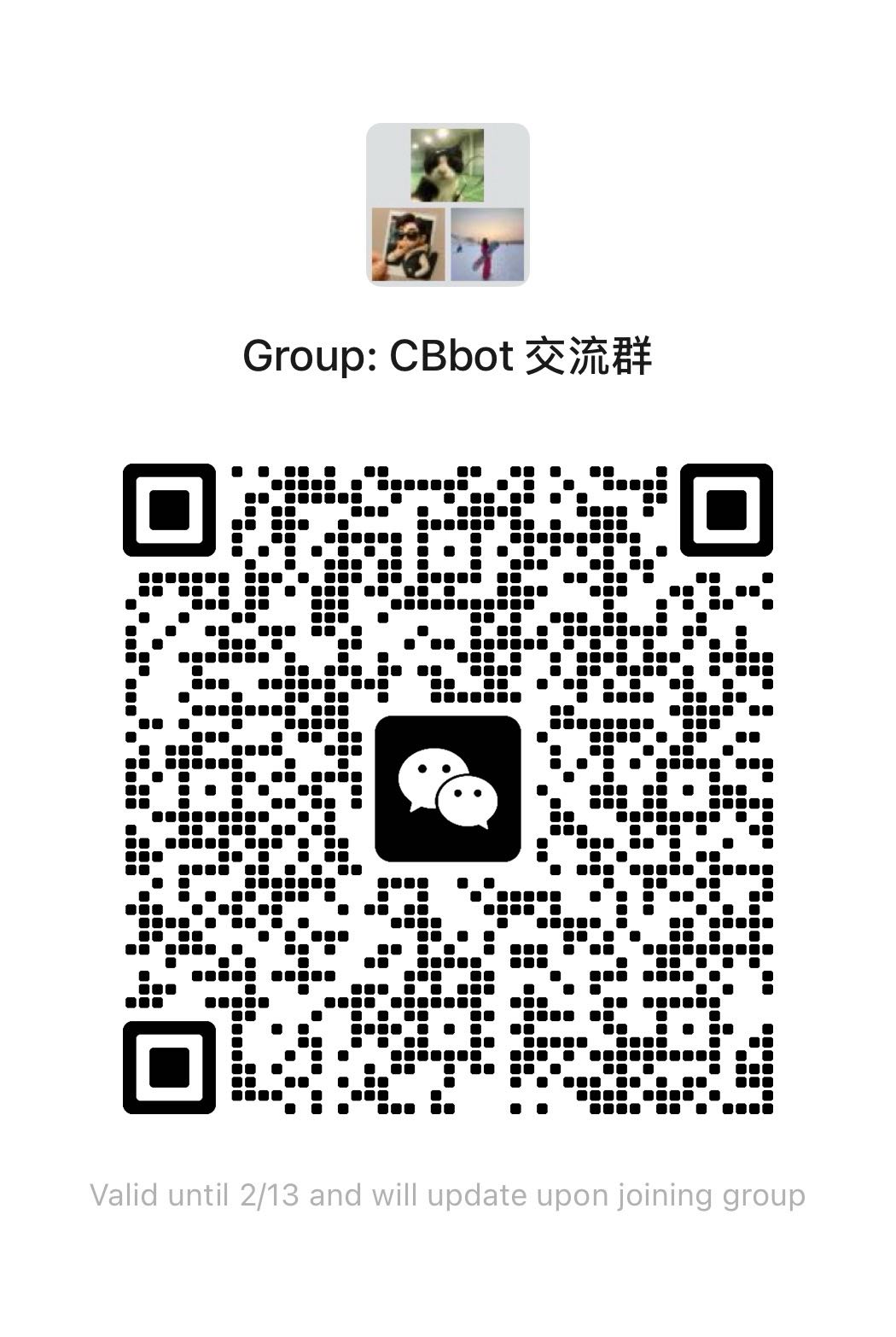
💬 微信群 CBbot 交流群 |
🚀 Get help, share ideas, and connect with other developers!
💡 获得帮助、分享想法、与其他开发者交流!
- Pay-as-you-go based on usage
- Linked via CBbot Key
- Costs: API calls + model usage
Monitor usage at CodeBanana dashboard
This project is licensed under the MIT License - see the LICENSE file for details.
Happy Coding! 🎉
Made with ❤️ by the CodeBanana team