How to use WebDocumentPane
Available since WebLaF v1.28 release, updated for WebLaF v1.2.12 release
Requires weblaf-ui module and Java 6 update 30 or any later to run
WebDocumentPane is a complex component that is based on multiple WebTabbedPane and WebSplitPane components which are created and managed based on provided DocumentDatas (or any extensions of DocumentData). Each DocumentData provided into WebDocumentPane will be represented by a single tab in one of WebTabbedPanes currently used by WebDocumentPane. Depending on WebDocumentPane settings user might be able to rearrange or close tabs at will.
There are just a few objects used within WebDocumentPane you might want to be familiar with:
-
DocumentData- custom document data -
PaneData- object referring existingWebTabbedPaneand containing a list of documents opened inside -
SplitData- object referring existingWebSplitPaneand containing left and rightStructureDataelements -
StructureData- abstract interface implemented byPaneDataandSplitData
WebDocumentPane uses those objects to build a tree-like components structure internally.
DocumentData class simply contains all base settings you might want to provide for each document tab such as:
-
id- this is what simple tabbed pane lacking in most of times -
icon- icon which set directly onto the document tab -
title- document title or language key which is set directly onto the document tab -
foreground- custom document tab foreground -
background- custom document tab and tab content background -
closable- whether this document tab can be closed or not -
component- document tab content
Since WebDocumentPane, PaneData and SplitData classes have DocumentData generic - you can use your custom DocumentData type. That can be useful for providing additional settings you want to store within each DocumentData.
It is less likely that you will have to use this class except the cases when you need to navigate the actual structure of WebDocumentPane splits. PaneData contains reference to WebTabbedPane used to display document tabs and references to all opened documents.
It also has a set of methods which can be called to force an additional split or merge. These methods are used in the document tab menu though and can be easily accessed from the UI.
It is not likely that you will have to use this class as well for the same reasons as the PaneData. SplitData contains references to actual WebSplitPane component and two components contained inside of it. Those can be either another SplitData or PaneData. This is basically how a tree-like structure is built.
Current root of WebDocumentPane can always be requested from WebDocumentPane itself:
public StructureData getStructureRoot ()This is a simple interface used to reference either PaneData or SplitData in some cases. It also contains some default methods all implementing classes should have.
Usage of WebDocumentPane is pretty simple and straightforward - you should simply create its new instance and then just open/close/modify documents you want to see inside of it.
Here is a brief example:
public class DocumentPaneTest
{
    public static void main ( final String[] args )
    {
        SwingUtilities.invokeLater ( new Runnable ()
        {
            @Override
            public void run ()
            {
                WebLookAndFeel.install ();

                final WebDocumentPane pane = new WebDocumentPane ();

                final ImageIcon icon = WebLookAndFeel.getIcon ( 16 );
                pane.openDocument ( new DocumentData ( "some.doc", icon, "Test1", Color.WHITE, new WebLabel () ) );
                pane.openDocument ( new DocumentData ( "other.doc", icon, "Test2", null, new WebLabel () ) );
                pane.openDocument ( new DocumentData ( "total.doc", icon, "Test3", null, new WebLabel () ) );
                pane.openDocument ( new DocumentData ( "less.doc", icon, "Test4", null, new WebLabel () ) );

                pane.setPreferredSize ( new Dimension ( 500, 400 ) );
                TestFrame.show ( pane );
            }
        } );
    }
}
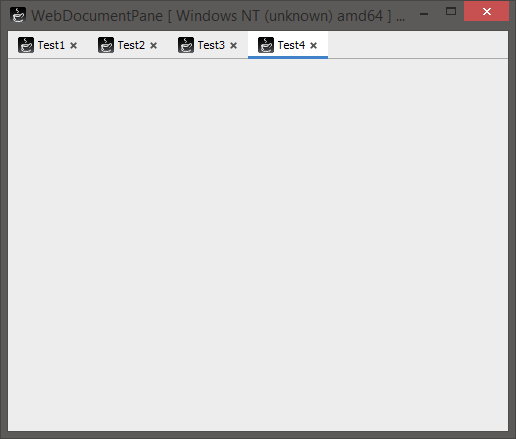
And the result:
WebDocumentPane behavior can be easily modified to fit your needs, here are some of the base settings:
pane.setCloseable ( false );
pane.setSplitEnabled ( false );
pane.setTabMenuEnabled ( false );
pane.setDragEnabled ( true );
pane.setDragBetweenPanesEnabled ( false );
Documents opened within WebDocumentPane can be referenced both directly and through their ID:
pane.setSelected ( "my.document.id" );
pane.getPane ( "my.document.id" ).activate ();
pane.closeDocument ( myDocument );
You can also customize tabbed panes:
pane.setTabbedPaneCustomizer ( new Customizer<WebTabbedPane> ()
{
    @Override
    public void customize ( @NotNull final WebTabbedPane tabbedPane )
    {
        // Customize it here
    }
} );
Here are some other handy methods:
final List<DocumentData> documents = pane.getDocuments ();
final DocumentData document = pane.getSelectedDocument ();
final int documentsCount = pane.getDocumentsCount ();
final List<PaneData> allPanes = pane.getAllPanes ();
final PaneData activePane = pane.getActivePane ();final List<SplitData> allSplitPanes = pane.getAllSplitPanes ();There is also a document listener available:
pane.addDocumentListener ( new DocumentListener ()
{
    @Override
    public void opened ( final DocumentData document, final PaneData pane, final int index )
    {
        // Document opened
    }

    @Override
    public void selected ( final DocumentData document, final PaneData pane, final int index )
    {
        // Document selected
    }

    @Override
    public boolean closing ( final DocumentData document, final PaneData pane, final int index )
    {
        // Document is closing, return false to abort
        return false;
    }

    @Override
    public void closed ( final DocumentData document, final PaneData pane, final int index )
    {
        // Document was closed
    }
} );There are several options to save/restore WebDocumentPane state. Under state I mean opened documents position inside the WebDocumentPane components structure and some other visual settings.
You can retrieve/set state manually:
final DocumentPaneState state = pane.getDocumentPaneState ();pane.setDocumentPaneState ( state );Or simply register your WebDocumentPane in SettingsManager, for example:
pane.registerSettings ( "DocumentPaneTest", "state" );This will save your WebDocumentPane state in a separate settings group automatically on changes (unless that option - autosave on changes - is switched off). You can also force settings save action:
pane.saveSettings ();Though that will work only if you have already registered your WebDocumentPane in SettingsManager.
One more important thing about this feature - in case you are restoring the state - you might want to have all documents be already opened at that moment or setup a document provider in WebDocumentPane, otherwise state won't be able to restore documents properly and you might not see some of them opened.
Here is an example of how you can setup a document provider:
pane.setDocumentsProvider ( new Function<String, DocumentData> ()
{
    @Override
    public DocumentData apply ( final String documentId )
    {
        return new DocumentData ( documentId, ... );
    }
} );
Basically this will provide WebDocumentPane with any missing DocumentData when you will try to restore state.
Another valid use for document provider is streamlining document open operation. You can call openDocument ( String ) on WebDocumentPane at any time to open DocumentData with the specified identifier if you have added a document provider.