
Next-generation Windows-native HDR Screenshot Tool
16bit full-pipeline capture · Region screenshot · AVIF / JPEG XL encoding · Color management



Windows' built-in screenshot tool (Snipping Tool, Win+Shift+S) can only capture 8-bit SDR images even on HDR displays — the system compositor compresses 16-bit HDR frames on output, highlights are clipped, the color gamut is narrowed, resulting in screenshots that appear washed out, overexposed, or have incorrect color mapping. Common third-party screenshot tools are likewise limited by the traditional GDI/BitBlt capture pipeline and cannot perceive HDR data.
Starshot directly captures the raw R16G16B16A16Float scRGB framebuffer from the DXGI layer, fully preserving HDR luminance information (up to thousands of nits). Screenshots are encoded as 16bit HDR AVIF or JPEG XL with BT.2020 color space and PQ transfer function metadata. It also provides SDR display auto-degradation, region screenshot, multi-format batch conversion, and everything else you'd expect from a general-purpose screenshot tool.
Key Features
- 🎯 Full HDR Pipeline — Lossless capture, encoding, and color management in 16bit throughout. No lossy tone mapping.
- 🧠 Smart HDR/SDR Detection — Automatically distinguishes genuine HDR content from SDR content wrapped in an HDR format, avoiding wasted space.
- ✂️ Region Screenshot — Frozen-frame multi-monitor overlay with window detection and magnifier for pixel-precise selection.
- 📋 Native Clipboard — Win32 native API writes directly to the clipboard for reliable pasting.
- 🗂️ Multi-format Support — AVIF / JPEG XL / UHDR JPEG / PNG, including a batch conversion tool.
- 🖥️ Multi-Monitor — Region screenshots can span across monitors, composing captures that cross screen boundaries.
- 🔄 Auto Update Check — Built-in update check; on a new release it streams the download, extracts, and replaces in place.
|
Other Tools 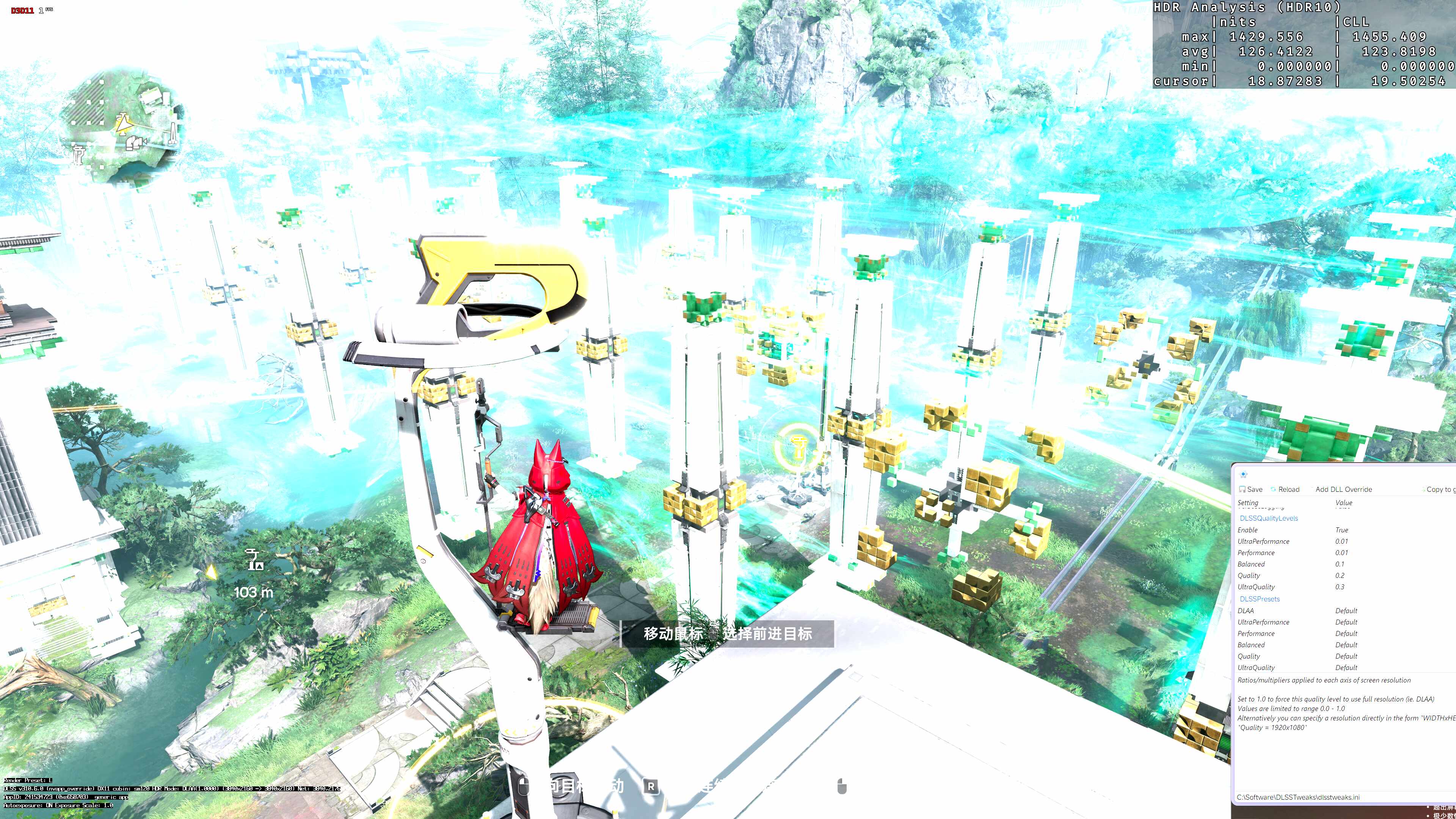
|
Starshot (Ultra HDR JPEG) 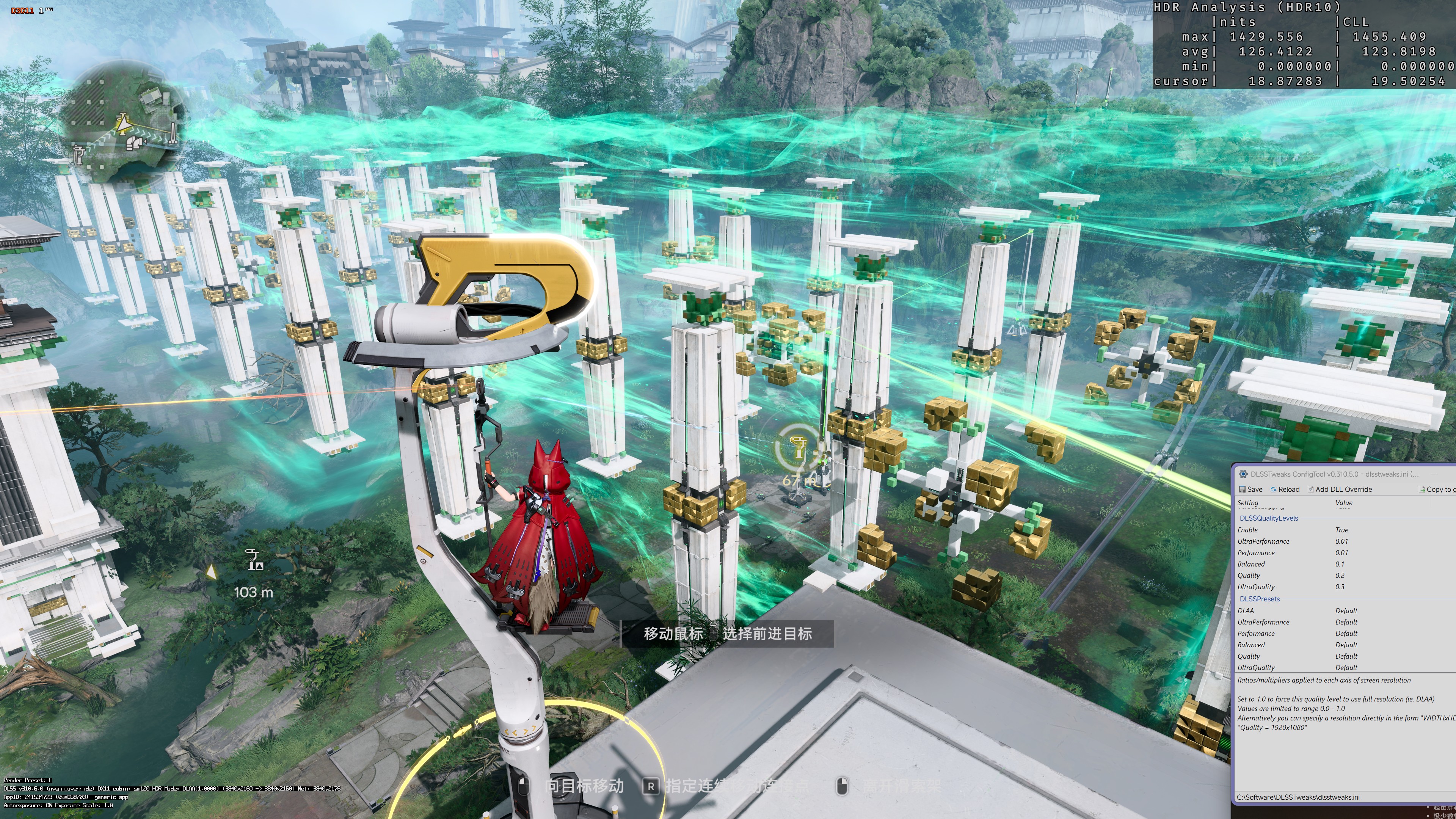
|
Note
GitHub does not support AVIF rendering, so the comparison above uses Ultra HDR JPEG. The original AVIF image can be viewed here.
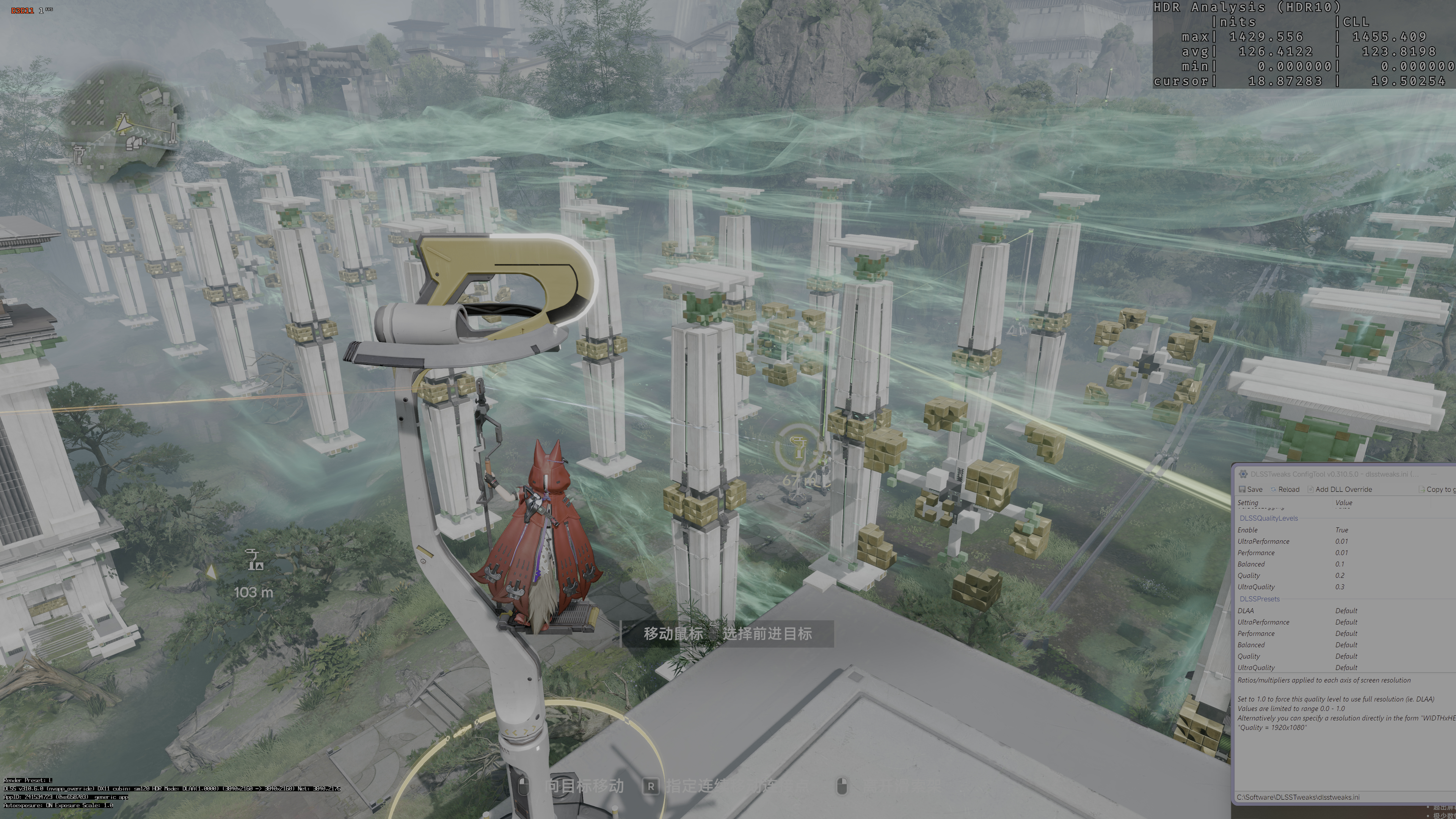
On SDR displays, Starshot automatically falls back to the standard SDR screenshot path and works as a general-purpose screenshot tool. On HDR displays, it is one of the few desktop screenshot solutions that can fully preserve HDR data.
- Windows 10 / 11; Windows 11 recommended for the best experience
- x64 / arm64 architecture
- An HDR display is required for HDR screenshot capture (automatically falls back to SDR path on SDR displays)
Download the archive from Releases, extract it, and run Starshot.exe from the root directory. No installation needed — just extract and run.

| Action | Default Shortcut |
|---|---|
| Full-screen screenshot | Alt+W |
| Region screenshot (save file + copy to clipboard after selection) | Alt+Q |
| Region copy only (copy to clipboard only, no file saved) | Alt+A |
All shortcuts can be customized in Settings.
Most screenshot tools can only capture 8bit SDR even on HDR displays — the system compositor's 16bit floating-point scRGB output gets crushed into SDR with clipped highlights and narrowed gamut. Starshot captures the raw HDR framebuffer:
- HDR Capture: When the display reports HDR, requests
R16G16B16A16Floatpixel format to obtain the full scRGB floating-point data (luminance up to thousands of nits). - HDR Save: 16bit AVIF / JPEG XL with BT.2020 color space + PQ transfer function. Highlights are not clipped, gamut is not narrowed.
- maxCLL Calculation: Win2D histogram effect computes the maximum content light level, used to distinguish genuine HDR content from SDR content in an HDR container.
- Color Management: Reads the display ICC profile to extract real gamut primaries, writes cICP/ICC chunks into the output file. HDR is always BT.2020; for SDR it defaults to off (BT.709) and can optionally be enabled (reads the ICC real gamut) — enabling first probes the monitor's color configuration, and cannot be turned on if it's invalid (e.g. VMs, devices without an ICC profile).
On an HDR display, the desktop and SDR applications are also captured in the HDR format (R16G16B16A16Float), but the actual content luminance is at SDR levels. Starshot handles this as follows:
- Default: Still saved in HDR format (16bit), no 8bit tone mapping, avoiding degradation and color shifts.
- Delete HDR for SDR Content (optional): When enabled, content below the maxCLL threshold is automatically converted to SDR (using the user's configured SDR storage format) and the HDR file is deleted to save space.
HDR screenshots can simultaneously produce an Ultra HDR JPEG (SDR base image + HDR gain map), which displays correctly even in software that doesn't support HDR. Encoded via Starward.Codec's UhdrEncoder.
The region screenshot overlay intentionally tone-maps HDR frames to SDR for display — because WinUI's CanvasControl uses an SDR swap chain, and raw scRGB floating-point output would appear discolored or darkened. The saved file is full HDR, untouched; highlight compression during selection only affects the preview, never the output.
| Mode | Target | Clipboard Format | File Saved |
|---|---|---|---|
| Full-screen | Entire monitor (foreground window / cursor screen, switchable) | CF_HDROP (file) | Yes |
| Region | Marquee selection / click-to-window | CF_DIB (BGRA bitmap) | Yes |
| Region Copy Only | Marquee selection / click-to-window | CF_DIB (BGRA bitmap) | No |
All three modes share the same HDR detection, color management, filename templates, save pipeline, and info toast.
- Frozen Frame: Captures all monitors into a single stitched bitmap first; the overlay displays this frozen frame so the image stays still during selection. The overlay itself is excluded from the screenshot.
- Multi-Monitor: Covers the entire virtual screen. Selections can span across monitors (brightness stays accurate even on mixed HDR+SDR setups); the magnifier and coordinate box are limited to the cursor's current monitor.
- Window Detection: EnumWindows + DWM cloaked/toolwindow filtering + DWM extended frame bounds (de-shadow) + client-area dual candidate + Z-order selection. Click a window to capture it directly (QuickCrop).
- Magnifier: NearestNeighbor integer-aligned + pixel grid (15×15 pixels, 10px each), making individual pixels clearly distinguishable.
- Animated Marching Ants + Real-time Coordinates: Selection X/Y/W/H + cursor physical coordinates.
- Pixel Precision: Drag marquee +1px; window rectangle +0.
- ESC / Right-click to cancel; Enter to confirm window hover selection.
The WinRT Clipboard.SetContent from unpackaged WinUI apps is unreliable (deferred rendering + flush issues — content often never reaches other applications). Starshot uses Win32 native APIs (OpenClipboard / SetClipboardData) directly:
- Full-screen: CF_HDROP (file drop format) — paste into Explorer or chat apps to get the file directly.
- Region: CF_DIB (BGRA bitmap) — the cropped SDR bitmap from the overlay is placed directly on the clipboard with no file read, no re-encode, no secondary tone mapping.
- Callable from any thread, with 10×20ms retry to handle clipboard contention.
- Flat structure (no subfolders). Defaults to
Pictures\Starshot, customizable. - SDR format (PNG / AVIF / JPEG XL; default PNG) and HDR format (AVIF / JPEG XL; default AVIF) configured separately.
- Quality levels: Medium / High / Lossless.
- XMP metadata (CreatorTool = Starshot).
- Serialized encoding (SemaphoreSlim) to avoid concurrent encoding conflicts.
- Storage Statistics: Settings page shows disk usage for screenshots / thumbnail cache / wallpapers / logs / backups, with refresh and one-click cache cleanup (also cleans up orphaned wallpaper files).
| Format | Bit Depth | HDR Support | Use Case |
|---|---|---|---|
| PNG | 8bit / 16bit | Storable but poor compat | SDR default, lossless |
| AVIF | 8bit / 10bit / 12bit | Full HDR | HDR default, high compression |
| JPEG XL | 8bit / 16bit | Full HDR | HDR alternative, reversible |
| UHDR JPEG | 8bit + gain map | SDR-compatible HDR fallback | HDR bonus output |
Full-screen and region screenshots use independent templates.
| Placeholder | Meaning | Example |
|---|---|---|
{process} |
Process name (no extension) | explorer |
{processPath} |
EXE filename (with extension) | explorer.exe |
{title} |
Window title (trimmed + configurable truncation) | Genshin Impact |
{timestamp} |
Unix timestamp | 1721234567 |
{time} |
yyyyMMdd_HHmmssff | 20260718_14302512 |
{date} |
yyyyMMdd | 20260718 |
{width} {height} |
Image dimensions (px) | 1920 1080 |
{year} {month} {day} {hour} {minute} {second} |
Time components |
Illegal filename characters are uniformly replaced with _.
After a screenshot, a thumbnail + status toast pops up (does not interfere with screenshots — has WDA_EXCLUDEFROMCAPTURE set so other screenshot tools cannot capture this window):
- Processing (spinner animation) / Saved (with open button) / Copied (green checkmark) / Failed
- Multi-shot counter for bursts (e.g., 2/3).
- Composition slide-in / slide-out animations.
- Multi-folder browsing (default screenshot directory + user-added folders).
FileSystemWatcherfor real-time add/delete detection.- Grouped by date, lazy-loaded thumbnails.
- Context menu: Open / Copy File / Copy as JPG / Open in Explorer / Open With / Delete.
- Multi-select + drag-out + batch conversion entry point.
- Zoom (slider / buttons / mouse wheel / double-click to fit), fullscreen mode (F11).
- Previous / Next (arrow keys, mouse wheel, bottom thumbnail strip).
- Drag-and-drop files to open directly.
- Context menu: Copy File / Path / Image, Delete, Open in Explorer, Open With.
- Edit Panel: HDR / SDR / Auto display mode toggle, SDR brightness slider (100–500 nits), image and display info.
- Format Conversion: Export as PNG / AVIF / JPEG XL (SDR display) or UHDR JPEG / AVIF / JPEG XL (HDR display).
- Color Management: Reads display ICC profile and AdvancedColorInfo.
| Conversion Direction | Engine |
|---|---|
| JPG / PNG → AVIF / JXL | avifenc.exe / cjxl.exe (CLI) |
| AVIF / JXL → JPG / PNG | avifdec.exe / djxl.exe (CLI) |
| JXR / WEBP / HEIC etc. → AVIF / JXL | In-process ImageSaver (avifEncoderLite) |
- Custom Wallpaper: Three modes
- Specific Image: Pick an image, always displayed.
- Specific Video: Loops muted; auto-pauses when the main window is hidden.
- Random from Folder: Picks a random image or video from a folder on each launch; an optional "Prefer video" sub-toggle prefers videos when on.
- Lost wallpaper sources are auto-detected, with config cleanup and fallback to no wallpaper + toast notification.
- Accent Color:
- Auto-extract from wallpaper (on by default): Samples the wallpaper's dominant color as the app accent color (HSV saturation boost). For videos, only the first frame is sampled to avoid color flickering.
- Custom Color: Manual color picker overrides auto-extraction.
- Theme: Follow System / Light / Dark.
- Acrylic Effect: In wallpaper mode, choose between frosted-glass backdrop layer or direct wallpaper transparency.
Displays the logo + tagline on startup. Delays 700ms then fades out over 400ms. Only plays on first window open; does not replay when restoring from the system tray.
- Left-click shows the main window; right-click opens a context menu (Show / Exit).
- Closing the main window minimizes to tray (toggleable).
ForceExitmechanism ensures "Exit" from the tray truly exits.
- Registry key
HKCU\Software\Microsoft\Windows\CurrentVersion\Run, pointing to the launcher (rootStarshot.exe). - Optional
--hideflag to start minimized to tray (requires tray to be enabled). - The toggle reads the registry in real time (no cached database): Task Manager disabling only touches StartupApproved without removing the Run entry — the toggle still shows as on.
- On startup, checks whether the exe pointed to by the auto-start entry exists; if not, automatically removes the startup entry and shows a toast.
- Throttled check on startup (≥24h + toggle on) against GitHub Releases latest version, or manual check from the About page.
- Updates prefer chained delta packages (only changed files, a few MB vs ~80MB full package); matches layer by layer from the current version upward, up to 5 layers (adjustable in Settings → Advanced); falls back to the full package if too many versions behind or no match is found.
- Manual full update: The update window's main button dropdown lets you pick "Full update" to skip delta and download the full package directly.
- Both full and delta packages use SharpCompress true streaming extraction (direct network stream, no zip saved to disk), writing each entry directly to the root directory. On failure, the previous state is restored. On success, restarts the launcher with
--cleanto remove old versions. - Only checks CI/CD releases (reads
version.iniversion number). Local builds (noversion.ini,AppVersion = Local) are treated as 0.0.0, so they can update to any CI/CD release. - Version case convention: the GitHub tag, zip name, and
app-{version}/dir are all lowercase (e.g.0.3.1-preview);version.inikeeps the original case (0.3.1-Preview, shown on the About page), and the launcher lowercases it when locating the dir.
- The region screenshot overlay displays HDR frames as SDR (WinUI CanvasControl uses an SDR swap chain); saved files are unaffected.
- Custom wallpapers use
UniformToFillto cover the window, but WinUI's crop is not centered — it is currently top-left aligned. For example, a narrow (portrait) wallpaper in a wide window will only show the upper portion (cropped from the top rather than centered). - When the region screenshot overlay first opens, the cursor remains the default system shape. You need to move the mouse once for the crosshair cursor to appear (WinUI
ProtectedCursordoes not take immediate effect on a stationary pointer already over the element — moving once triggers a pointer event, after which it works normally). - On mixed-DPI dual monitors (e.g. primary 150%, secondary 125%), region capture's window detection (hover highlight) coordinates are off on the secondary monitor; free-form drag selection and saving are unaffected. Workaround: use the same scale on both monitors.
- When hovering certain windows in region capture, the coordinate box may show negative values (e.g.
-11,-11). This is the window extended frame bounds reported by Windows DWM (including off-screen shadow/border); Starshot reads it as-is — the off-screen part is invisible and does not affect the screenshot. - Video wallpaper may fail to initialize on startup due to MF media pipeline contention (intermittent, not fully resolved); during load a random image from the video's directory is shown as a placeholder, and kept if the video gets stuck — no black screen.
Root/
  Starshot.exe            ← C++ launcher (reads version.ini to decide which app dir to launch)
  StarshotDatabase.db     ← SQLite settings database
  version.ini             ← Version number (CI/CD release only; absent in local builds)
  app-{version}/          ← Main program directory (versioned for CI/CD release, app/ for local builds)
    Starshot.exe          ← Main program (WinUI 3 / .NET 10)
    *.dll                 ← Dependencies
    avifenc.exe etc.      ← Codec tools (from Starward.Codec NuGet)
  backup/                 ← Database backups
%LOCALAPPDATA%/Starshot/  (default, configurable)
  log/                    ← Logs
  bg/                     ← Wallpapers
  thumb/                  ← Thumbnail cache
Native C++ program (~400KB). Reads version.ini to decide whether to launch app-{version}/Starshot.exe (if no version.ini, falls back to app/ for debug/local builds). When launched with --clean (or --clean=<pid>), iterates app-* directories and deletes non-current versions.
--hide: When auto-starting, MainWindow is not created. Global hotkeys are registered against SystemTrayWindow's hwnd (the tray window serves as the persistent host).- H.NotifyIcon.WinUI's TaskbarIcon requires one Window.Show to trigger
Loadedbefore the icon registers. During initialization,WS_EX_LAYERED + alpha=0makes the window complete this show transparently, avoiding visible flash on--hideauto-start. - The C++ launcher re-joins
argv[1..]to pass through command-line arguments.
| Layer | Technology |
|---|---|
| UI Framework | WinUI 3 (Windows App SDK 1.8) |
| Runtime | .NET 10 |
| Graphics | Win2D 1.3 (D3D11 interop, HDR tone mapping, histogram effects) |
| Codecs | Starward.Codec NuGet (libavif / libjxl / UltraHDR P/Invoke wrapper) |
| Data Storage | SQLite + Dapper |
| Logging | Serilog |
| System Tray | H.NotifyIcon.WinUI |
| Thumbnails | Scighost.WinUI ImageEx + custom CachedImage |
| Region Overlay | Win2D CanvasControl (frozen-frame rendering + selection drawing) |
| Clipboard | Win32 native API (OpenClipboard / SetClipboardData) |
| Launcher | Native C++ (v145 toolset, static CRT) |
Interlocked.CompareExchange global guard. Full-screen, region, and copy-only modes share a single _isCapturing flag — rapid key repeats or consecutive hotkey presses will not trigger multiple captures.
| Debug | Release | |
|---|---|---|
| .NET Runtime | Framework-dependent (not self-contained) | Self-contained |
| Native Libs | win-x64 only (RuntimeIdentifier, laid flat in output root) | Same as Debug |
| Trim | No | Partial |
| ReadyToRun | No | Yes |
| Extra Cleanup | — | Deletes DirectML.dll / onnxruntime.dll / NpuDetect (WinML/AI components from Windows App SDK, unused) |
| Output Path | build/app/ |
build/release/app/ + launcher copied to build/release/ |
| Size | ~80MB | Smaller (Trim + AI lib removal) |
- Visual Studio 2022 / 2026 (with C++ Desktop Development and .NET Desktop Development)
- .NET 10 SDK
- Windows SDK 10.0.26100
git clone https://github.com/loliri/Starshot
cd Starshot

# === Debug ===
# Build the main program (outputs to build/app/)
dotnet build src/Starshot/Starshot.csproj -c Debug -p:Platform=x64

# Build the launcher (outputs to build/Starshot.exe; requires VS MSBuild)
"C:\Program Files\Microsoft Visual Studio\<version>\Community\MSBuild\Current\Bin\MSBuild.exe" src/Starshot.Launcher/Starshot.Launcher.vcxproj -p:Configuration=Release -p:Platform=x64

# Run: build/Starshot.exe (launcher) or build/app/Starshot.exe (main program)

# === Release Publish ===
# 1. Build the launcher first (outputs to build/Starshot.exe)
"C:\Program Files\Microsoft Visual Studio\<version>\Community\MSBuild\Current\Bin\MSBuild.exe" src/Starshot.Launcher/Starshot.Launcher.vcxproj -p:Configuration=Release -p:Platform=x64

# 2. Publish the main program (outputs to build/release/app/, auto-copies launcher to build/release/Starshot.exe + removes AI libs)
dotnet publish src/Starshot/Starshot.csproj -c Release -p:Platform=x64

# Resulting directory structure:
# build/release/
#   Starshot.exe        ← Launcher (auto-copied)
#   app/
#     Starshot.exe      ← Main program (self-contained + trim + R2R)
# *.dll / avifenc.exe etc.Translations are based on .resx resource files under src/Starshot.Language/ (Lang.resx is the English default; Lang.zh-CN.resx etc. are per-locale). You also need to add an option to the language ComboBox in GeneralSetting + its LanguageIndex mapping.
Translation contributions welcome: fork the repo → copy Lang.resx to Lang.{your-locale}.resx → translate → open a PR.
This project is under active development. Features may change at any time — stay tuned for updates!
Contributions welcome:
- Found a bug? Submit an Issue
- Have a feature suggestion? Start a Discussion
- Want to contribute code? Submit a Pull Request
Screenshot library (home page) images show incorrect / garbled colors
This is typically a Windows system image codec issue (AVIF / HEIF / JPEG XL extensions), not a Starshot bug. Try searching for and updating the following in the Microsoft Store:
- AV1 Video Extension
- HEIF Image Extensions
- HEVC Video Extensions
- Webp Image Extensions
Restart Starshot after updating. If the issue persists, please submit an Issue with a screenshot attached.
Screenshot save crashes (VMs / some monitors)
These environments (VMs, devices without an ICC profile) report invalid monitor color configurations; with color management on, the encoder (lcms2) crashes processing the malformed gamut data. Keep color management off (the default) to avoid this; HDR screenshots are unaffected.
Screenshot colors look different from what I see on screen
If you're using an HDR display, make sure the Windows HDR toggle is enabled (Settings → System → Display → HDR). HDR screenshot functionality only works in HDR mode.
Can't paste from clipboard after taking a screenshot
Starshot uses the Win32 native clipboard API for writing, which is theoretically more reliable than WinRT. If pasting still fails, the target application may not support the corresponding clipboard format (CF_HDROP for files / CF_DIB for bitmaps). Try pasting into Explorer (files) or Paint (bitmaps) to verify.
- Starward — Screenshot core, codec engine, and window framework all originate from Starward, developed by @Scighost.
- ShareX — Reference for the region screenshot overlay's window detection and interaction design.
And all the third-party libraries:
- CommunityToolkit — MVVM framework + WinUI controls (Segmented / Behaviors / Helpers)
- SharpCompress — Streaming decompression
- Dapper — Lightweight SQLite ORM
- H.NotifyIcon.WinUI — System tray
- Vanara.PInvoke — Win32 API wrappers (DwmApi / Ole / Shell32)
- ComputeSharp.D2D1 — GPU compute effects
- Serilog — Structured logging
MIT