Getting started
- Download the latest version from Releases
- Extract files and run LiveAppsOverlay.exe
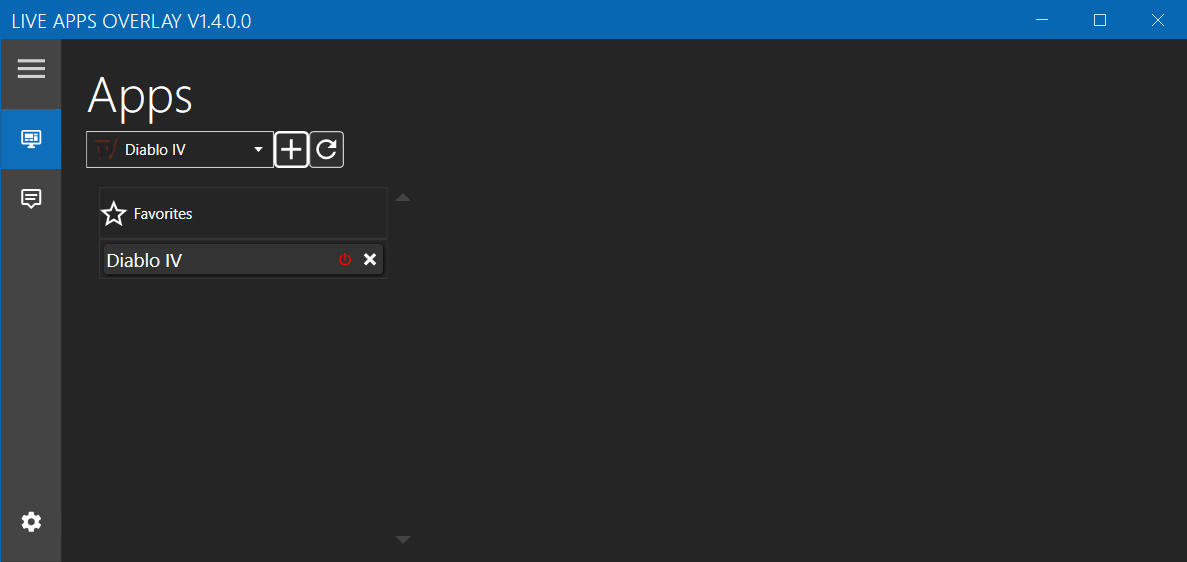
First select the app you want as overlay and click the + button to add it to your favorites.
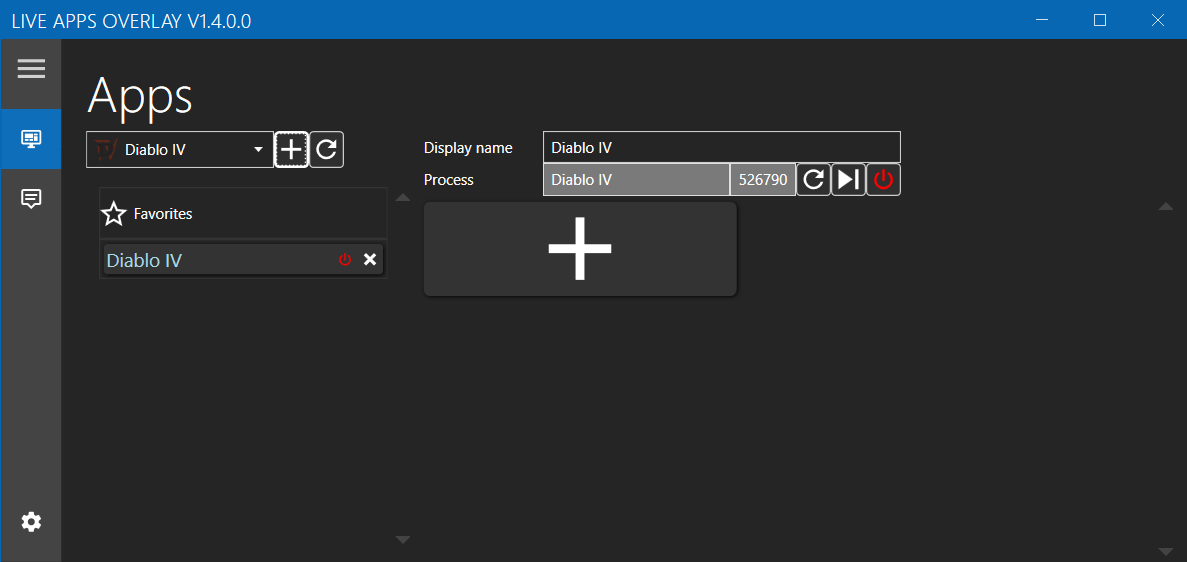
Select one of the apps from favorites to start creating an overlay. Click the + button and enter a name for the thumbnail. You can add as many thumbnails as you want for an overlay.
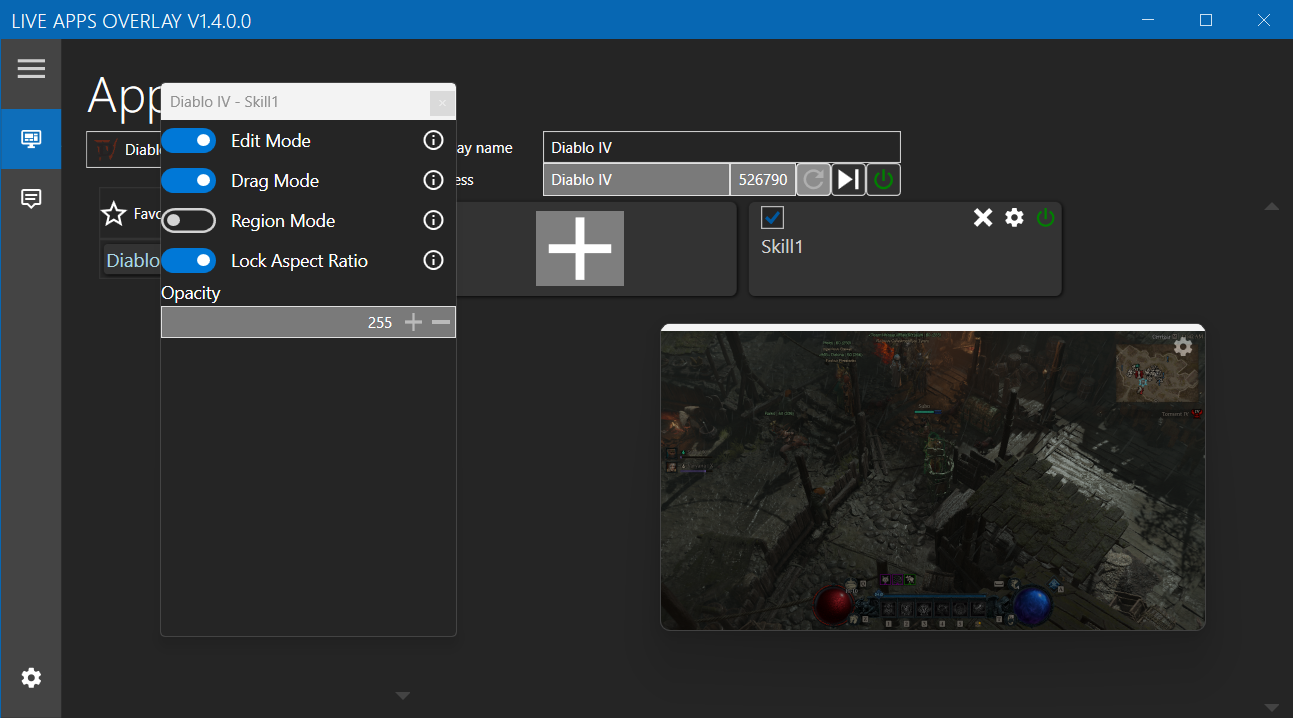
You will now see two new windows. A config window and a thumbnail that is part of the overlay.
Use Drag Mode to move the thumbnail around or Region Mode if you want to modify the thumbnail to only view a part of it.
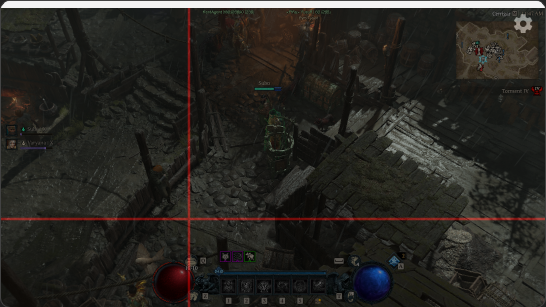
With Region Mode enabled the thumbnail will show guide lines to create a region. If you make a mistake you can right-click the thumbnail and press reset.
When done you can use the config window to turn off edit mode. This makes the thumbnail click-through so it does not interfere with other applications. You can also configure a hotkey to toggle edit mode on/off.