
 Catppuccin for JupyterLab



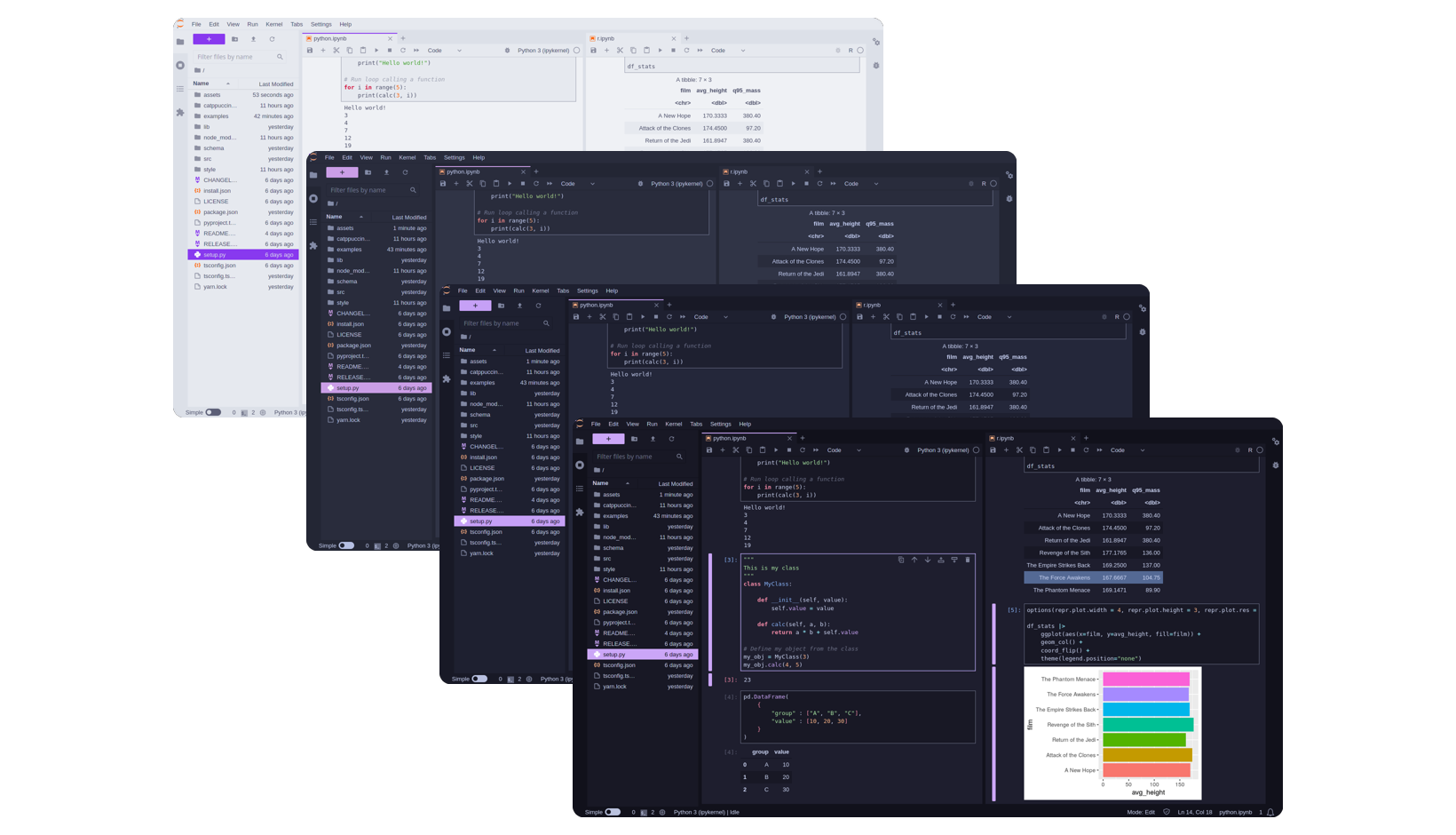
🌻 Latte
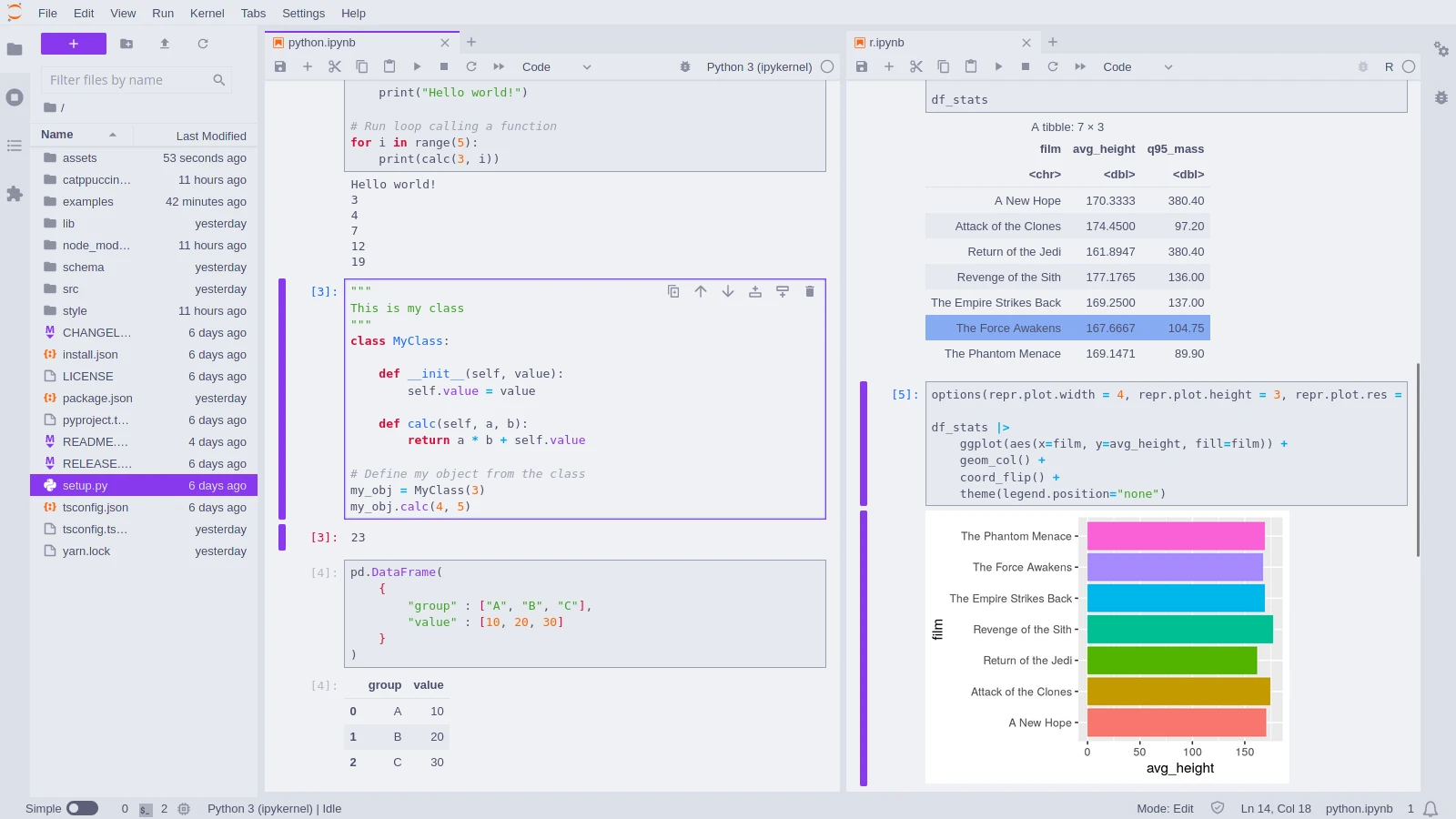
🪴 Frappé
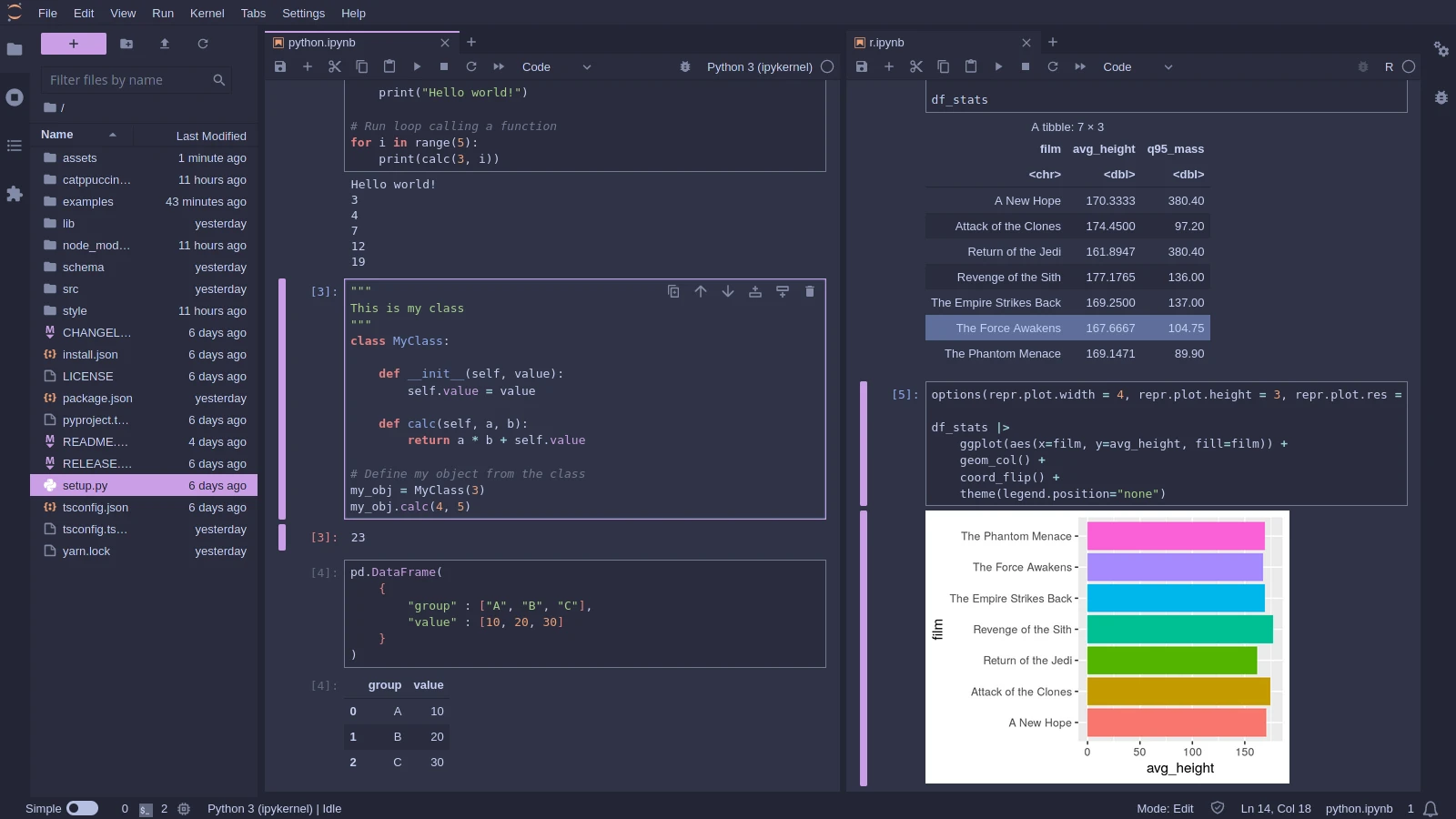
🌺 Macchiato
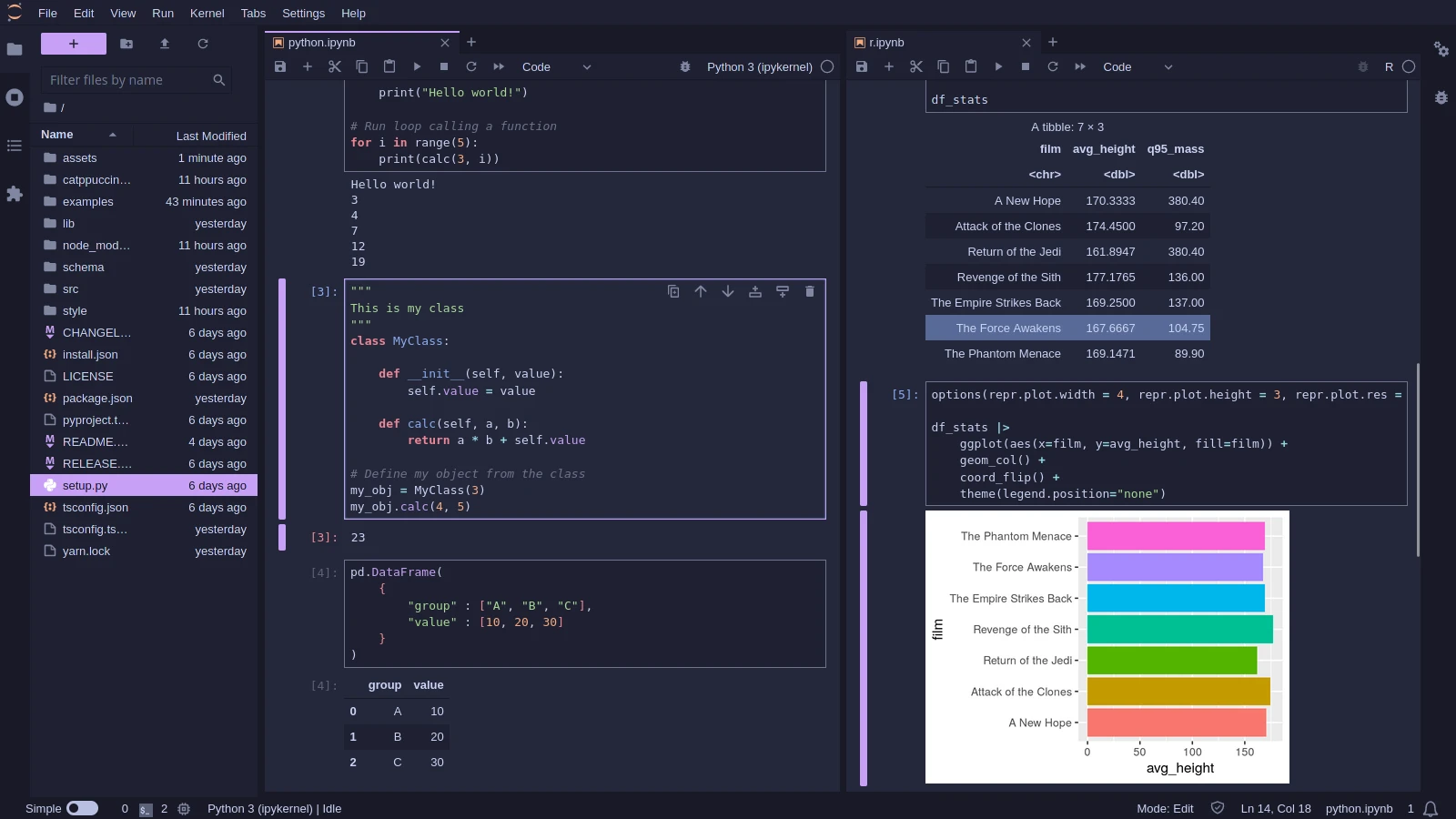
🌿 Mocha
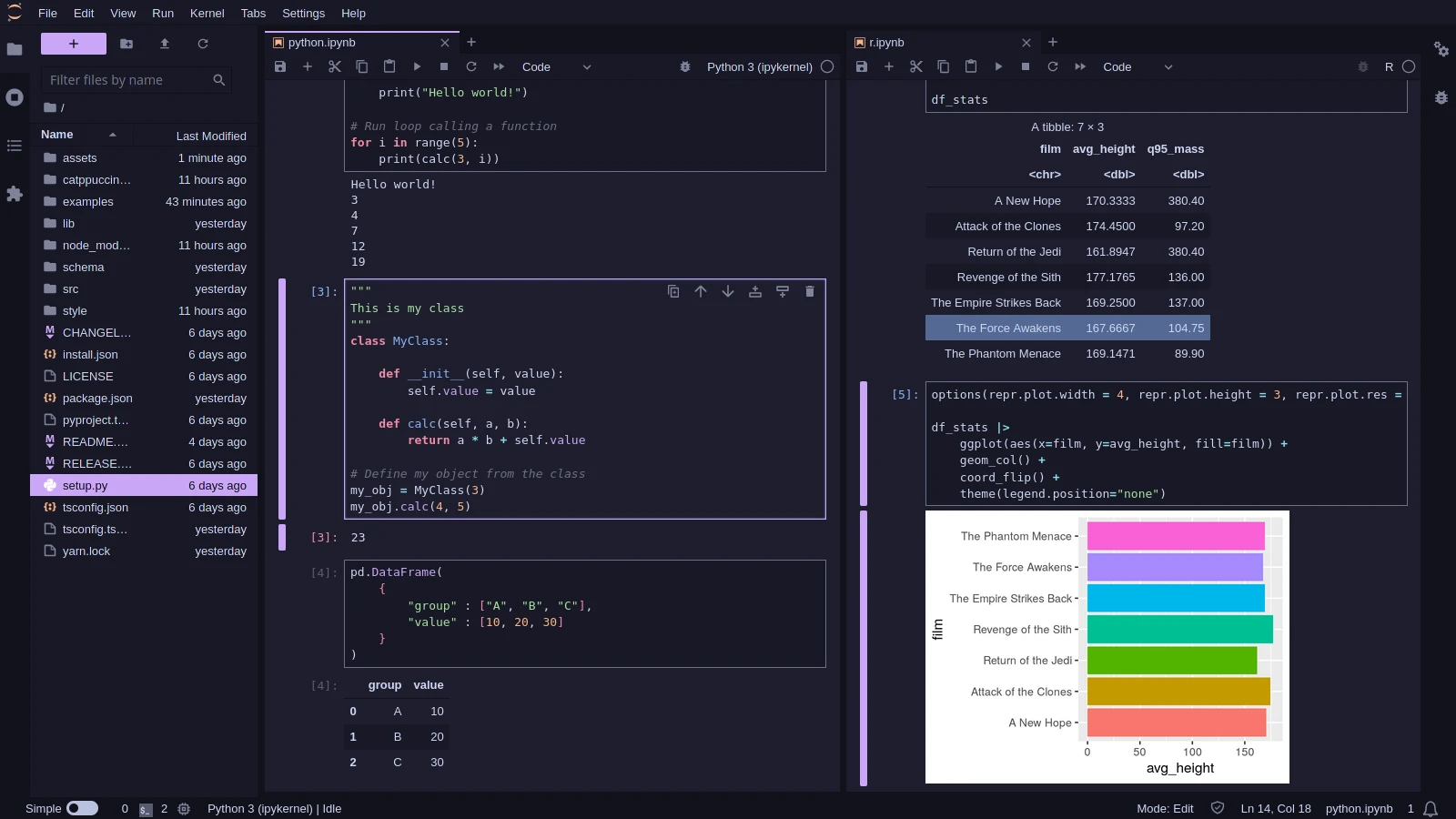
- Install the JupyterLab extension using
piporconda:pip install catppuccin-jupyterlaborconda install -c conda-forge catppuccin-jupyterlab.
- Start/restart JupyterLab (
jupyter lab). If it is already opened, you can reload it by executing "Reset Application State" in the Command Palette (Ctrl + Shift + C). - Go to the
Settings > Thememenu option and choose the desired flavor.
It supports both JupyterLab v3 and v4.
It is possible to choose any of the Catppucin colors as your "brand" color. The default is mauve, but you can choose your favorite to make it your way!
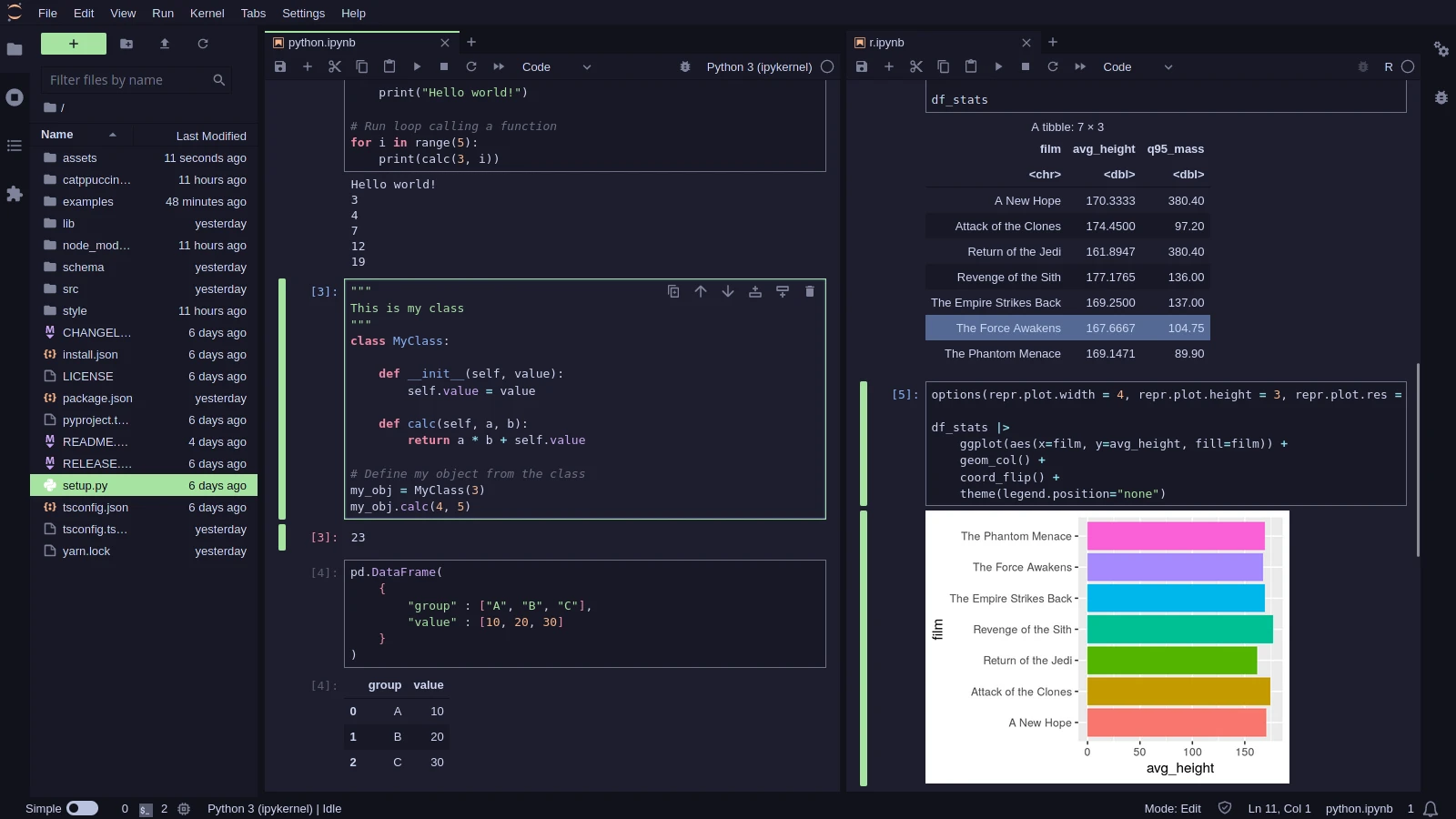
You can specify the colors by going to the Settings > Settings Editor (or Ctrl + ,), going to the Theme - Catppuccin section, then choosing your desired color in the lists of the dropdown menu.
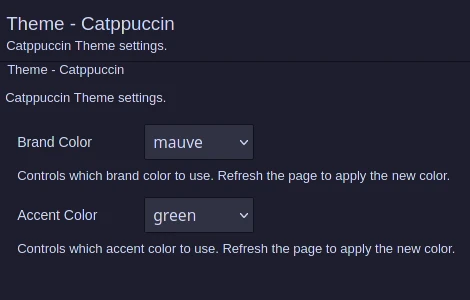
Alternatively, you can specify the json with the settings:
{
    "brandColor": "mauve",
    "accentColor": "green"
}
Note
Besides the "brand" color it is also possible to set the "accent" color (default is green), but it rarely appears in the JupyterLab interface.

Copyright © 2021-present Catppuccin Org