Manual Setup
This page details the steps required for a manual setup if you choose not to use Terraform
Ensure you have the AWS PowerShell cmdlets installed and configured.
- Create a bucket to house the uploads (no special policy needs to be set).
- Create a bucket to house the website that interfaces with the API (setting the policy to allow it to serve as a website).
- See
Permissionsbelow, replacing the bucket names with the bucket you created (saving the API & secret key you create for the user)
- As per the AWS Getting Started Guide
- Give the
EphemeraLambdarole permission to read the key
git clone https://github.com/Sam-Martin/Ephemera.git- Generate an encrypted version of the Secret Key you created earlier using the output from
aws kms encrypt --key-id my-key-id --plaintext "SecretKey" --query CiphertextBlob --output textor this PowerShell. - Edit
Ephemera\lambda\common\ephemera-config.jsto reflect thebucketName,bucketRegion,accessKey, andencryptedSecretyou created earlier.
cd .\Ephemera- Execute the below replacing the ARN with the ARN of your equivalent role
function ZipFiles
{
    param( $zipfilename, $sourcedir )
    Add-Type -Assembly System.IO.Compression.FileSystem
    $compressionLevel = [System.IO.Compression.CompressionLevel]::Optimal
    [System.IO.Compression.ZipFile]::CreateFromDirectory($sourcedir,
        $zipfilename, $compressionLevel, $true)
}
$repoDir = Get-Location;
$LambdaARN = "arn:aws:iam::080863329876:role/LambdaS3ImageUpload";
remove-item $repoDir\ephemera.zip -Force -ErrorAction Silent
zipfiles -zipfilename $repoDir\ephemera.zip -sourcedir D:\Dropbox\Dropbox\code\sites\password-dissemination\lambda\

@('ephemera-getsignedurl','ephemera-addtextsecret', 'ephemera-getsecret') |% {Remove-LMFunction -FunctionName $_ -Force}
Publish-LMFunction -FunctionName ephemera-getsignedurl -FunctionZip $repoDir\ephemera.zip -role $LambdaARN -Runtime "nodejs" -Handler "lambda/ephemera-getsignedurl/ephemera-getsignedurl.handler"
Publish-LMFunction -FunctionName ephemera-addtextsecret -FunctionZip $repoDir\ephemera.zip -role $LambdaARN -Runtime "nodejs" -Handler "lambda/ephemera-addtextsecret/ephemera-addtextsecret.handler"
Publish-LMFunction -FunctionName ephemera-getsecret -FunctionZip $repoDir\ephemera.zip -role $lambdaARN -Runtime "nodejs" -Handler "lambda/ephemera-getsecret/ephemera-getsecret.handler"
- Install Maven
cd ..git clone https://github.com/awslabs/aws-apigateway-swagger-importer.gitcd .\aws-apigateway-swagger-importer\mvn assembly:assembly- Edit
Ephemera\api-gateway\ephemera-swagger-spec.jsonand replace the arn incredentialswith the ARN of the role you created tha thas permission to execute the lambda functions. .\aws-api-import.cmd -c ..\Ephemera\api-gateway\ephemera-swagger-spec.json
- Edit
Epherema/frontend/index.htmland replaceaction="https://ephemera-upload.s3.amazonaws.com/"with your s3 bucket for private uploads - Edit
Ephemera/frontend/js/main.jsand replacevar apiUrl = 'https://licotqtmvg.execute-api.eu-west-1.amazonaws.com/staging/v1';with the api URL of the API Gateway Staging created by the Swagger Importer. (Hint: you can find this in the AWS Console by browsing to "Stages" under the API Gateway section of the AWS console in the region you set as default.) - Upload the contents of
Ephemera\frontendto the S3 bucket you setup to work as a website
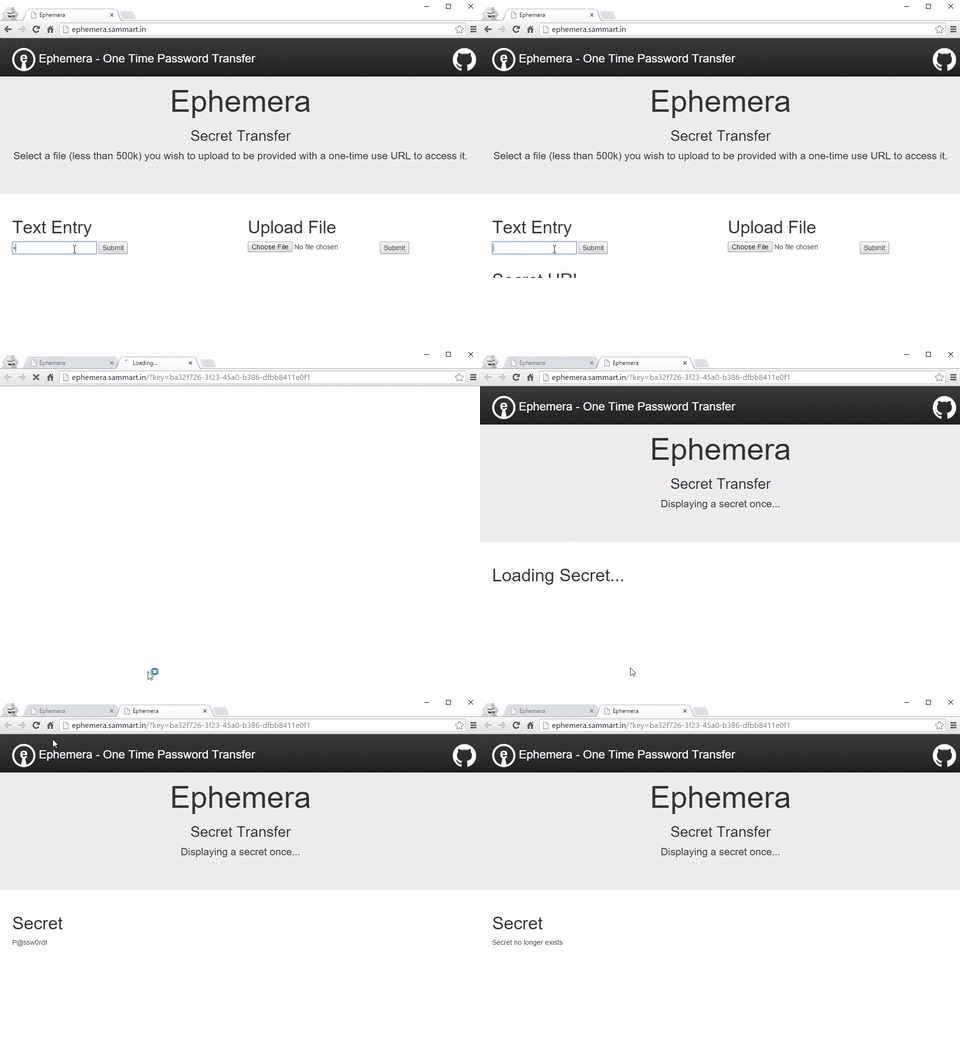
- Browse your website bucket's URL and try uploading a secret!
This IAM user has their access key encrypted using KMS in order that they can sign S3 upload policies (which can't be done with roles).
{
    "Version": "2012-10-17",
    "Statement": [
        {
            "Sid": "Stmt1440938489000",
            "Effect": "Allow",
            "Action": [
                "s3:PutObject*"
            ],
            "Resource": [
                "arn:aws:s3:::ephemera-upload",
                "arn:aws:s3:::ephemera-upload/*"
            ]
        }
    ]
}
This IAM role is the role under which the lambda functions execute
{
    "Version": "2012-10-17",
    "Statement": [
        {
            "Sid": "Stmt1440938489000",
            "Effect": "Allow",
            "Action": [
                "s3:PutObject*",
                "s3:GetObject",
                "s3:DeleteObject"
            ],
            "Resource": [
                "arn:aws:s3:::image-upload-smartin",
                "arn:aws:s3:::image-upload-smartin/*",
                "arn:aws:s3:::ephemera-upload",
                "arn:aws:s3:::ephemera-upload/*"
            ]
        }
    ]
}
{
  "Version": "2012-10-17",
  "Statement": [
    {
      "Action": [
        "logs:*"
      ],
      "Effect": "Allow",
      "Resource": "arn:aws:logs:*:*:*"
    }
  ]
}
This role is assumed by the API gateway to give it access to execute the lambda functions. (Called APIGatewayLambdaExecRole in the example.)
{
    "Version": "2012-10-17",
    "Statement": [
        {
            "Sid": "Stmt1442056373000",
            "Effect": "Allow",
            "Action": [
                "lambda:InvokeFunction"
            ],
            "Resource": [
                "*"
            ]
        },
        {
            "Sid": "Stmt1442056419000",
            "Effect": "Allow",
            "Action": [
                "iam:PassRole"
            ],
            "Resource": [
                "*"
            ]
        }
    ]
}