A simple, lightweight menu bar app for macOS that keeps your Mac awake.
It toggles the native caffeinate command without the need to install any heavy third-party apps.



I built HotShot because I wanted to run the macOS caffeinate command instantly using a keyboard shortcut, without having to open the terminal and type it out every time.
While there are existing apps for this, I didn't want a dedicated third-party application permanently running on my Mac or cluttering my menu bar 24/7. HotShot solves this by leveraging built-in macOS frameworks (Swift and Shortcuts) with absolutely no extra code or background apps.
The menu bar icon elegantly appears only when HotShot is active, serving as a helpful reminder, and vanishes completely when toggled off.
- ⚡ Fast: Swift source compiled directly to run instantly.
- ☕ Native Icon: Uses standard Apple SF Symbols for a clean look in your menu bar, but only when the process is actively running.
- 🔒 Runs in the Background: Detaches from the terminal and runs quietly in the background.
- 🛡️ Keeps your Mac Awake: Uses the built-in
caffeinatecommand to prevent your Mac from sleeping. - 📭 Lightweight: Leaves no files inside the
/Applicationsfolder, Launchpad, or user-facing configuration spaces.
Open your native macOS Terminal app, navigate to this project's folder, and run the automated installation script:
chmod +x install.sh && ./install.shThe automated script will create the isolated configuration folder (~/.config/hotshot), copy the core logic files, compile the Swift app (hotshot_engine), and create the toggle script.
You can easily map HotShot to a keyboard shortcut using the built-in macOS Shortcuts app:
-
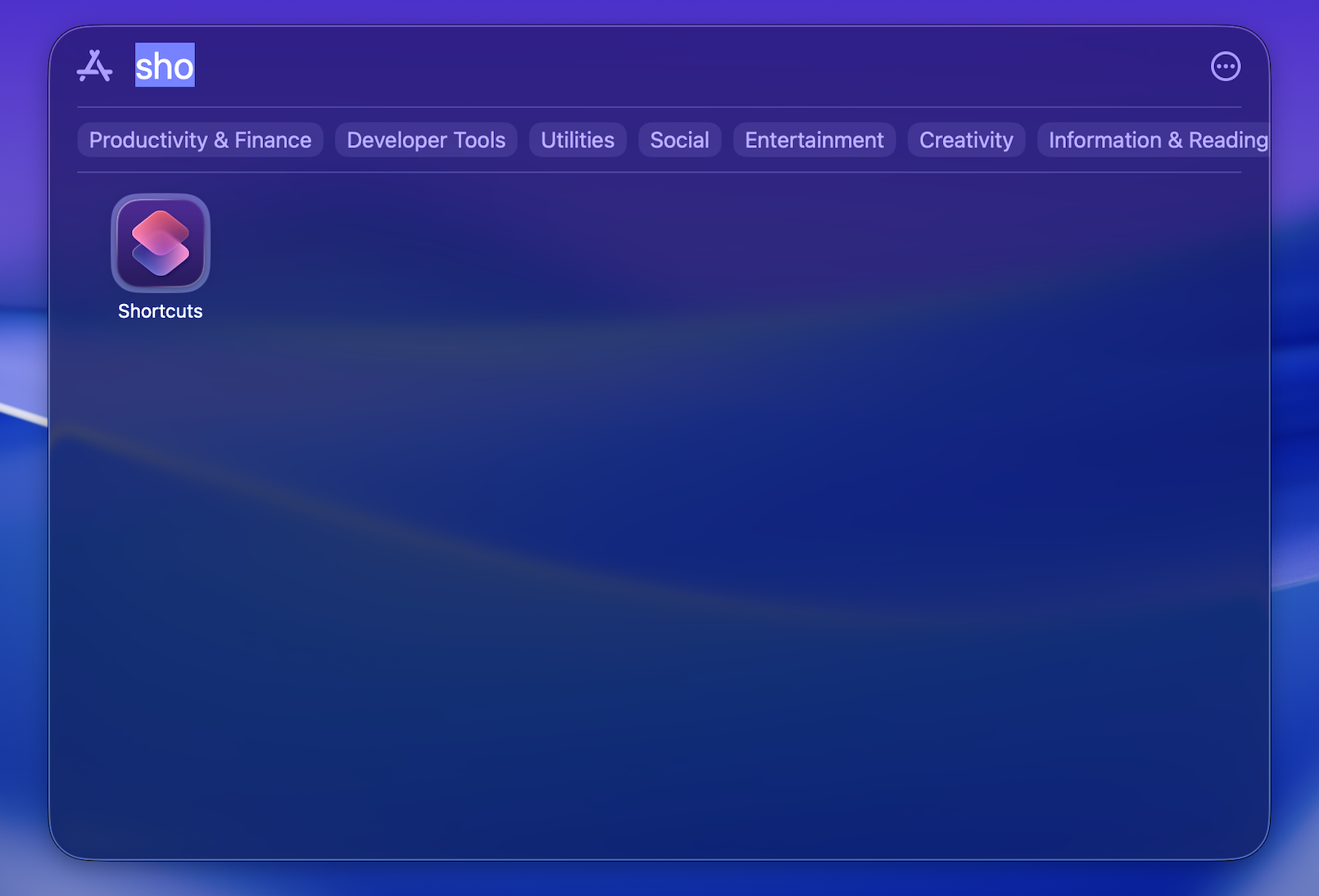
Launch the built-in macOS Shortcuts application.
-
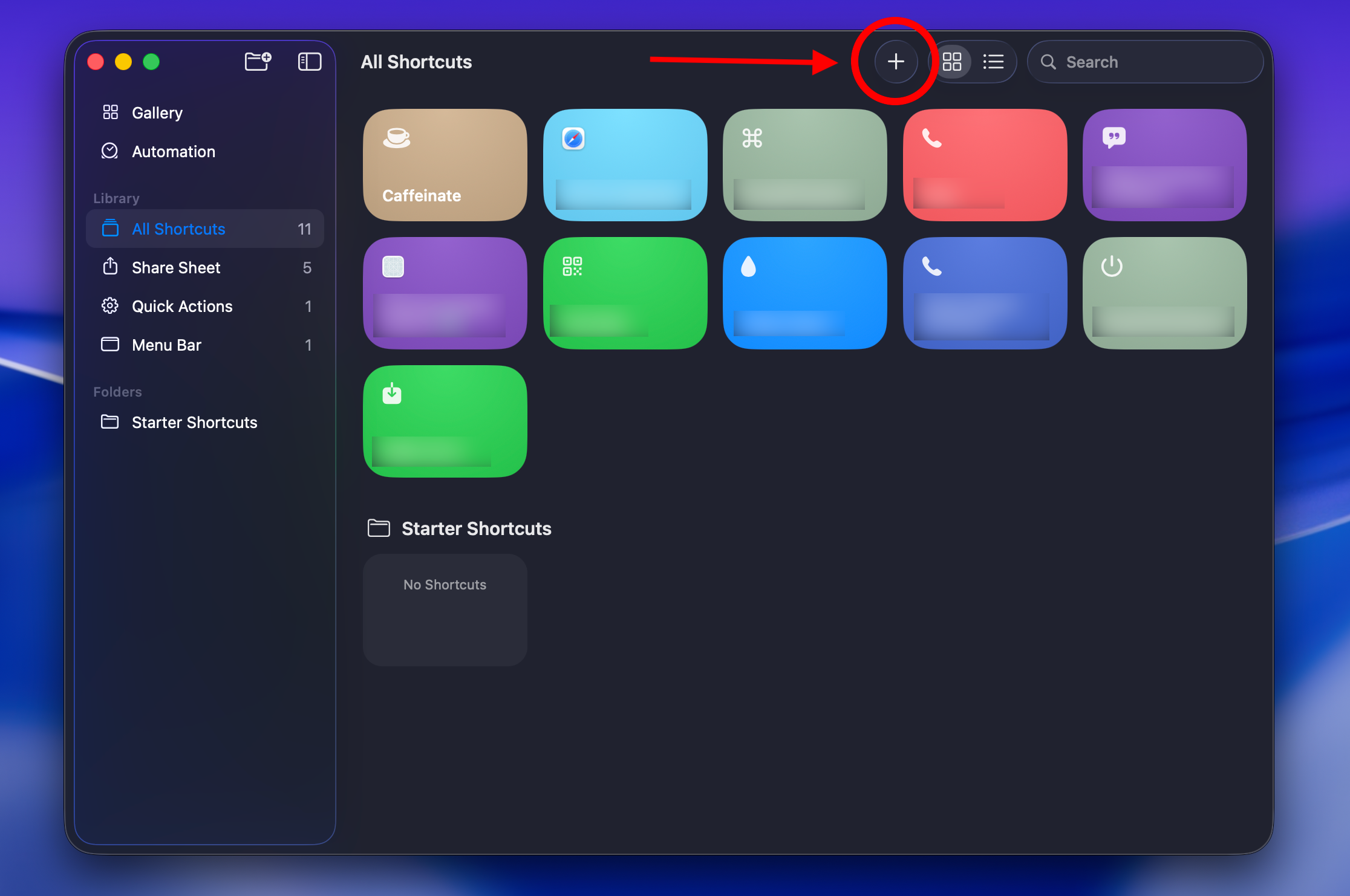
Click the + (Plus) icon to generate a new shortcut workspace.
-
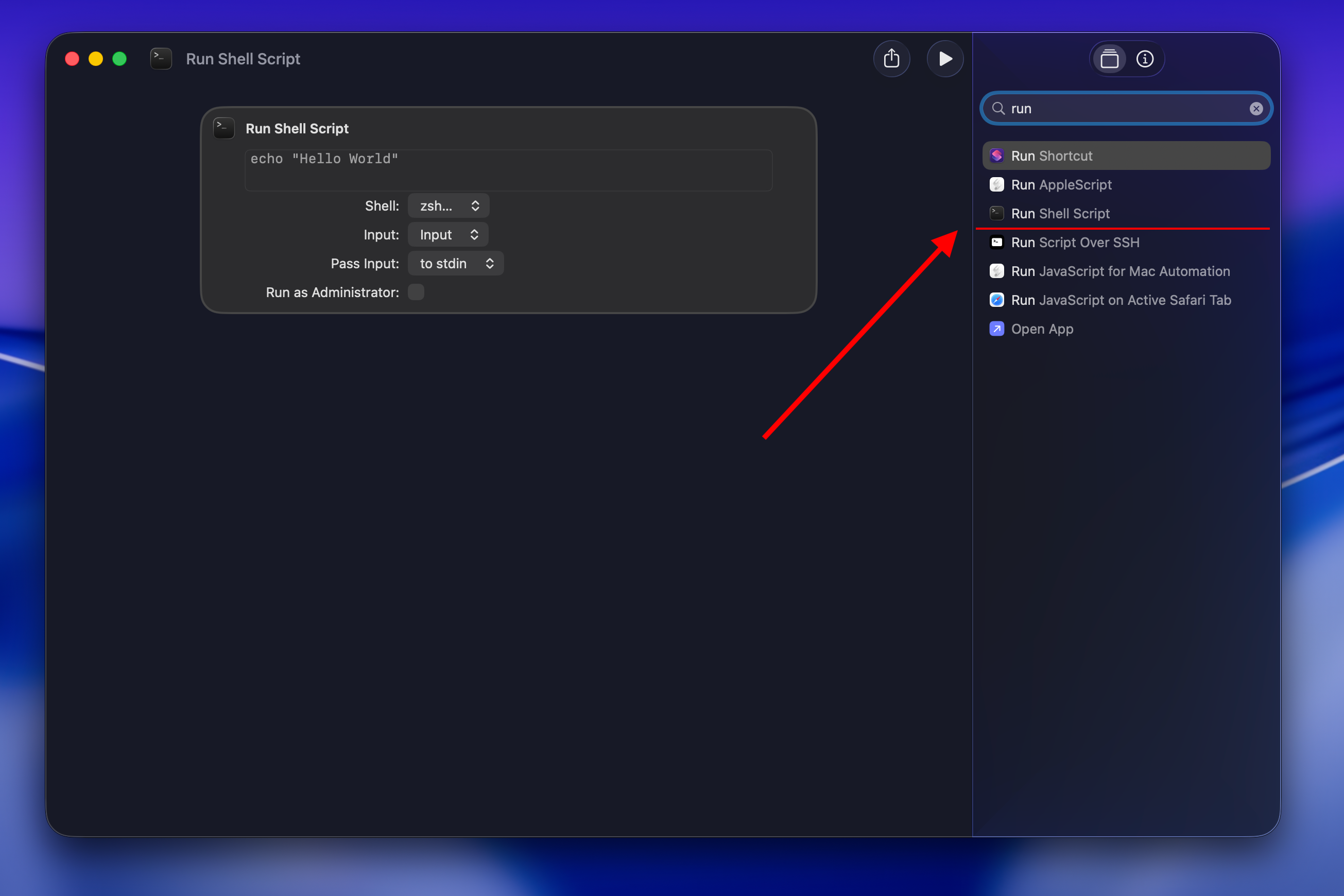
Locate Run Shell Script in the actions panel and drag it onto the interface.
-
Add the following execution route into the script area:
~/.config/hotshot/toggle.sh- Click the Shortcut Details configuration icon (represented by the three slider toggles on the right sidebar panel).
- Click Add Keyboard Shortcut and capture your desired key bound sequence (Recommended:
Control + Option + Command + C).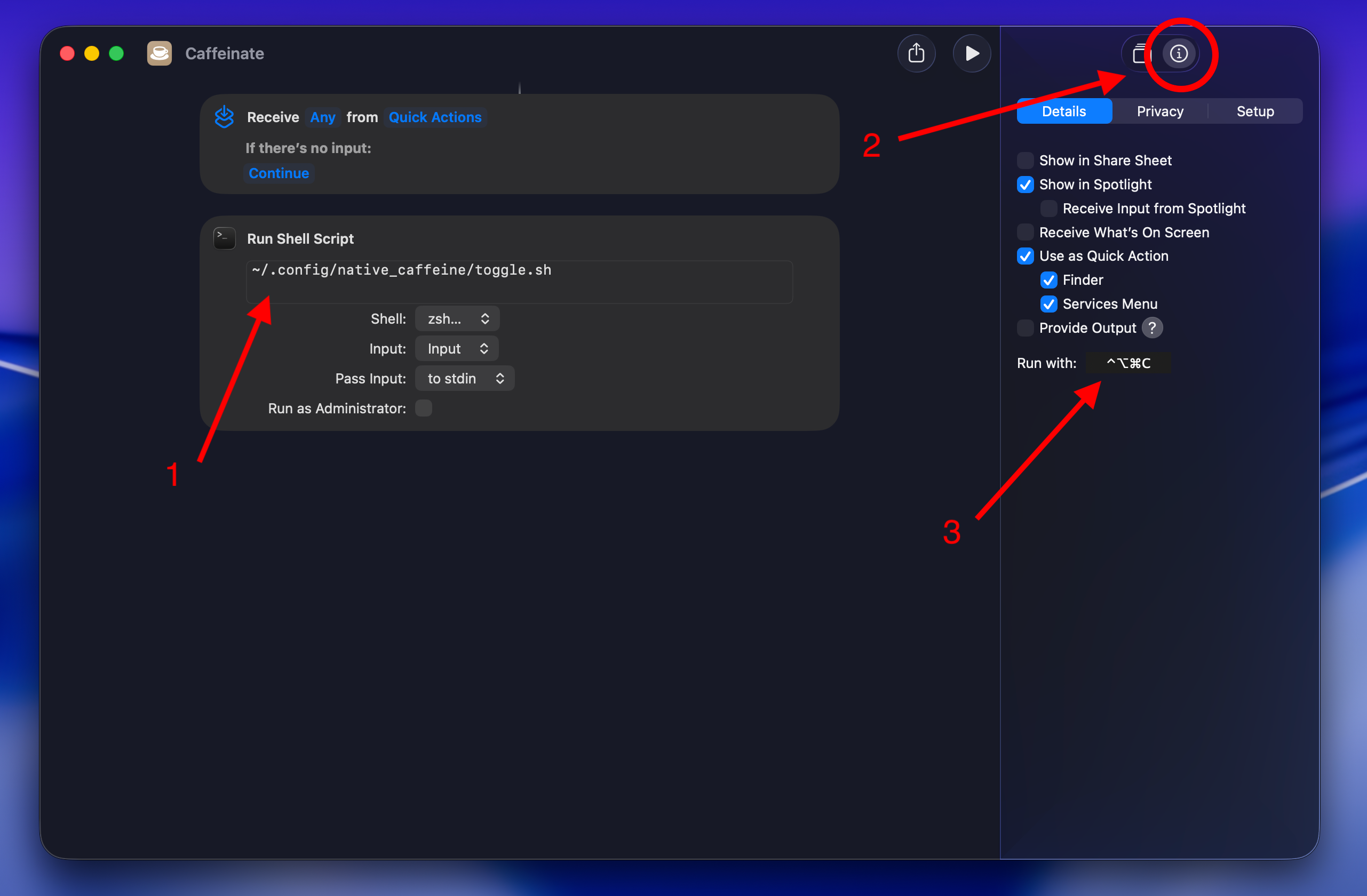
Symptom: Manual execution inside the Shortcuts layout triggers assertion correctly but the global hotkey sequence does not respond.
Root Cause: The macOS shortcut listener hasn't registered your key combination properly.
Solution: Clear and restart the background shortcut input pipeline natively via Terminal:
killall pboard 2>/dev/null
launchctl kickstart -k gui/$(id -u)/com.apple.shortcuts.ikeyboardd
NOTE: You may need to wait a few seconds after running these commands for the macOS shortcut daemon to fully restart.
Symptom: Execution triggers silently but fails to spawn the app or show the menu bar icon.
Root Cause: macOS is blocking the Shortcuts app from executing background scripts or accessing accessibility APIs.
Solution: Grant operational clearance inside System Settings:
-
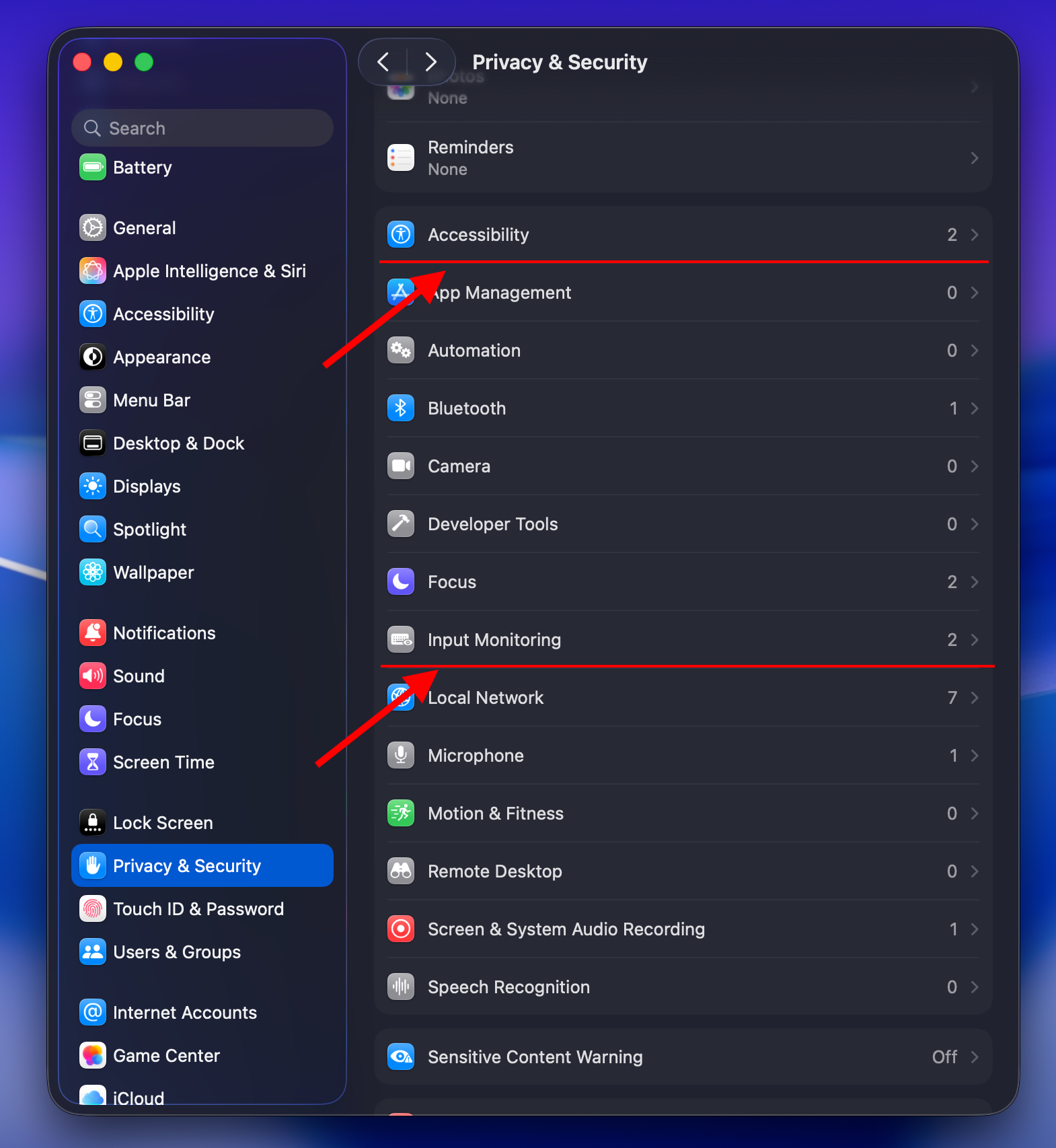
Open System Settings > Privacy & Security > Accessibility.
-
If Shortcuts is present, toggle it off, wait 5 seconds, and toggle it back on.
-
If missing, select the + (Plus) icon, browse to
/Applications/Shortcuts.app, and manually authorize it.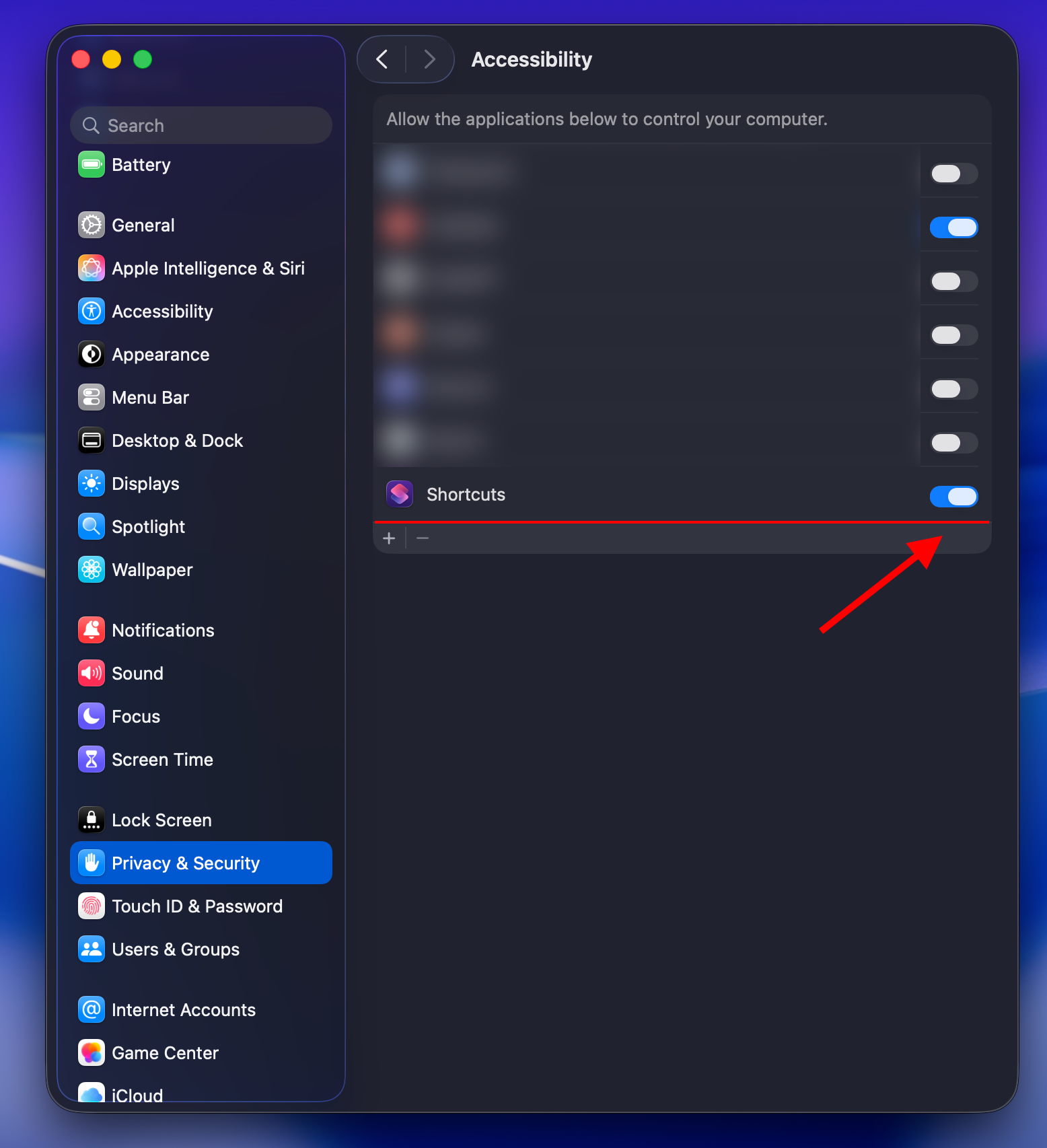
-
Repeat this validation check inside the Input Monitoring pane.
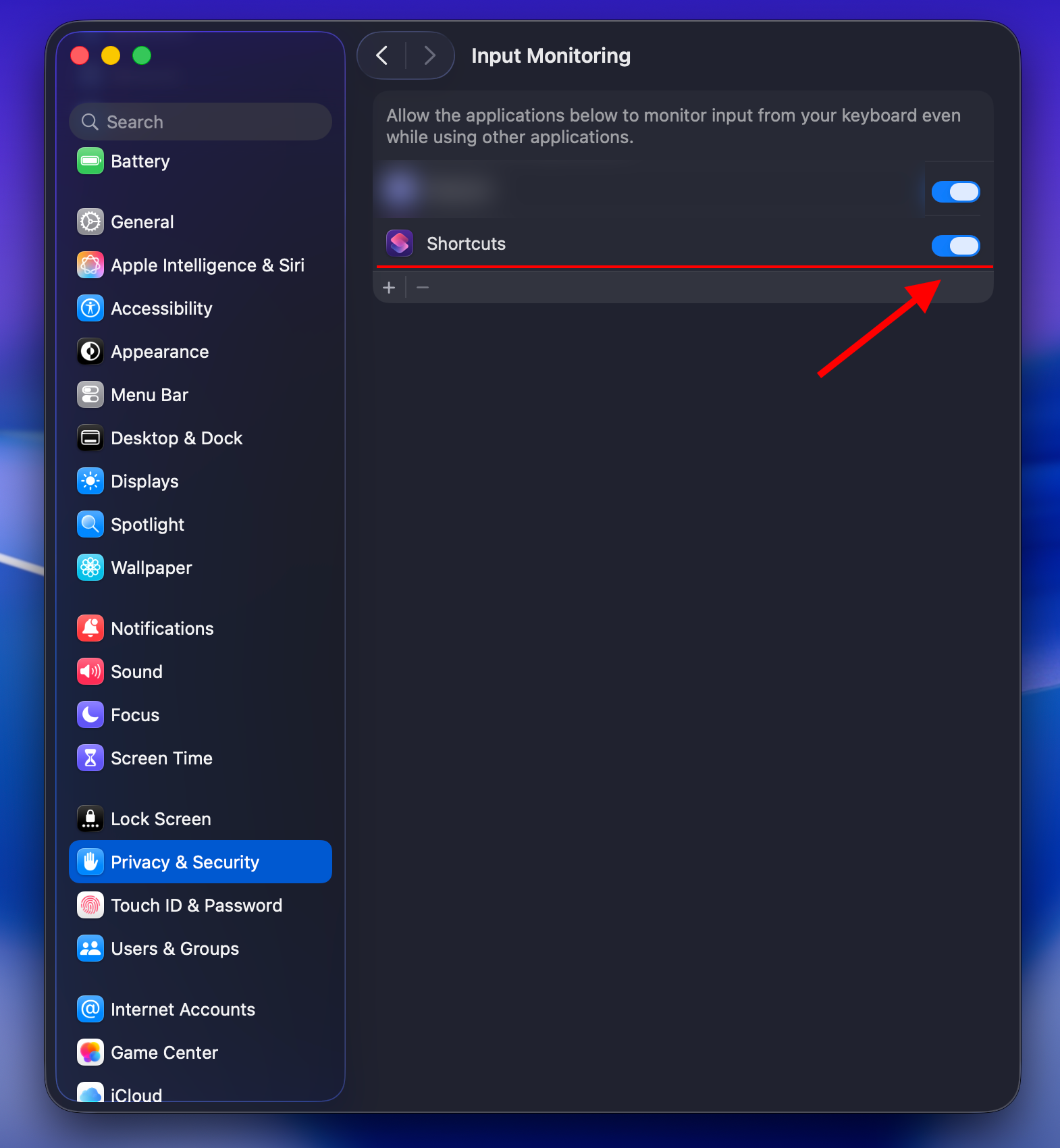
WARNING: Modifying Accessibility and Input Monitoring permissions requires administrator privileges. Make sure the toggle switches remain firmly enabled.
Symptom: HotShot activates but then crashes, or pressing the hotkey again doesn't deactivate it cleanly.
Root Cause: The process might have gotten stuck or the PID file is outdated.
Solution: Kill the processes and remove the PID file manually:
killall hotshot_engine caffeinate 2>/dev/null
rm -f /tmp/native_hotshot.pid
NOTE: This command forcefully resets the internal state and removes the menu bar icon. You can immediately reuse your hotkey to start fresh.