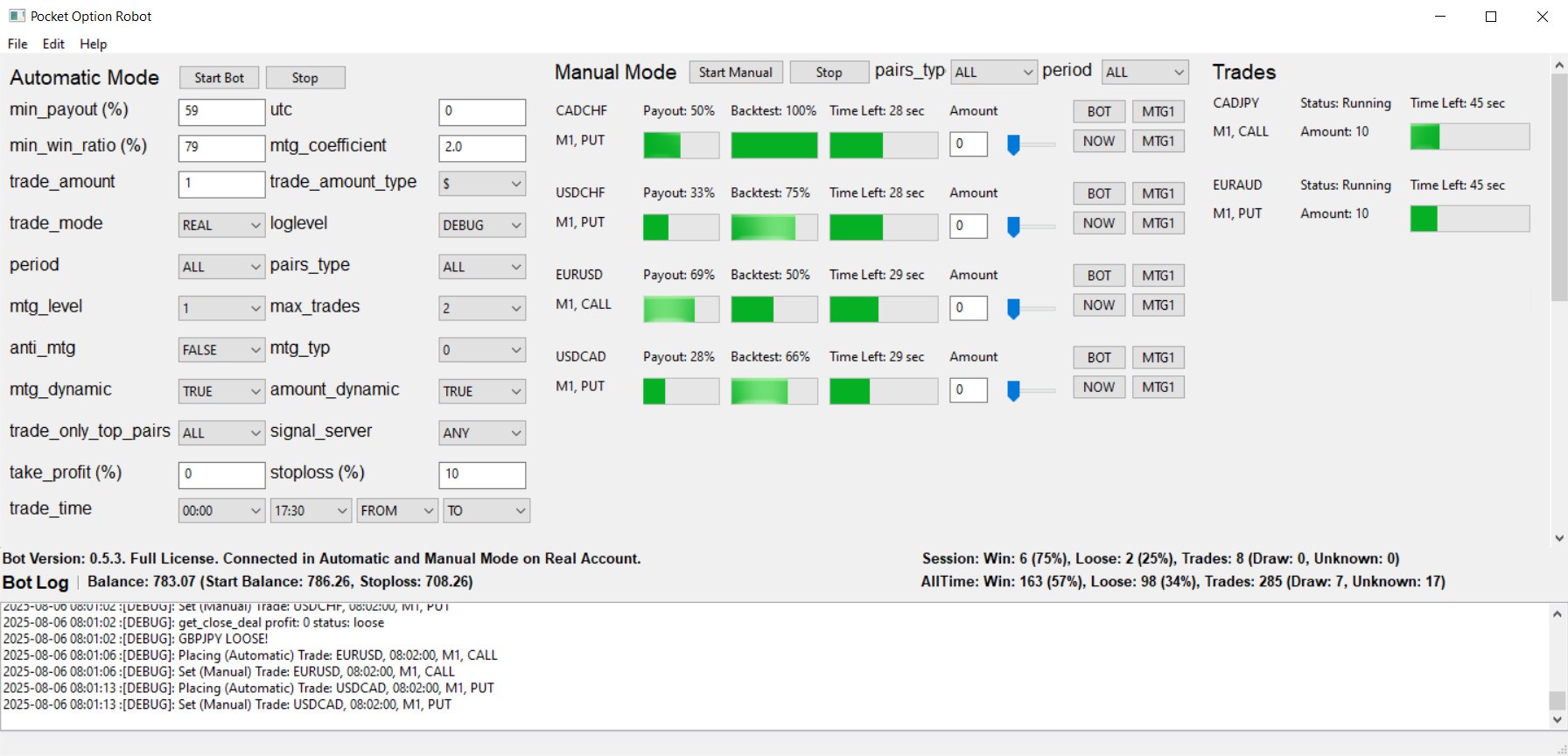
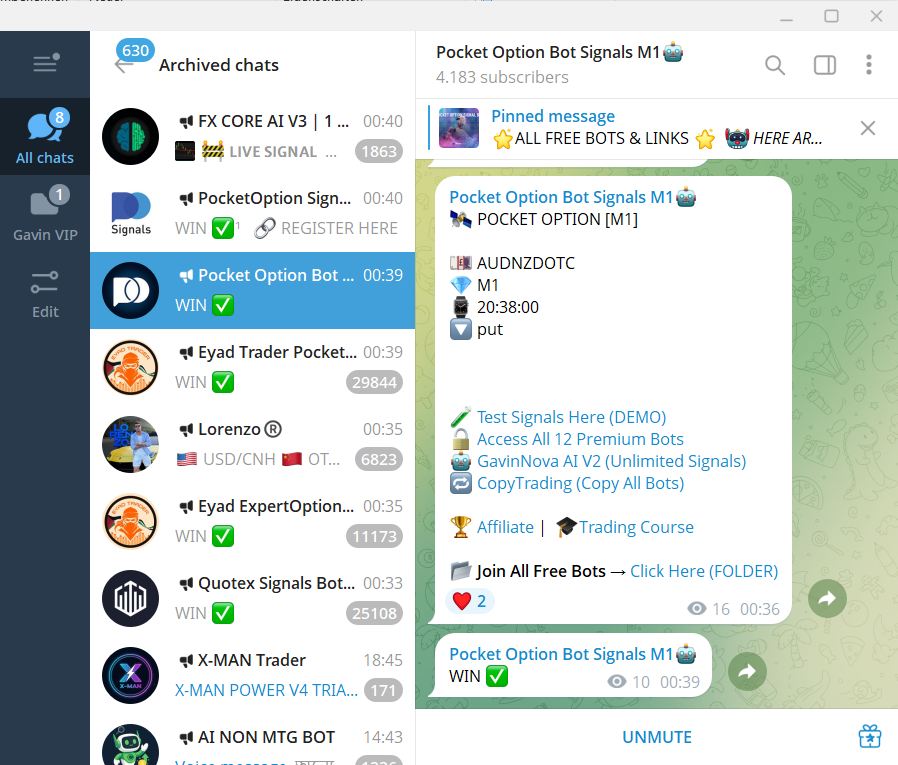
MyBot is a full in Python written Standalone Windows executable Robot. It is designed to catch Signals via Telegram and trade directly on PocketOption platform.
If you have some questions or suggestions or some thing like this, you can contact me via Telegram: @mastaaa667
Click HERE for Content.
Click HERE for Content.
Click HERE for Content.
- Visit https://my.telegram.org/auth & start Rgistration with your Phone number.
- In follow the Registration you need to set a Name for your App. You can take what ever you want, Nobody will check that.
- The Same with the Info. After the Registration you got your App ID & Hash.
Click HERE for Content.
- With Chrome/Firefox Browser goto https://pocketoption.com/ & Login with your Account.
- Next bind F12 to Open the Developer Tools, goto Network & Filter "Socket" only.
- Now it is important to check on which platform you are, on Real Account or on Demo.
- Refresh the Site with F5 to see all WebSocket connections to PocketOption.
- Go into the Socket Messages & look after the Message it beginning with:
42["auth",{"session"...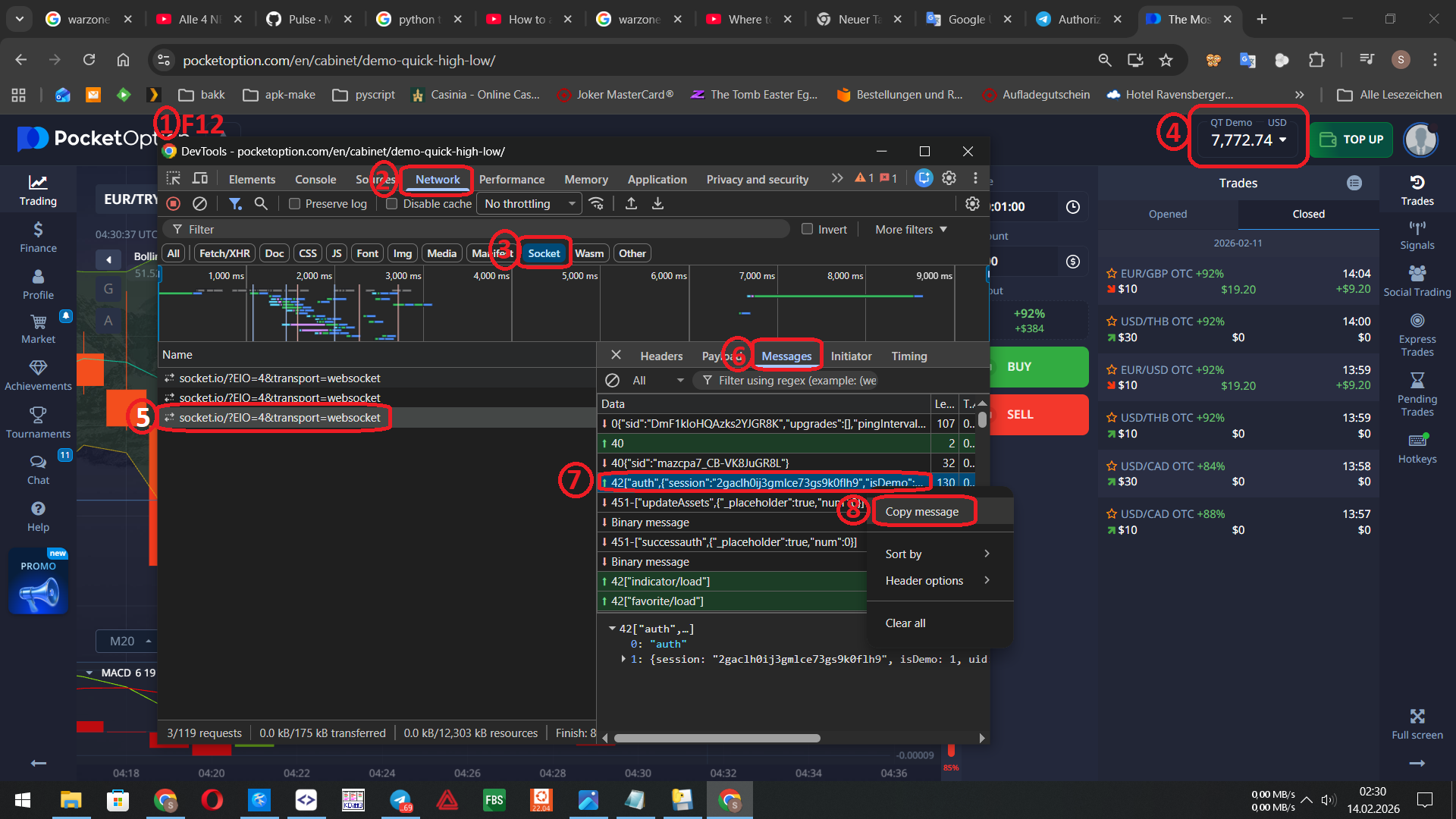
Example Demo SSID:
42["auth",{"session":"1abcdef2ghijk3lmnop4qrest7","isDemo":1,"uid":12345678,"platform":2,"isFastHistory":true,"isOptimized":true}]Example Real SSID:
42["auth",{"session":"a:4:{s:10:\"session_id\";s:32:\"1abcdef2ghijk3lmnop4qrest7uvwxyz\";s:10:\"ip_address\";s:14:\"11.222.333.444\";s:10:\"user_agent\";s:111:\"Mozilla/5.0 (Windows NT 10.0; Win64; x64) AppleWebKit/537.36 (KHTML, like Gecko) Chrome/144.0.0.0 Safari/537.36\";s:13:\"last_activity\";i:1770790020;}a78001006094d91025e66f8b335d83d2","isDemo":0,"uid":12345678,"platform":2,"isFastHistory":true,"isOptimized":true}]- Copy the right Message and past them inside Settings of Bot.
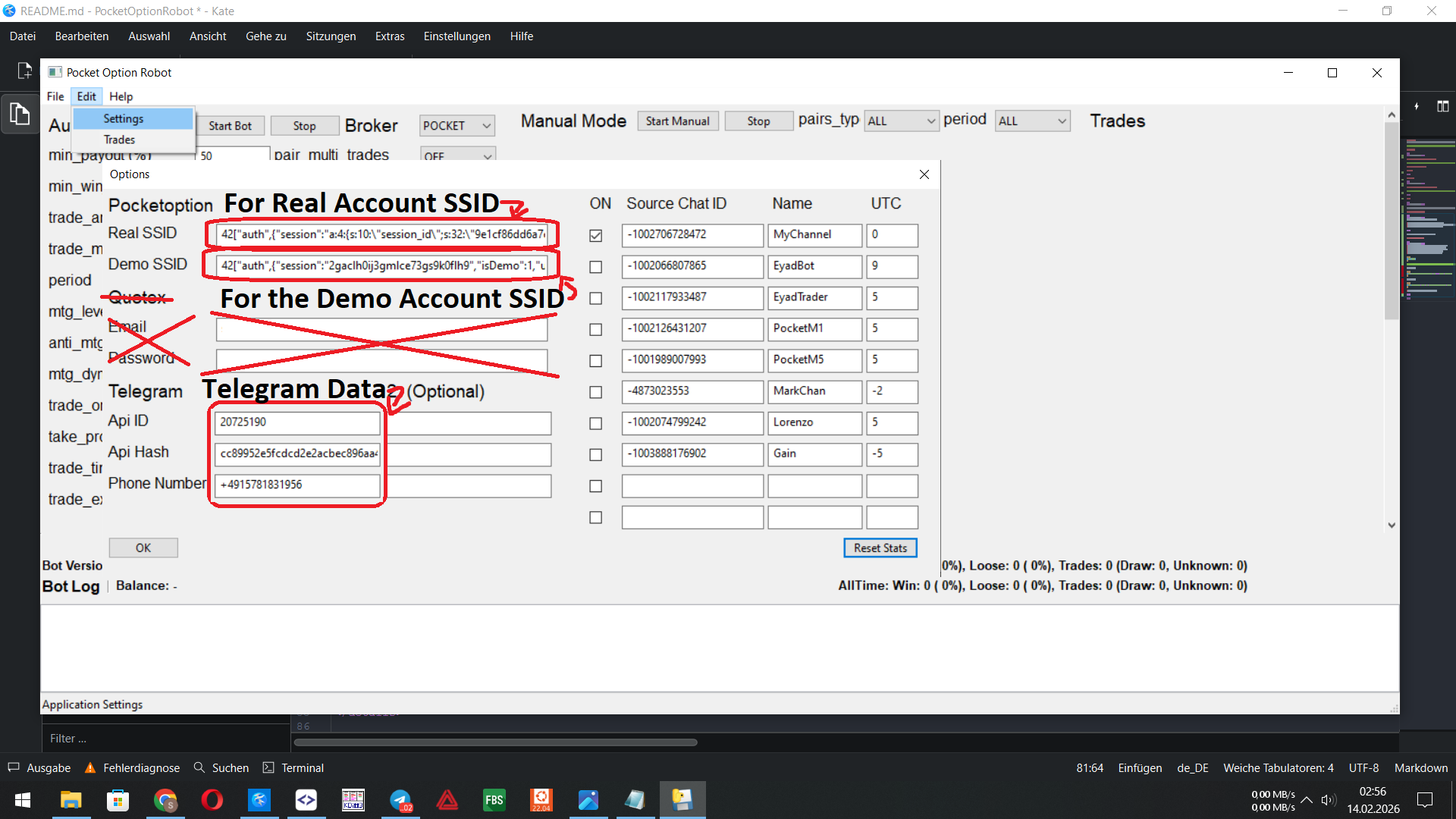
(at start you can create quick & simple a Group or Channel to Send your own test Signals into it ...)
Click HERE for Content.
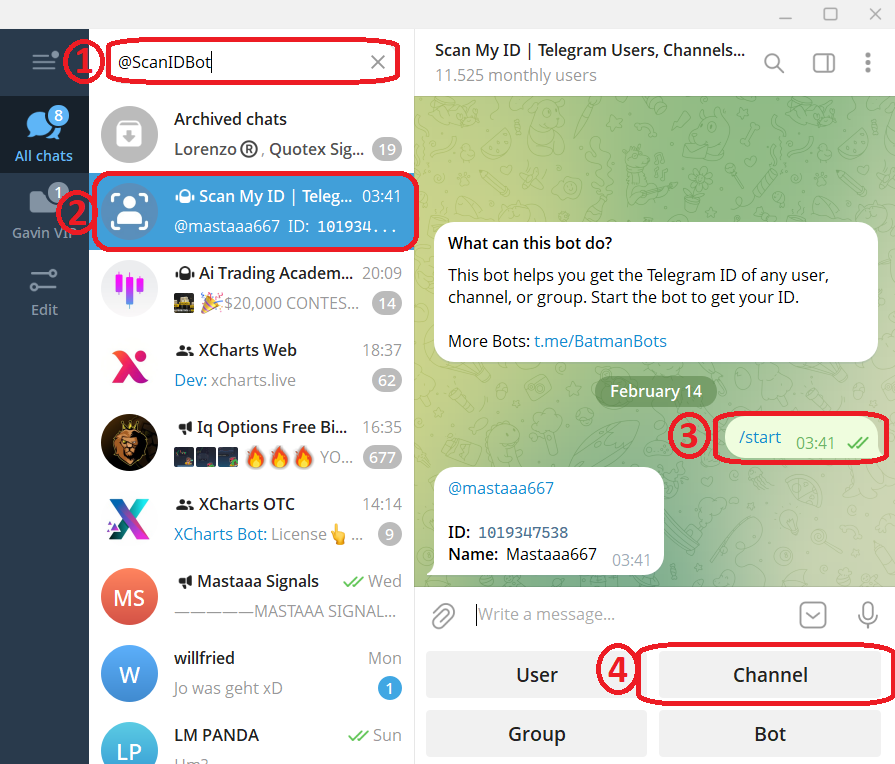
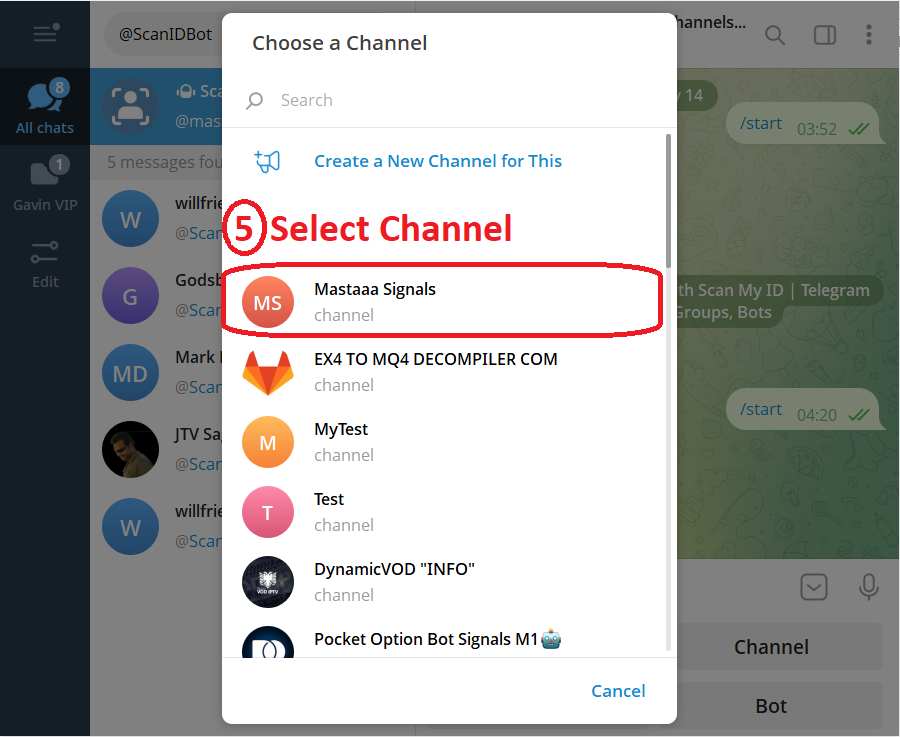
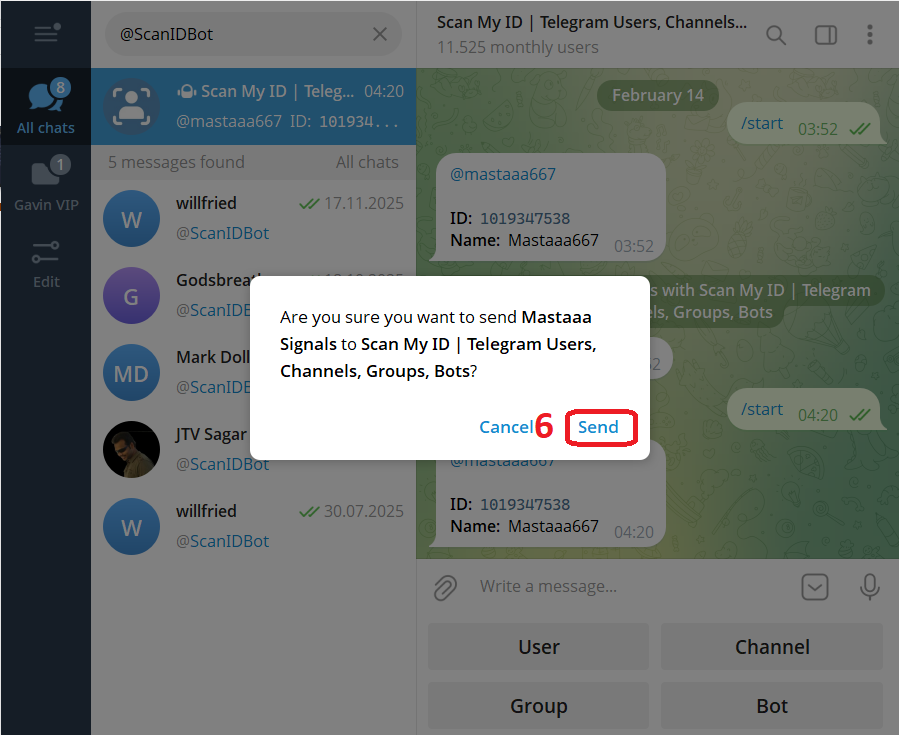
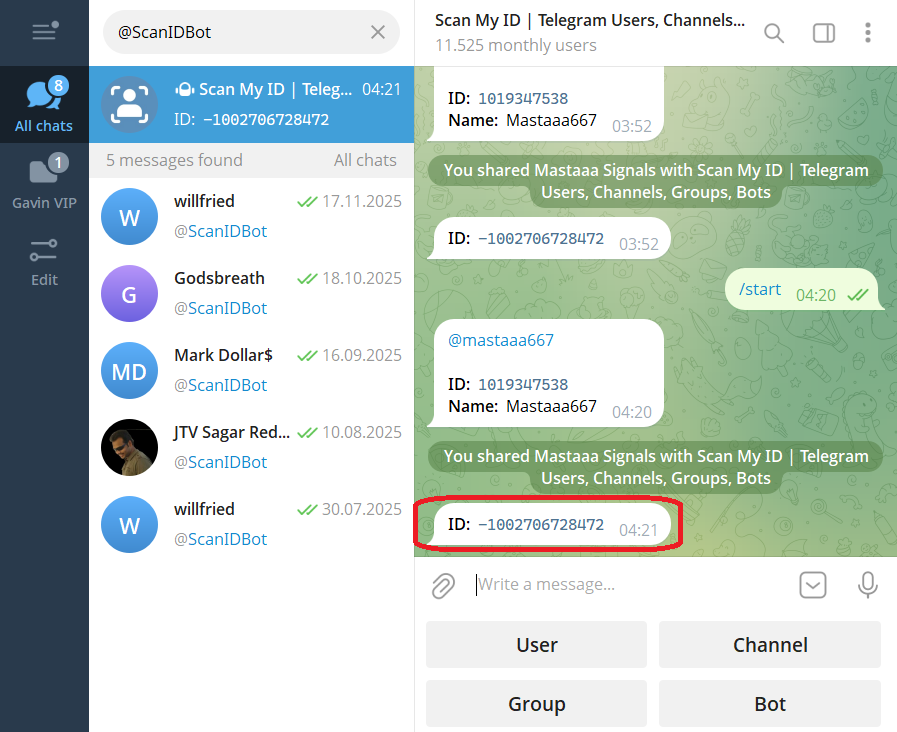
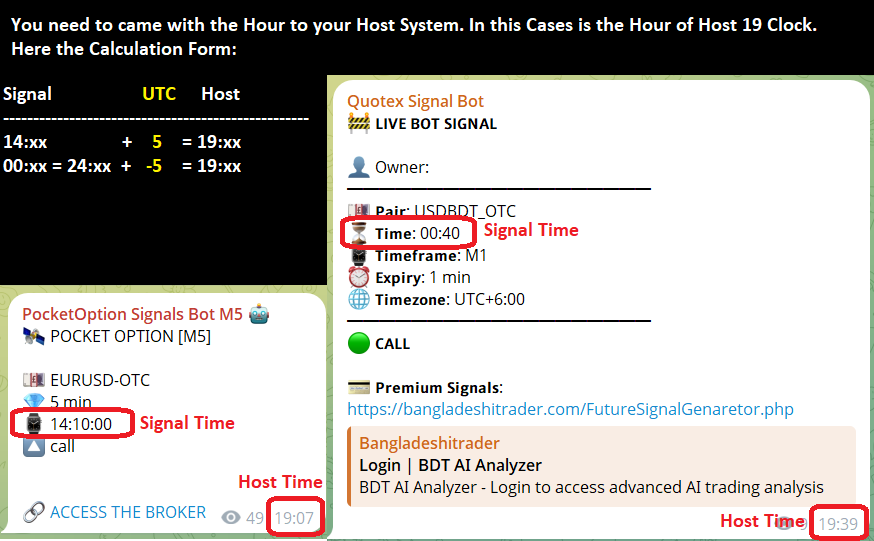
Click HERE for Content.
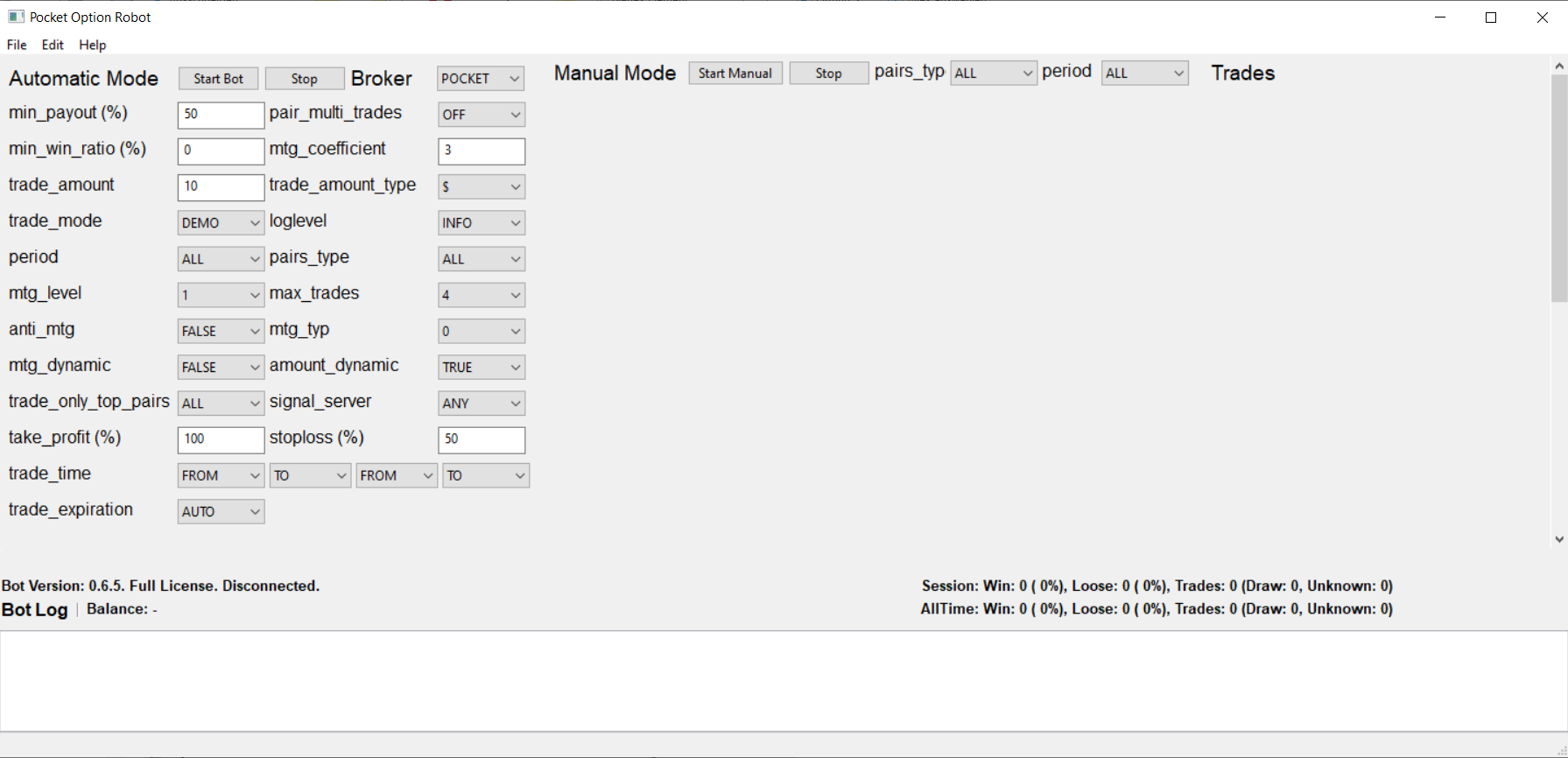
| Setting | Input Value | Info |
|---|---|---|
| min_payout | 0-92 | Is the minimal Payout what the Pair need to Trade in %. |
| pair_multi_trades | ON/OFF | ON: Trade only one Time each Pair. OFF: Trade multi times each Pair. |
| min_win_ratio | 0-100 | Minimal Win ratio from Signal Server. |
| mtg_coefficient | 1.0-.. | Faktor to increase the amount on MTG's. |
| trade_amount | 0,1.0-.. | Value of Trade Amount. (0 = Disable) |
| trade_amount_type | $/% | Value Type of Trade Amount. Percent or Doller. |
| trade_mode | DEMO/REAL | Mode to Trade on PocketOption (Demo or Real Account). |
| loglevel | INFO-ERROR | The Loglevel. |
| period | M1-M5 | The Period which the Bot look for as Signal (e.g. Only 1 min Signals). |
| pairs_type | ALL/REAL/OTC | Wich Art of Pairs is to Trade (Stock/OTC) |
| mtg_level | 0-9 | The Count of Rebuy if the trade is loss. |
| max_trades | 0-9 | Maximal Trade count at same Time. (0 = No Trading!) |
| anti_mtg | FALSE/TRUE | Invert Trade. (e.g. First Call, Second Put, Third Call ..) |
| mtg_typ | 0/1/2 | 0: next_candle_same_pair, 1: next_signal_same_pair, 2: next_signal_any_pair. |
| mtg_dynamic | FALSE/TRUE | TRUE: Calculate MTG on Payout each Pair. |
| amount_dynamic | FALSE/TRUE | TRUE: Use the Amount as take Out, FALSE: Use the Amount as put In. |
| trade_only_top_pairs | ALL/1-10 | Trade only Top Pairs from Telegram Ranking. |
| signal_server | ANY/.. | Which Channel you want to Use ( |
| take_profit | EMPTY/1-.. | How many Profit is to take before the bot going to sleep. |
| stoploss | EMPTY/1-.. | How many Loss is to take before the bot going to sleep. |
| trade_time | FROM/TO | The Time where the Bot can take Trades. |
| trade_expiration | AUTO/M1-H1 | Trade a specify time period. (e.g. 1 min, 2 min ...) |
Click HERE for Content.
Click HERE for Content.
At first you need to download Meta Trader 4 Version from here:
After the installation you need only to register a demo Account until this Screen:
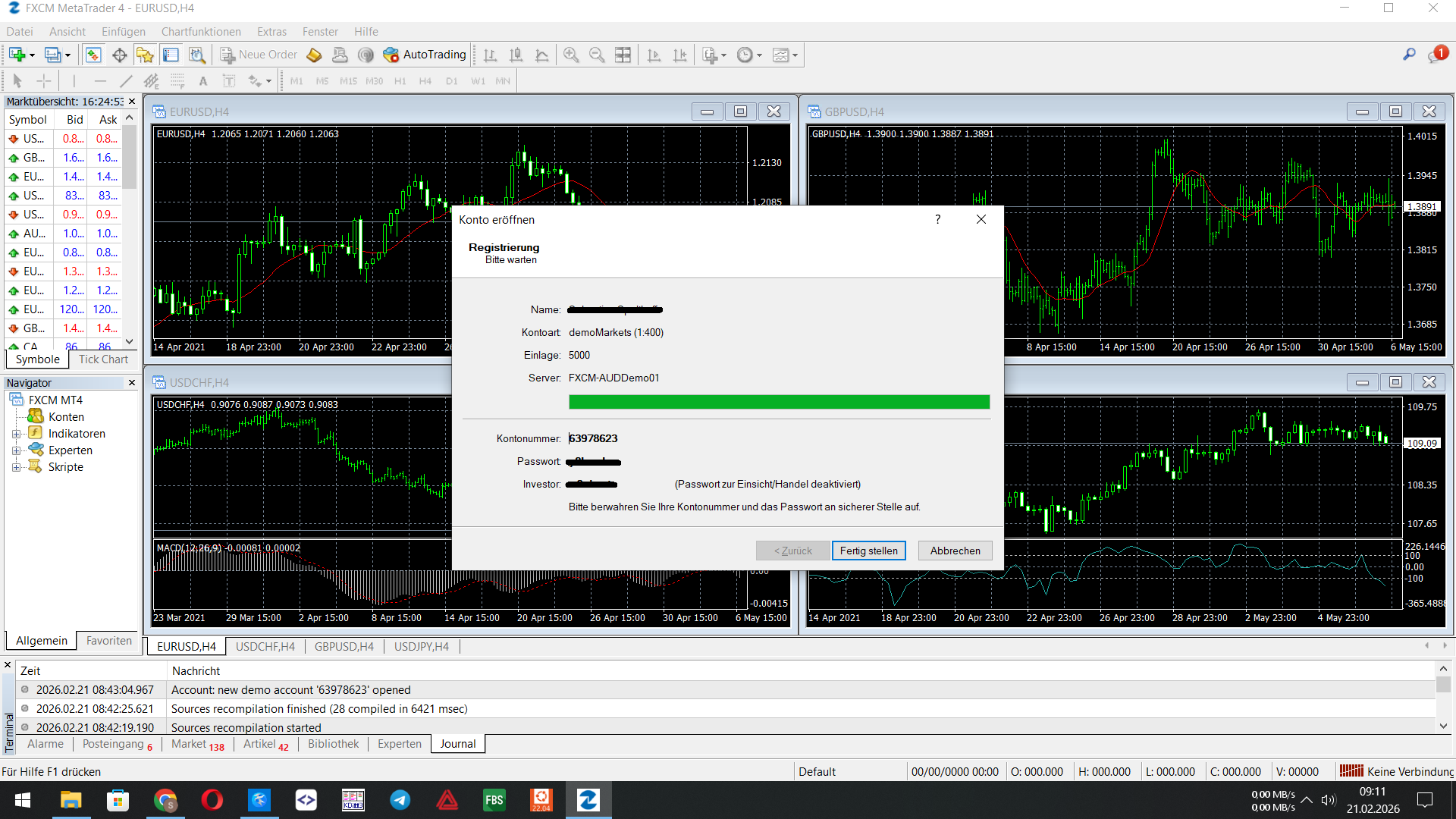
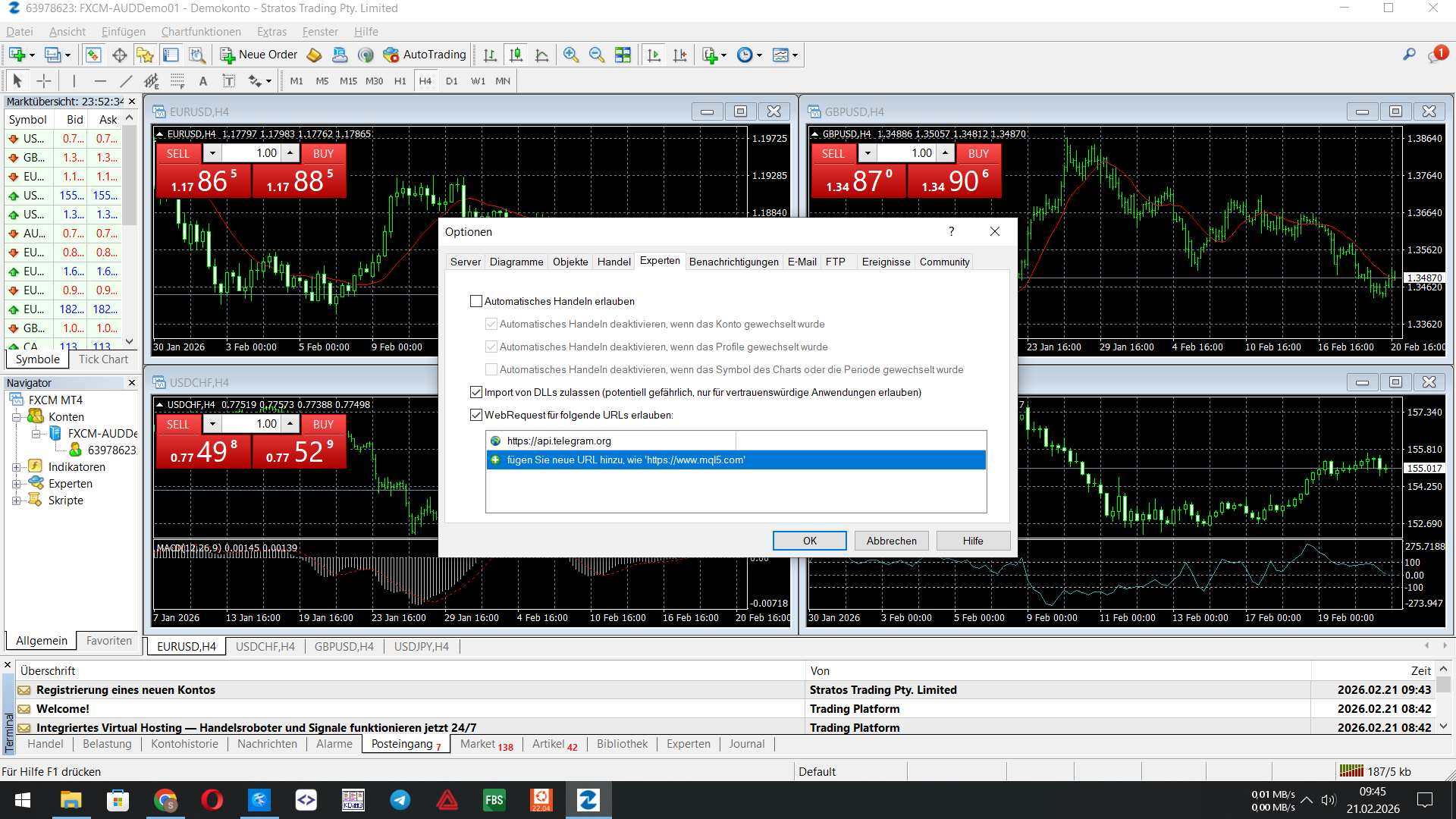
Next open the Settings with Ctrl+O and switch to the Expert Tab. There hit the checkbox Allow to import DLL's & Allow trusted WebRequest for following URL's.
As URL you need to add: https://api.telegram.org
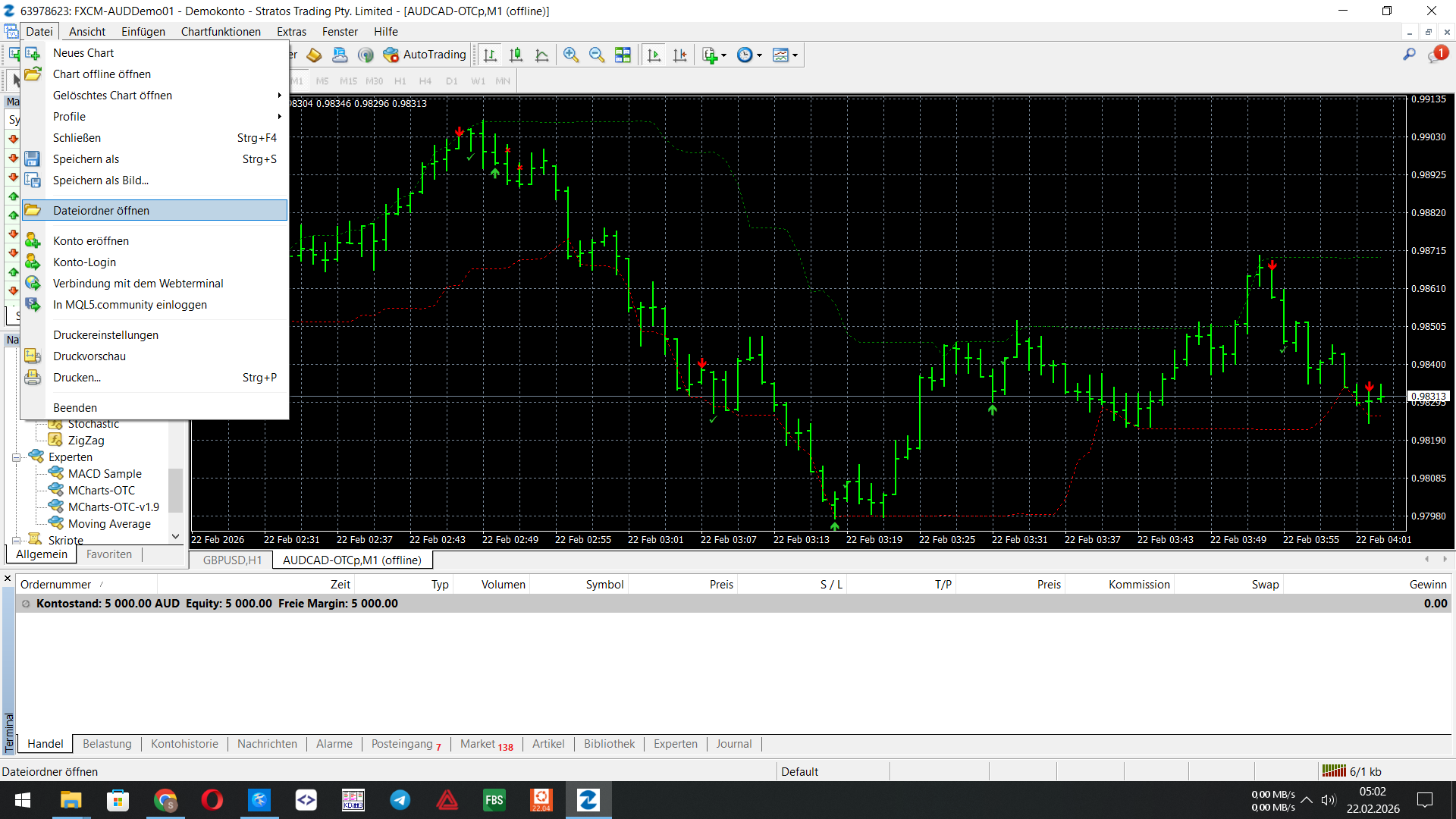
As next step click on File (on Top left) and then on open Filefolder (i don't know how exactly in English, sorry), to open the MetaTrader File Folder:
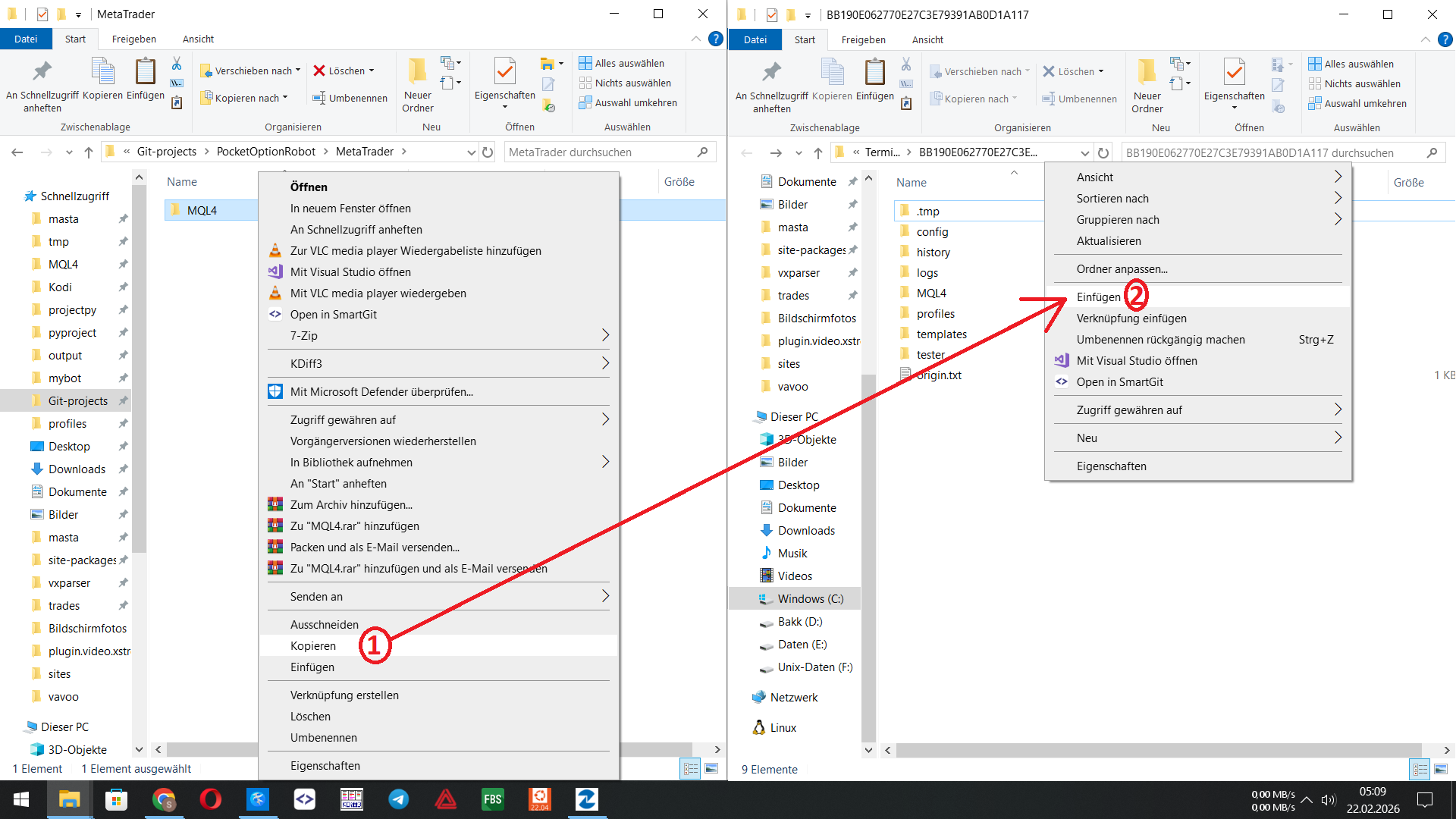
Now copy the Content inside the MetaTrader folder from my Repo (e.g. the MQL4 Folder) into this Folder.
The last step for now is to restart MetaTrader. Now the first prerequire steps are done.
At First we create a Telegram Bot. Here for start Conversation with @BotFather and send a Message with: /start
Next send /newbot & follow the industructions to recieve the Bot token.
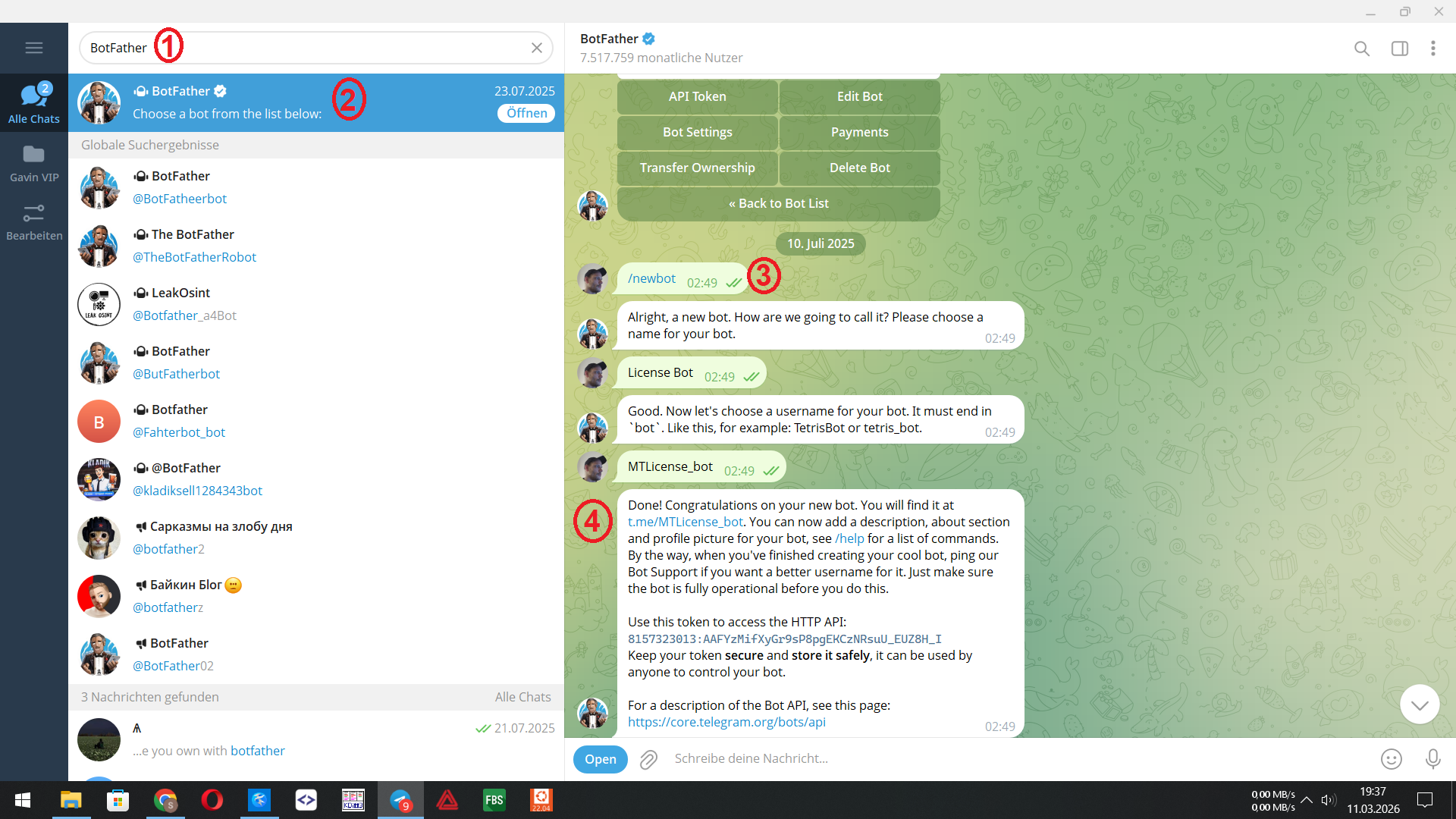
Now click on the Bot Name (4) and send him a /start Message.
Next create a new Group or Channel with Name you want.
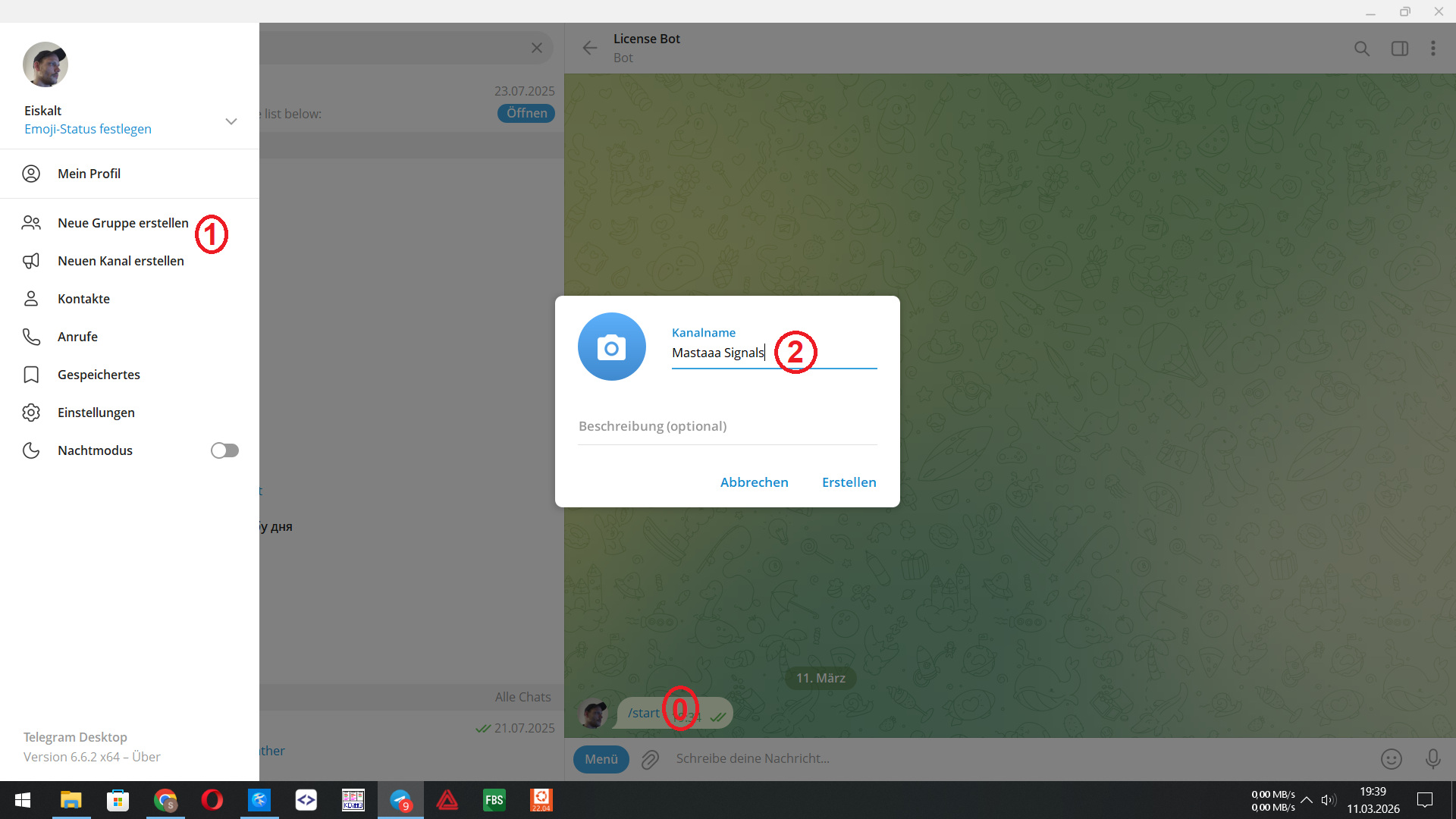
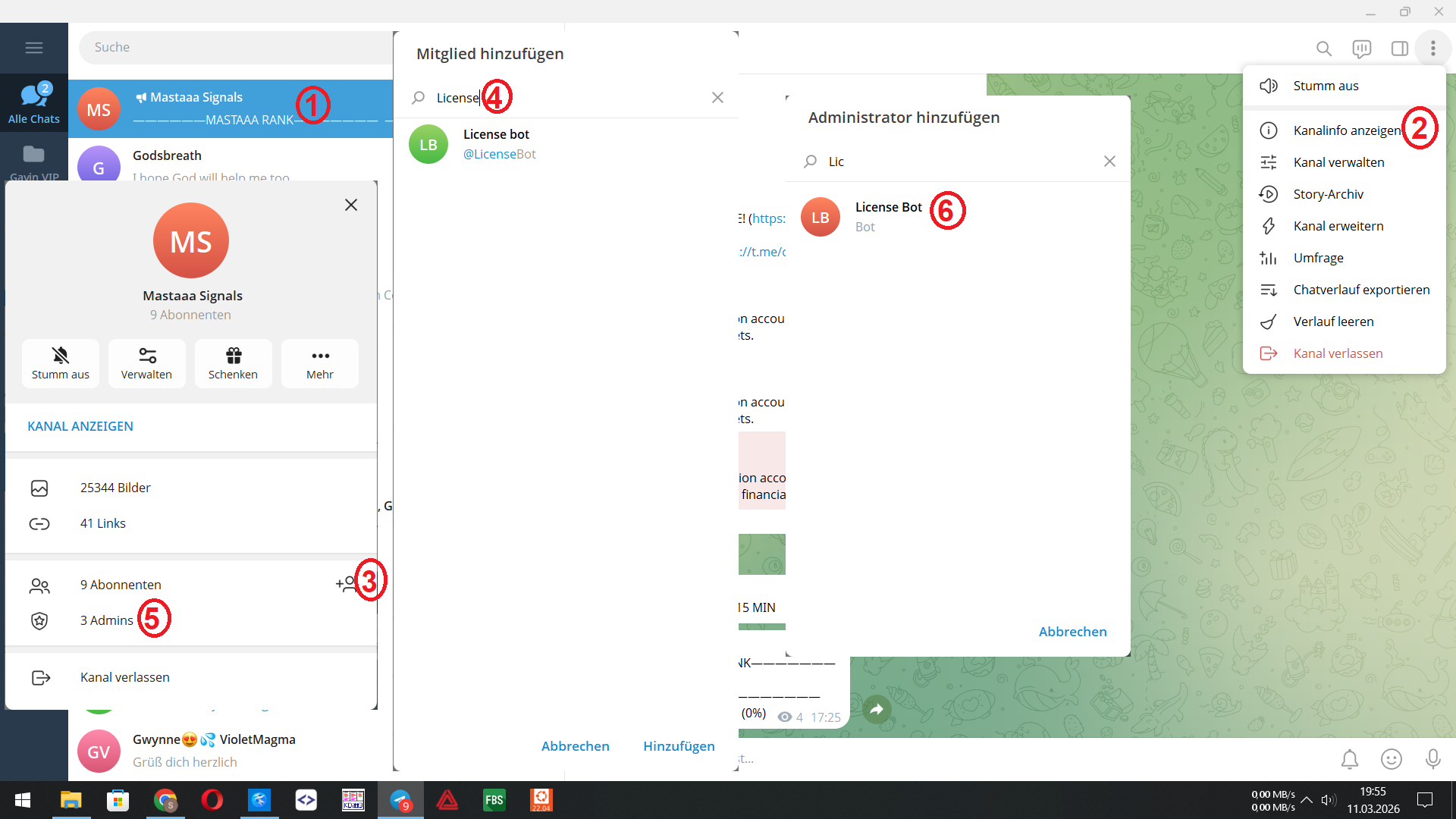
As last step add your Bot to your Channel and give them Admin rights.
Click HERE for Content.
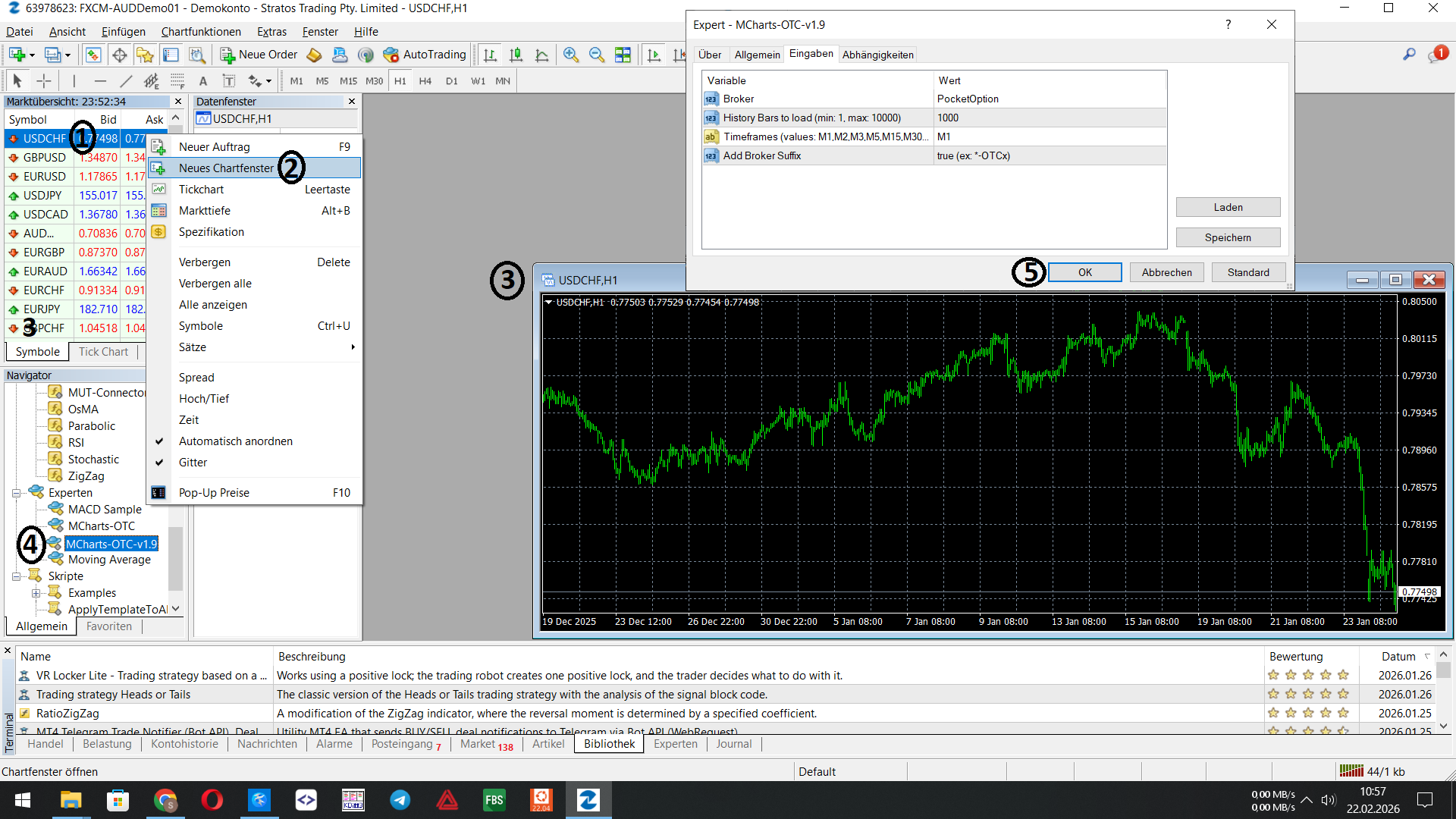
With the MCharts-OTC Expert you can get Live OTC Charts from PocketOption (and other Platforms) for free.
Here for you need only to open One other Chart from the List (Top left), with a right click on any Symbol and then in the Submenu click on New Chartwindow.
Then in the Navigator menu under Experts search after MCharts-OTC-v1.9 double click on it to add them on the Chart.
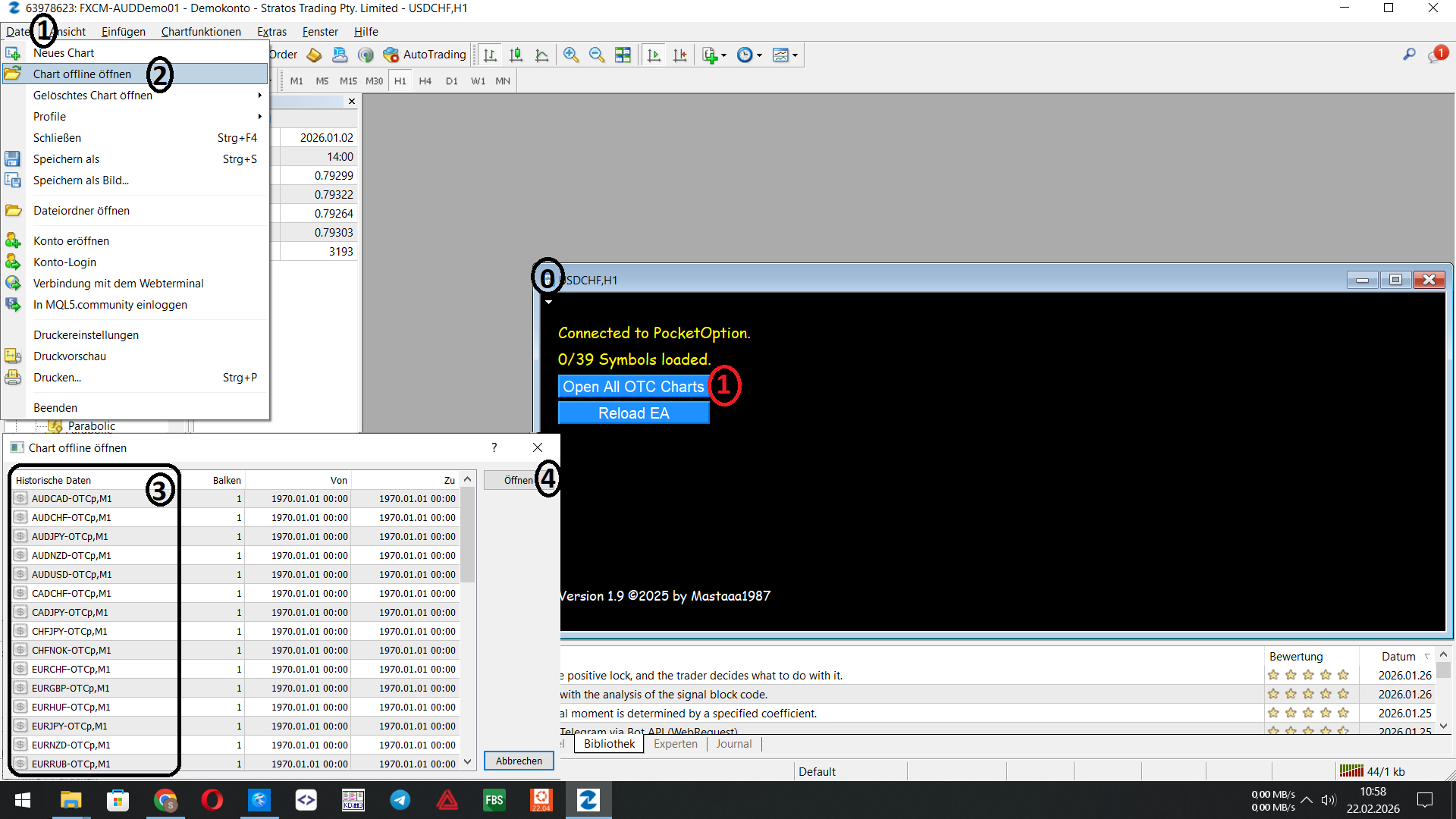
When everything working right it gives 2 Ways to open OTC Charts. You can click on File -> Open offline Charts, or simple click on Open All OTC Charts button inside the Chart.
Click HERE for Content.
This method is working allways, but be warned: You can work with every Indicator but you can't make any setup for the Indicator! It working only with default settings of a Indicator ...
This working only with Indicators which draw Objects on a Chart like Arrows. And this will not really do in the most of it. With this method you can change the Settings of the Indicator!
Here the same if condition as the Object method. It working only if the Indicator will send a Alert Message in Metatrader.
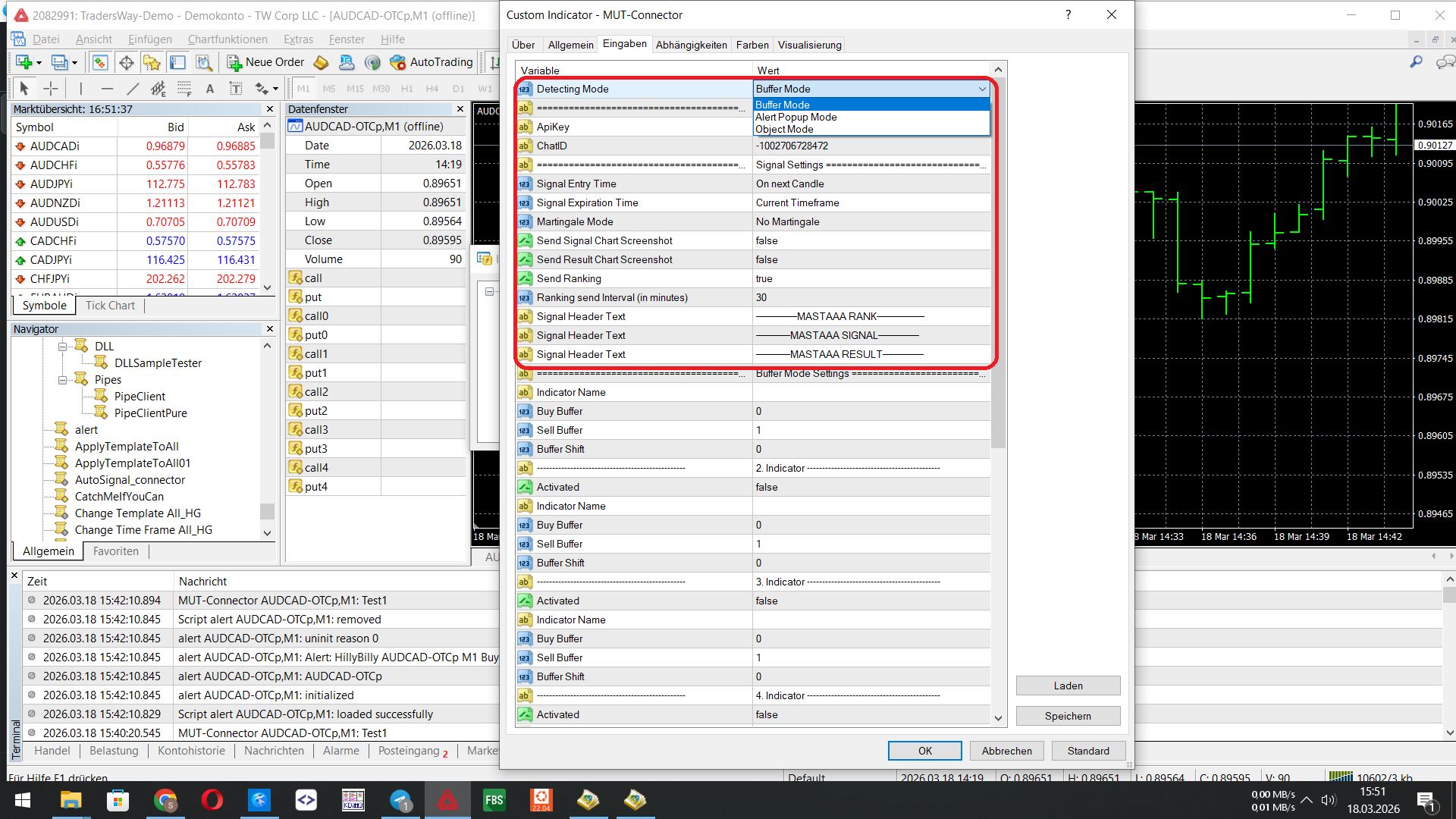
Click HERE for Content.
You only need the Name of Indicator, i added a Test Indicator with Name: Donchain_Hill-v1.0
And you need the number of (Buy & Sell) Buffer. Next i will explane how to get the right number of Indicator Buffer.
To see all Buffers of an Indicator you need first to add it on a Chart. Then press Ctrl + D to get the Datawindow.
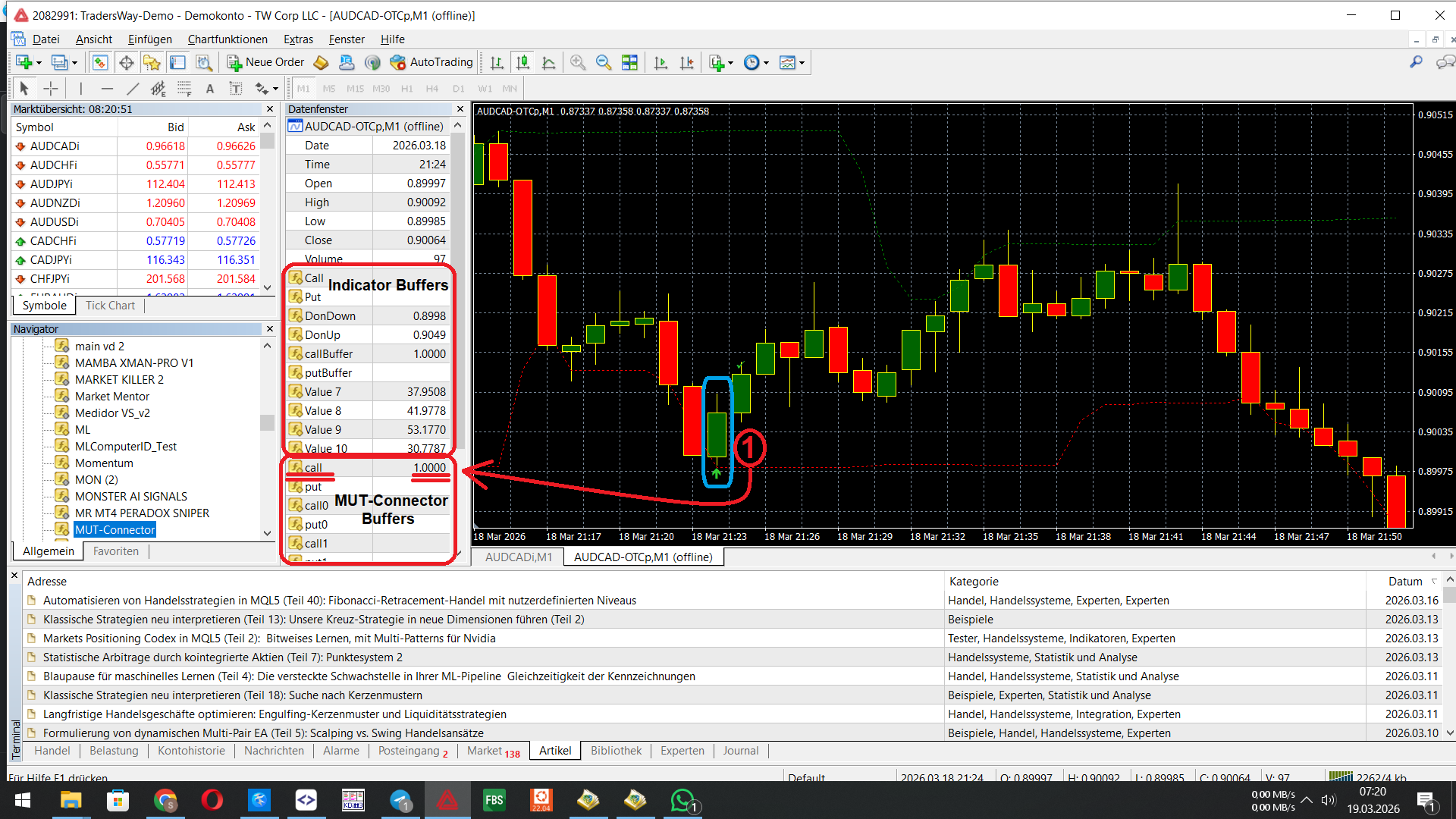
When you go with the Mouse over a Candle in the Datawindow you see the Value of any Buffer of the Indicator ...
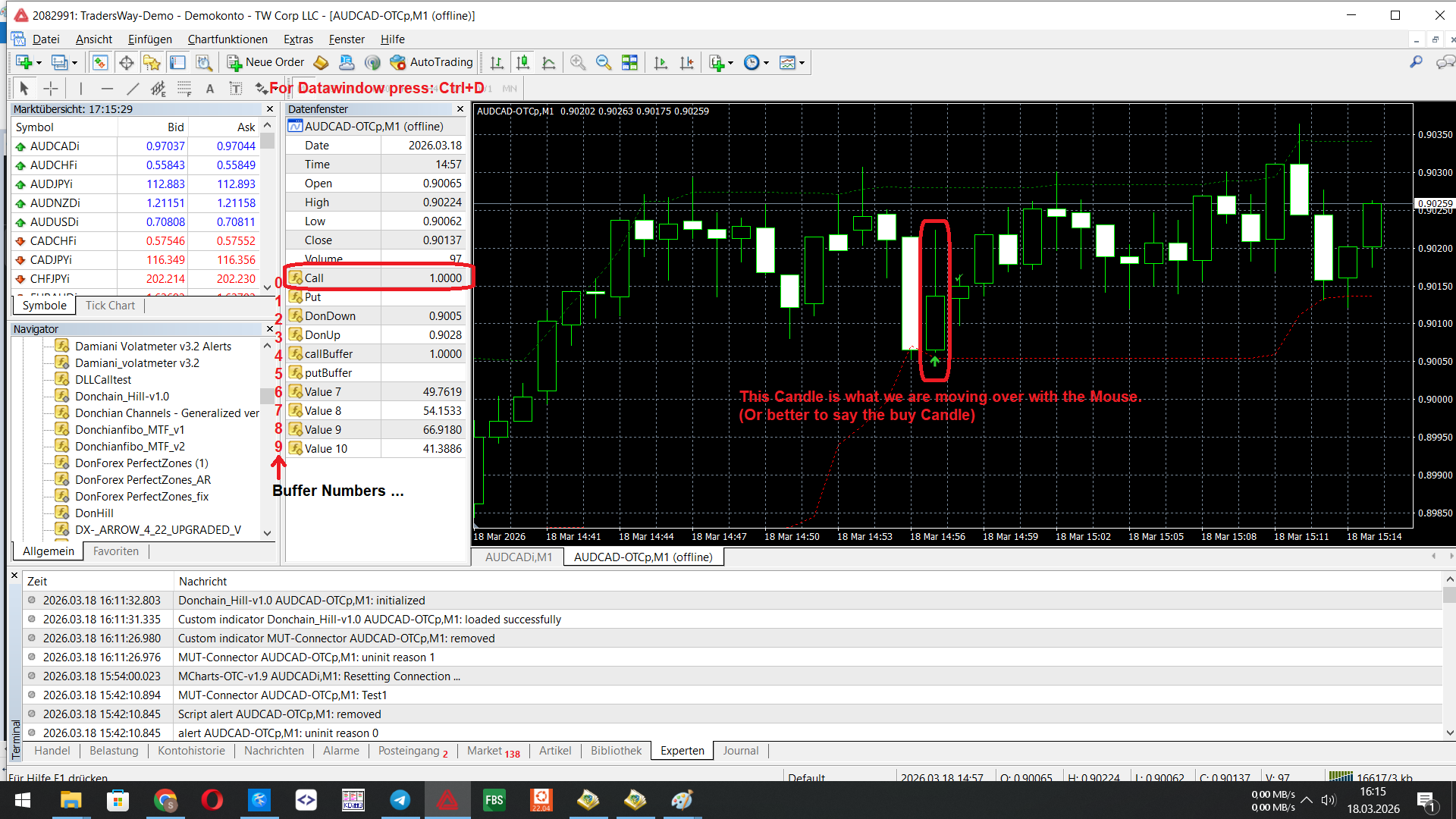
The Buffer Numbers are from Top to Bottom 0,1,2,3 ... The Call/Buy Buffer have the Number: 0
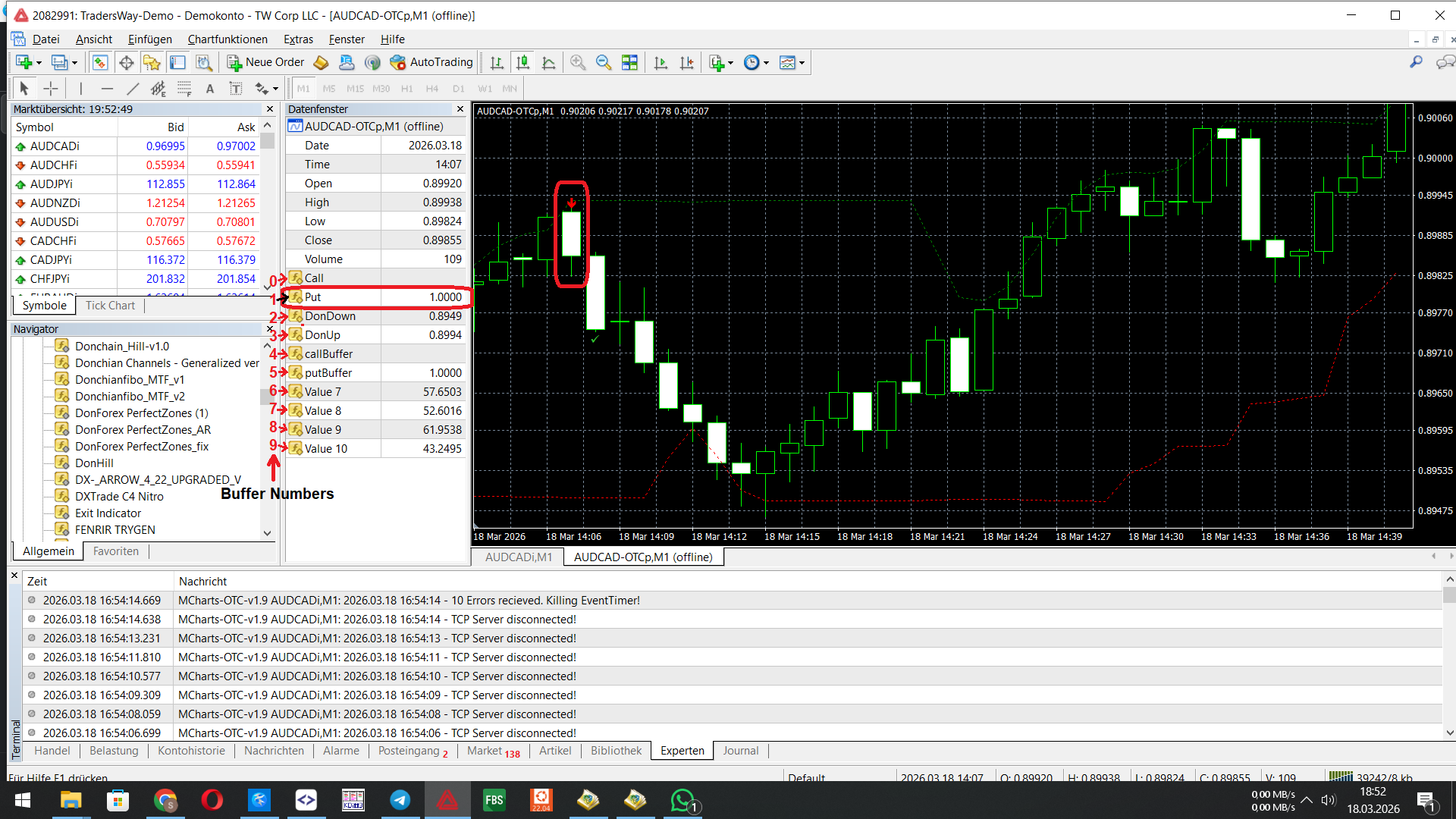
Here the Same Indicator but this Time a Put/Sell Candle to see. With Buffer Number: 1
The next Picture Show's the right Buffer Mode Settings:
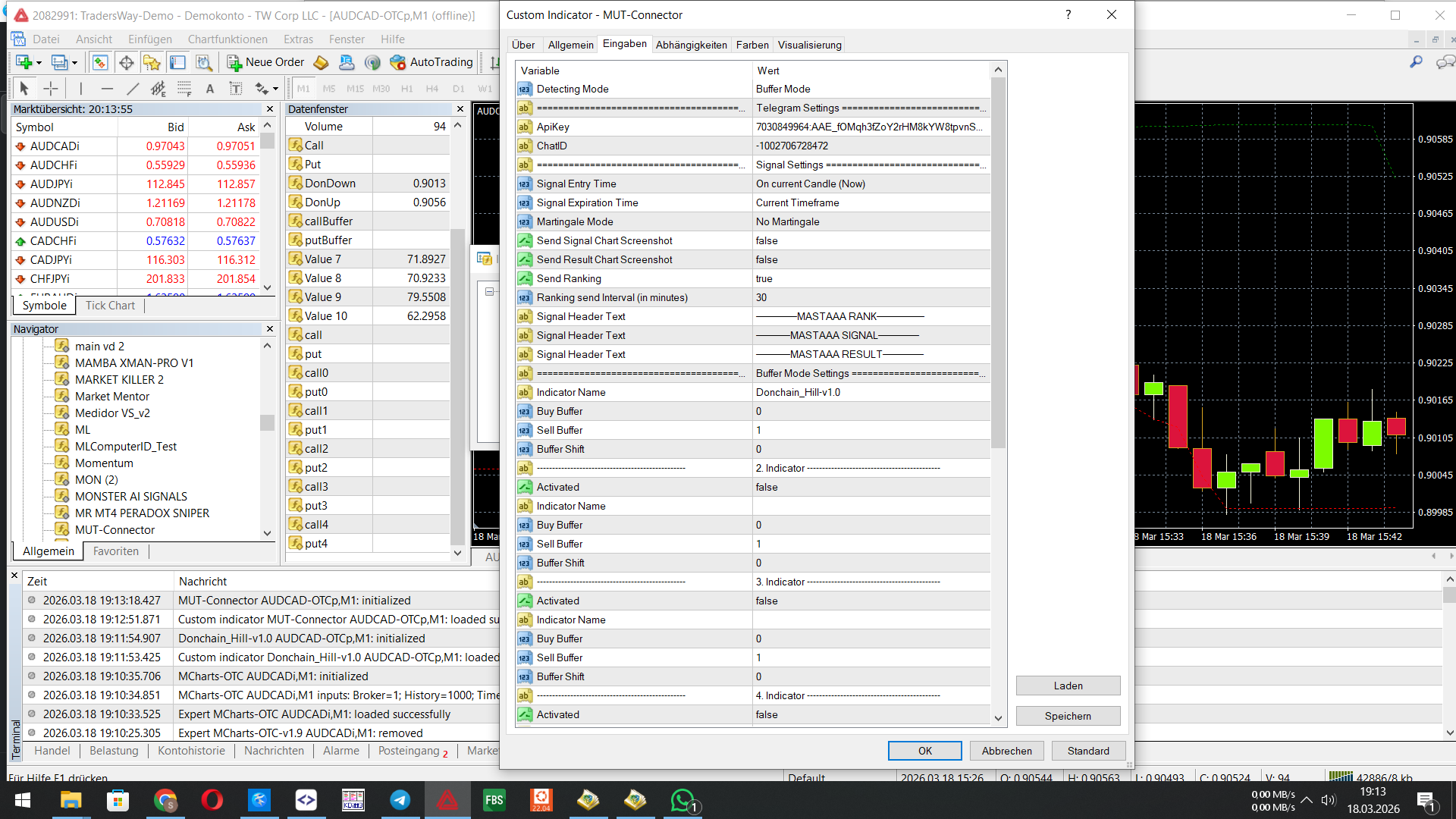
With the Buffer Shift setting you can shift the Candle which is used for the Signal from 0 to a later one.
(Info: Candle 0 is this Candle what is currently Open but not Closed! Candle 1 is behind and the first Closed one.)
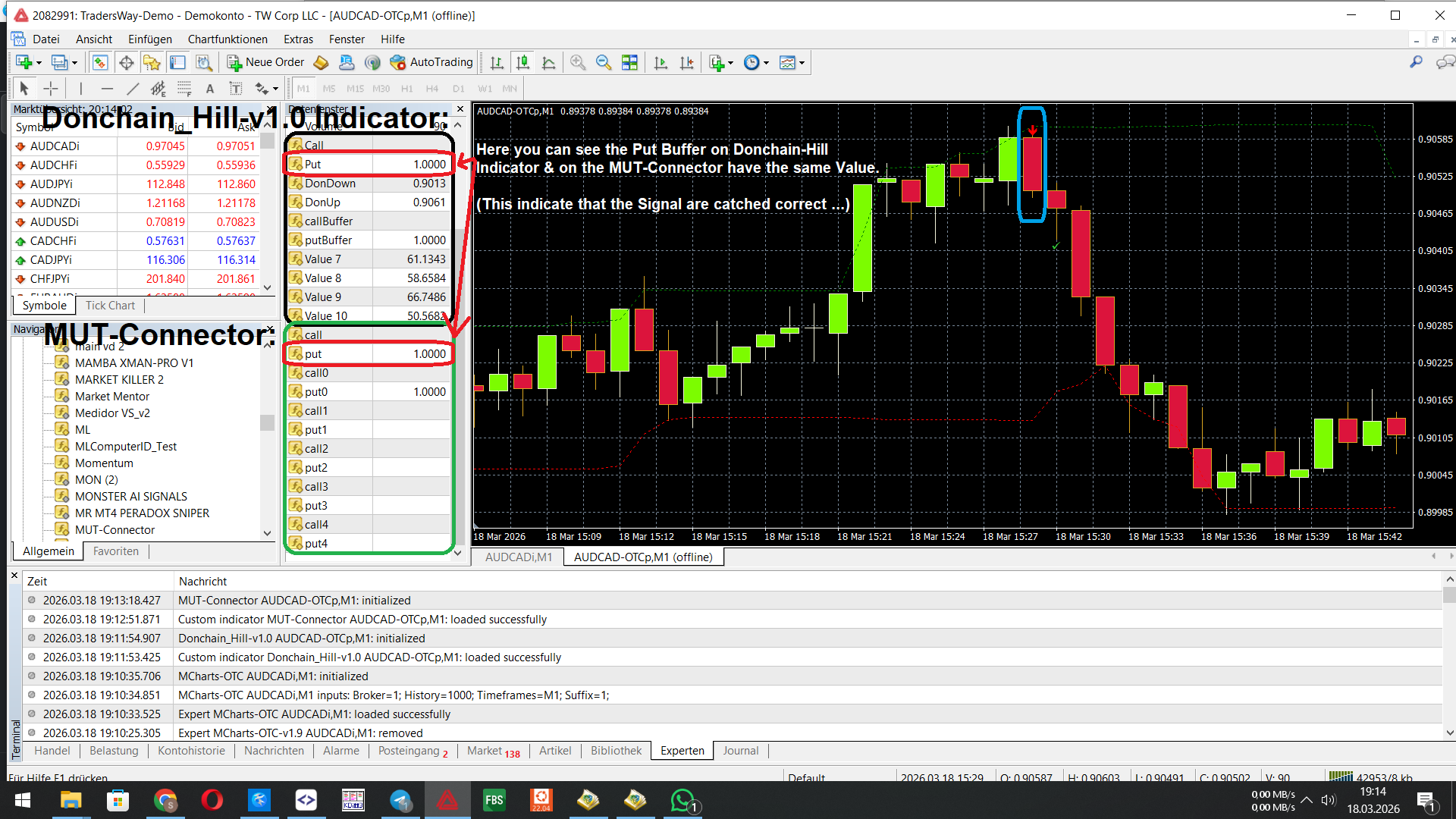
In the End you can check if is all right when you add simple the Indicator & the MUT-Connector on the Chart and
look after the Call/Put Buffer form the Connector & the Indicator.
If have both a Value in the right Buffer everything working fine ...
Click HERE for Content.
First add the Indicator on a Chart and make a right click on it and choise Objectives or Type Simple: Ctrl + B
Now in the next Window you can see how many Objects are really on the Chart.
(if the list is empty the Indicator doesn't draw Objects!)
You have 2 Options to catch a Object with the MUT-Connector. 1. By Object Name. 2. By Object Color.
Both Infos are to see in the Object setting Window (when you double click on a Object in a Row ...)
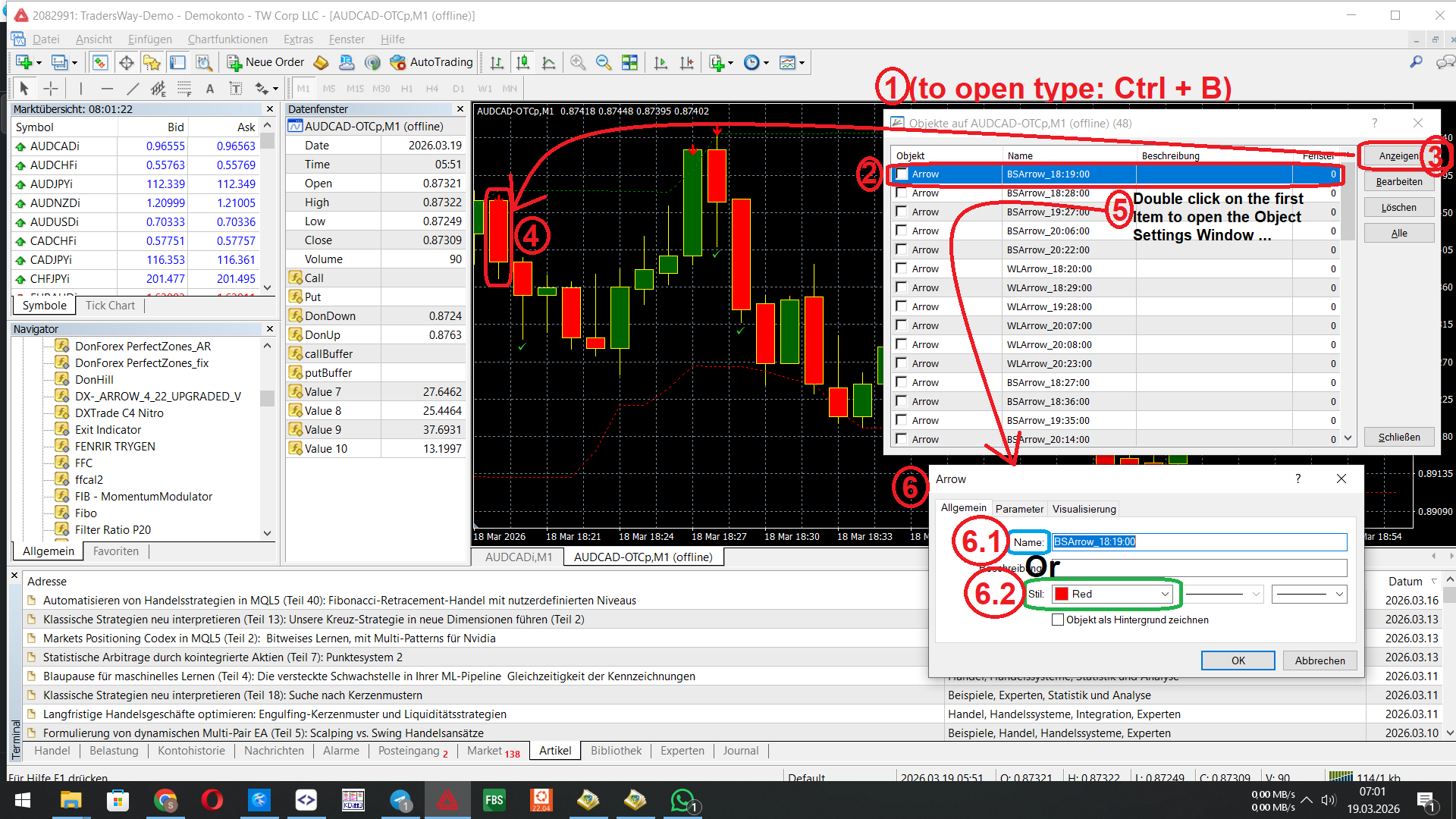
In this Example have all Object the same Name, so we need to work with the different Colors of the Arrows.
E.g. Red (for Put/Sell) & Lime Green (for Call/Buy).
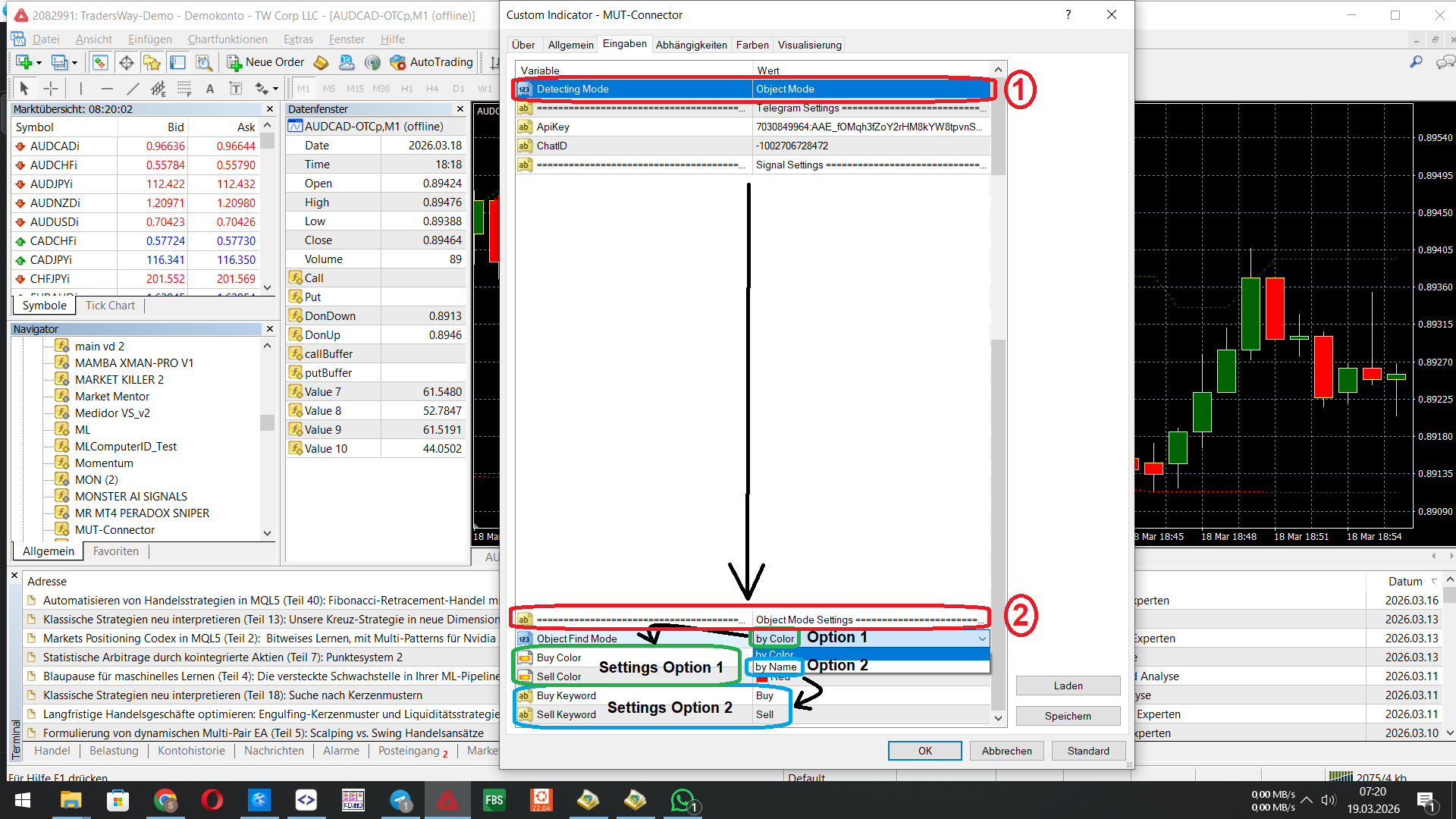
If you are set the right Colors to catch you can easy open the Datawindow (with Ctrl+D) and then go with the Mouse over a Candle with a Object.
If anything is working correctly the Call or Put Buffer (Buffer 0 and 1) of the MUT-Connector should be shows "1.0". Then all is Working fine.