Configuration
Any AQL-System has to be configured via an .xml file.
Its structure is described by this XML Schema Definition file.
Such a configuration defines a few environmental properties and most importantly which analysis tools, preprocessors, operators and converters are available in addition to the default tools, operators and converters.
Any of these is represented by a <tool> element inside the configuration file.
By default any AQL-System tries to use a config.xml file (which is located in the same directory as the system's .jar file) as configuration.
The launch parameter -c can be used to define another config that should be used instead (see Launch parameters).
Parameter -c allows three options (Parameter -c can be given multiple times - configurations will be merged into the last one given in this case.):
-
Local file:
-c /path/to/config.xml -
Online file:
-c http://FoelliX.de/path/to/config.xml -
AQL-WebService:
-c "http://FoelliX.de/AQL-WebService/config, username, password"(see AQL-WebService)
There exists two possibilities to create or edit a configuration:
- Edit the
.xmlfile directly - Use the Configuration Wizard
The following code shows a basic, shortened version of a configuration:
<?xml version="1.0" encoding="UTF-8" standalone="yes"?>
<config>
	<!-- Environment -->
	<androidBuildTools>path/to/android/build-tools</androidBuildTools>
	<androidPlatforms>path/to/android/platforms</androidPlatforms>
	<maxMemory>6</maxMemory>

	<!-- Tools -->
	<tools>...</tools>
	<preprocessors>...</preprocessors>
	<operators>...</operators>
	<converters>...</converters>
</config>- Inside the
<androidBuildTools>tag the path to the android build tools has to be specified. - Inside the
<androidPlatforms>tag the path to the android platform files has to be specified. - The memory element tells the AQL-System how much memory shall be used at most.
-
<tools>,<preprocessors>,<operators>and<converters>each contain a list of<tool>elements. Each<tool>element describes one analysis tool, preprocessor, operator or converter, respectively. In the following the differences and commonalities of these four are described along with one example for each type.
<tool name="AwesomeDroid" version="1.3.3.7" external="false">
	<priority>1</priority>
	<priority feature="TEST">2</priority>

	<execute>
		<run>/path/to/AwesomeDroid/run.sh %MEMORY% %ANDROID_PLATFORMS% %APP_APK%</run>
		<result>/path/to/AwesomeDroid/results/%APP_APK_FILENAME%_result.txt</result>
		<instances>0</instances>
		<memoryPerInstance>4</memoryPerInstance>
	</execute>

	<path>/path/to/AwesomeDroid</path>
	<questions>IntraAppFlow</questions>

	<runOnEntry>/path/to/AQL-System/start.sh</runOnEntry>
	<runOnExit>/path/to/AQL-System/flushMemory.sh</runOnExit>
	<runOnSuccess>/path/to/AwesomeDroid/success.sh</runOnSuccess>
	<runOnFail>/path/to/AwesomeDroid/fail.sh</runOnFail>
	<runOnAbort>/path/to/AQL-System/killpid.sh %PID%</runOnAbort>
</tool>- Any tool is identified by the values assigned to the two attributes
nameandversion. In this example the tool's name isAwesomeDroidand its version is1.3.3.7. -
<priority>: If there are two or more tools available which are capable of answering the same AQL-Questions the priority decides which tool is executed.- There may be multiple
<priority>elements, however, only one without a feature attribute. In the example AwesomeDroid has a priority of1, which becomes1 + 2 = 3if the associated AQL-Question assigns the featureTEST.
- There may be multiple
How to run any tool is specified through the <execute> element. Tools can generally be of two types:
Tools that are execute on the same system as the AQL-System. We also refer to such tools as internal tools. All tools of this type must assign the external="false" attribute to the respective <tool> element (see example above). Any internal tool's <execute> element must define the following sub-elements:
-
<run>: The run tag contains a command line command that can be used to run the associated tool (e.g. a command that runs a script - see example above). -
<result>: This describes where the result can be found once a tool finishes successfully. (A *-symbol can be used inside this tag to reference an arbitrary substring.) -
<instances>: This element defines how often the associated tool can be executed at the same time. (0 means infinite times) -
<memoryPerInstance>: This tag defines how much memory (in GB) is required and provided to each instance of the associated tool.
External tools (external="true") will be executed remotely by communicating with an AQL-WebService (see AQL-WebService). For this type of tools the following sub-elements must be defined:
-
<url>: The URL of the AQL-WebService. For example:http://FoelliX.de:8080/AQL-WebService/askAQL -
<username>&<password>: The credentials required to access the targeted webservice.
For both types a <path> must be defined. It describes a path to a directory in which the respective tool is going to be executed.
In the example above five variables are used to define the tags mentioned above:
| Variable | Meaning |
|---|---|
| %APP_APK% | The .apk file referenced in an AQL-Question |
| %APP_APK_FILENAME% | The filename of the .apk file without path and ending |
| %ANDROID_PLATFORMS% | The Android platforms folder (Specified through ) |
| %MEMORY% | The memory available to an instance of a tool (Specified through ) |
| %PID% | The tools process ID during execution |
(A full list of all available variables can be found here)
-
<questions>: The content of this tag describes which AQL-Questions can be answered with the associated tool. The following options are available (Exemplary associated AQL-Questions can be found in the brackets behind each option):- Arguments (
Arguments IN App('A.apk') ?) - Permissions (
Permissions IN App('A.apk') ?) - Sources (
Sources IN App('A.apk') ?) - Sinks (
Sinks IN App('A.apk') ?) - Intents (
Intents IN App('A.apk') ?) - IntentFilters (
IntentFilters IN App('A.apk') ?) - IntentSources (
IntentSources IN App('A.apk') ?) - IntentSinks (
IntentSinks IN App('A.apk') ?) - IntraAppFlows (
Flows IN App('A.apk') ?) - InterAppFlows (
Flows FROM App('A.apk') TO App('B.apk') ?) - Slice (
Slice FROM Statement('from()')->Method('a()')->Class('A')->App('A.apk') TO Statement('to()')->Method('b()')->Class('B')->App('A.apk') !)
- Arguments (
There are five more elements which optionally can be specified, namely <runOnEntry>, <runOnExit>, <runOnSuccess>, <runOnFail> and <runOnAbort>.
Each refers to a command or a script which will be executed on certain tool events.
-
<runOnEntry>is run before a tool is executed. -
<runOnExit>is always run after tool execution or abortion. -
<runOnSuccess>and<runOnFail>get executed depending on whether the tool has finished successfully or not. -
<runOnAbort>is run if the tool is aborted.
(Only the variables which are always available can be used inside these tags.)
<tool name="AwesomePreprocessor" version="1.3.3.8" external="false">
	<priority>1</priority>

	<execute>
		<run>/path/to/AwesomePreprocessor/run.sh %APP_APK%</run>
		<result>/path/to/AwesomePreprocessor/results/%APP_APK_FILENAME%_preprocessed.apk</result>
		<instances>0</instances>
		<memoryPerInstance>4</memoryPerInstance>
	</execute>

	<path>/path/to/AwesomePreprocessor</path>
	<questions>TEST</questions>

	<runOnExit>/path/to/AQL-System/flushMemory.sh</runOnExit>
	<runOnAbort>/path/to/AQL-System/killpid.sh %PID%</runOnAbort>
</tool>
Preprocessors are specified the same way as analysis tools with one exception:
The <questions> element now holds a list of keywords, separated by ,, that is assigned to the associated preprocessor.
In the above example only one keyword is assigned (TEST).
<tool name="AwesomeOperator" version="1.3.3.9" external="false">
	<priority>1</priority>

	<execute>
		<run>/path/to/AwesomeOperator/run.sh %ANSWERS%</run>
		<result>/path/to/AwesomeOperator/results/%ANSWERSHASH%.xml</result>
		<instances>1</instances>
		<memoryPerInstance>4</memoryPerInstance>
	</execute>

	<path>/path/to/AwesomeOperator</path>
	<questions>CONNECT(*)</questions>

	<runOnExit>/path/to/AQL-System/flushMemory.sh</runOnExit>
	<runOnAbort>/path/to/AQL-System/killpid.sh %PID%</runOnAbort>
</tool>
Operators are specified the same way as analysis tools with two exceptions:
- Different variables, for instance the two appearing in the example above (
%ANSWERS%,%ANSWERSHASH%), can be used (see Variables for more information). - The
<questions>element refers to the operators name and specifies its number of parameters
In the exampleCONNECT(*)tells us that the defaultCONNECToperator gets overwritten by an operator which takes arbitrary many (*) AQL-Answers as input.
<tool name="AwesomeDroidConverter" version="1.3.3.7" external="false">
	<priority>1</priority>

	<execute>
		<run>/path/to/AwesomeDroidConverter/run.sh %RESULT_FILE% results/%APP_APK_FILENAME%.xml</run>
		<result>/path/to/AwesomeDroidConverter/results/%APP_APK_FILENAME%.xml</result>
		<instances>0</instances>
		<memoryPerInstance>4</memoryPerInstance>
	</execute>

	<path>/path/to/AwesomeDroidConverter</path>
	<questions>AwesomeDroid</questions>
</tool>
Converters again are specified the same way as analysis tools with two exceptions:
- The additional variable
%RESULT_FILE%can be used (see Variables for more information). - The
<questions>element in this case refers to the analysis tools (separated by,) associated with this converter. (In the example onlyAwesomeDroidis associated.)
<?xml version="1.0" encoding="UTF-8" standalone="yes"?>
<config>
    <androidPlatforms>path/to/android/platforms</androidPlatforms>
    <androidBuildTools>path/to/android/build-tools</androidBuildTools>
    <maxMemory>8</maxMemory>
    <tools>
        <tool name="AwesomeDroid" version="1.3.3.7" external="false">
            <priority>1</priority>
            <priority feature="TEST">2</priority>
            <execute>
                <run>/path/to/AwesomeDroid/run.sh %MEMORY% %ANDROID_PLATFORMS% %APP_APK%</run>
                <result>/path/to/AwesomeDroid/results/%APP_APK_FILENAME%_result.txt</result>
                <instances>0</instances>
                <memoryPerInstance>4</memoryPerInstance>
            </execute>
            <path>/path/to/AwesomeDroid</path>
            <runOnExit>/path/to/AQL-System/flushMemory.sh</runOnExit>
            <runOnSuccess>/path/to/AwesomeDroid/success.sh</runOnSuccess>
            <runOnFail>/path/to/AwesomeDroid/fail.sh</runOnFail>
            <runOnAbort>/path/to/AQL-System/killpid.sh %PID%</runOnAbort>
            <questions>IntraApp</questions>
        </tool>
    </tools>
    <preprocessors>
        <tool name="AwesomePreprocessor" version="1.3.3.8" external="false">
            <priority>1</priority>
            <execute>
                <run>/path/to/AwesomePreprocessor/run.sh %APP_APK%</run>
                <result>/path/to/AwesomePreprocessor/results/%APP_APK_FILENAME%_preprocessed.apk</result>
                <instances>0</instances>
                <memoryPerInstance>4</memoryPerInstance>
            </execute>
            <path>/path/to/AwesomePreprocessor</path>
            <runOnExit>/path/to/AQL-System/flushMemory.sh</runOnExit>
            <runOnAbort>/path/to/AQL-System/killpid.sh %PID%</runOnAbort>
            <questions>TEST</questions>
        </tool>
    </preprocessors>
    <operators>
        <tool name="AwesomeOperator" version="1.3.3.9" external="false">
            <priority>1</priority>
            <execute>
                <run>/path/to/AwesomeOperator/run.sh %ANSWERS%</run>
                <result>/path/to/AwesomeOperator/results/%ANSWERSHASH%.xml</result>
                <instances>1</instances>
                <memoryPerInstance>4</memoryPerInstance>
            </execute>
            <path>/path/to/AwesomeOperator</path>
            <runOnExit>/path/to/AQL-System/flushMemory.sh</runOnExit>
            <runOnAbort>/path/to/AQL-System/killpid.sh %PID%</runOnAbort>
            <questions>CONNECT(*)</questions>
        </tool>
    </operators>
    <converters>
        <tool name="AwesomeDroidConverter" version="1.3.3.7" external="false">
            <priority>1</priority>
            <execute>
                <run>/path/to/AwesomeDroidConverter/run.sh %RESULT_FILE% results/%APP_APK_FILENAME%.xml</run>
                <result>/path/to/AwesomeDroidConverter/results/%APP_APK_FILENAME%.xml</result>
                <instances>0</instances>
                <memoryPerInstance>4</memoryPerInstance>
            </execute>
            <path>/path/to/AwesomeDroidConverter</path>
            <questions>AwesomeDroid</questions>
        </tool>
    </converters>
</config>You find the ConfigWizard in the Help menu of the GUI.
Alternatively you can launch it as follows:
java -jar AQL-System-*.jar -cwThe screenshot below shows the Config Wizard. All elements explained before can easily be edited here as well.
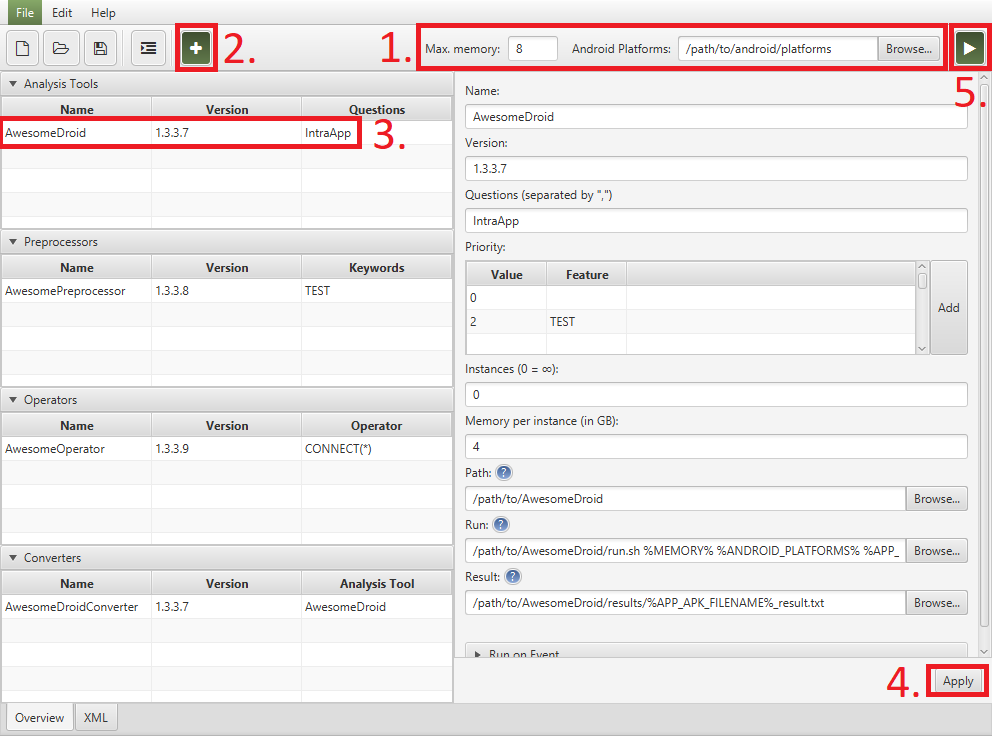
- The environmental properties can be defined at 1.
- New tools of any kind can be added at 2.
- To edit a tool:
- Select it, for example by clicking on 3.
- Edit its properties on the right hand side
- Apply the changed by clicking at 4.
- To continue with the configuration you have set up click on 5.