🔑 Unicode Password Utility (UNIGEN)
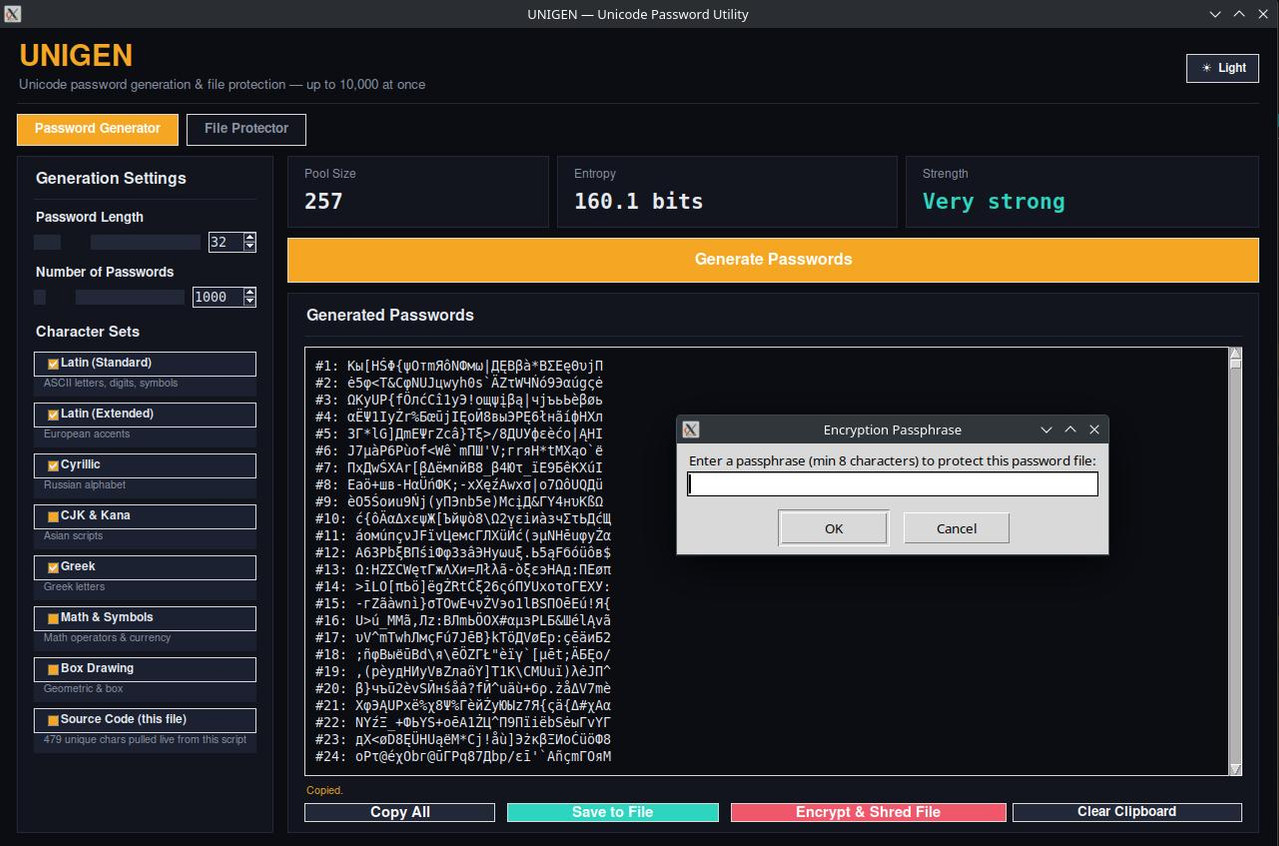

UNIGEN is a cross-platform Python 3 desktop app (Tkinter) for generating cryptographically strong, high-entropy Unicode passwords and protecting sensitive files with authenticated encryption. It's a single script — no install step beyond pip install cryptography — and runs the same on Windows, Linux, and macOS.
Everything happens in two tabs: Password Generator and File Protector.
✨ Key Features
- High-Entropy Generation — Generate 1 to 10,000 passwords at once, 8–128 characters long, drawn from a pool of 400+ unique Unicode characters across Latin, Latin Extended, Cyrillic, CJK & Kana, Greek, Math & Symbols, and Box Drawing sets — plus a bonus "Source Code (this file)" set built live from every unique character in the script itself.
- Live Strength Feedback — Pool size, Shannon entropy (bits), and a strength rating update in real time as you toggle character sets and adjust length.
- Authenticated File Encryption — AES-256-GCM (via the
cryptographylibrary's AEAD primitive) with a key derived by PBKDF2-HMAC-SHA256 at 600,000 iterations, a fresh 16-byte salt and 12-byte nonce per file. Output is a portable Base64-encoded.encfile. - One-Click "Encrypt & Shred" — From the Generator tab, save your password list, encrypt it with a passphrase, and — only after the ciphertext is verified to decrypt back to the exact original bytes — securely shred the plaintext copy.
- General File Protector — Encrypt or decrypt any file, not just password lists, with an optional "verify, then shred the original" checkbox.
- Secure Shredding, No External Tools Required — A pure Python multi-pass overwrite (3 random-data passes + 1 zero pass,
fsync'd between each) followed by deletion. Works identically on Windows/Linux/macOS with no dependency on the Unixshredbinary, and reports whether the overwrite was verified ("secure") or only the delete could be confirmed ("fallback"). - Clipboard Security
UNIGEN implements platform-native clipboard exclusion to prevent passwords and encrypted data from being stored by clipboard-history tools:
| Platform | Mechanism | Coverage |
|---|---|---|
| Windows | Registers ExcludeClipboardContentFromMonitorProcessing, CanIncludeInClipboardHistory, and CanUploadToCloudClipboard clipboard formats via Win32 API (ctypes) |
Windows Clipboard History, Cloud Clipboard, and managers following the 1Password/Bitwarden/KeePass convention |
| macOS | Tags pasteboard with org.nspasteboard.ConcealedType, org.nspasteboard.TransientType, and org.nspasteboard.AutoGeneratedType via JXA/osascript |
Paste, Maccy, Copied, Flycut, and other nspasteboard.org-compliant managers |
| Linux (opt-in) | Offers x-kde-passwordManagerHint MIME type alongside UTF8_STRING via xclip |
KDE Klipper and tools mirroring its convention (e.g., KeePassXC, Bitwarden on Linux) |
Note: This is best-effort protection. GNOME clipboard extensions, generic Wayland history tools, and non-compliant managers may still capture copied content. The status bar indicates whether exclusion succeeded (
Copied — excluded from clipboard managers) or fell back to a normal copy.
Enable Auto-clear clipboard after N seconds on either tab to automatically wipe the clipboard after a configurable delay (5–300s). The timer only clears content that still matches what UNIGEN copied — if you copy something else in the meantime, it is left untouched.
Click Clear Clipboard on either tab to immediately wipe the system clipboard through Tkinter and OS-native fallbacks (EmptyClipboard on Windows, pbcopy on macOS, xclip/xsel/wl-copy on Linux), plus clearing any text selection in the app window.
This is best-effort — there's no single cross-desktop standard, so e.g. plain GNOME clipboard extensions will still see it — but it degrades gracefully to a normal copy everywhere, and the status line tells you honestly whether exclusion succeeded.
8. One-Click Clipboard Wipe — A "Clear Clipboard" button on both tabs clears the OS clipboard through Tkinter and a native fallback (EmptyClipboard via ctypes on Windows, pbcopy on macOS, xclip/xsel/wl-copy on Linux) so nothing lingers after you're done.
9. Dark / Light Theme — Toggle in the header; the whole UI (including scrollbars and progress bars) re-themes instantly.
🛠 Prerequisites
- Python 3.8+
- Tkinter — bundled with the standard Python installer on Windows and macOS. On Linux it's often a separate package:
sudo apt install python3-tk # Debian/Ubuntu sudo dnf install python3-tkinter # Fedora - The
cryptographylibrary (only needed for the File Protector tab — the Password Generator tab works without it). - (Optional, Linux only)
xclipfor full clipboard-manager exclusion when copying passwords;xselorwl-copyalso work as plain-copy fallbacks but don't support the exclusion hint.
🚀 Installation
- Download the script
wget https://github.com/A113L/unigen/raw/refs/heads/main/unigen - Install dependencies
(On Linux, also install
pip install cryptographypython3-tkand, optionally,xclip— see Prerequisites above.)
💻 Usage
chmod +x unigen
./unigen
This opens the UNIGEN window, sized to fit your screen without scrolling.
Password Generator tab
- Set the password length (8–128) and count (1–10,000) with the sliders or spinboxes.
- Toggle whichever character sets you want in the pool — the Pool Size, Entropy, and Strength cards update live.
- Click Generate Passwords.
- From here you can:
- Copy All — copies to the clipboard with clipboard-manager exclusion applied (see Features above).
- Save to File — writes the list to a plain-text
.txtfile you choose. - Encrypt & Shred File — (enabled after saving) prompts for a passphrase, encrypts the saved list to a
.encfile next to it, verifies the round-trip, then securely shreds the plaintext original. - Clear Clipboard — wipes the clipboard immediately.
File Protector tab
- Encrypt File (left) — browse to any file, enter a passphrase (min 8 characters), optionally check "verify, then securely shred the original after encryption", and click Encrypt. The result is shown as Base64 and can be copied or saved as a
.encfile. - Decrypt File (top right) — browse to a
.encfile, enter the passphrase, and click Decrypt & Save to restore the original bytes to a location you choose. - Manual Secure Shred (bottom right) — browse to any file and permanently destroy it with the same multi-pass overwrite used elsewhere, independent of encryption.
- Clear Clipboard is also available here.
🔒 Security Notes
- Passphrase strength is everything. UNIGEN enforces only a minimum length (8 characters); the real security of an encrypted file rests entirely on how strong and unique your passphrase is.
- Encryption: AES-256-GCM gives you authenticated encryption (confidentiality and integrity — tampering with the ciphertext causes decryption to fail rather than silently returning corrupted data). Keys are derived per-file with PBKDF2-HMAC-SHA256 at 600,000 iterations and a random 16-byte salt, so the same passphrase never produces the same key twice.
- Shredding: the multi-pass overwrite makes recovery via standard file-recovery tools impractical on traditional storage, but on SSDs, copy-on-write filesystems (Btrfs, ZFS, APFS), or filesystems with snapshots/journaling, overwritten data can persist elsewhere on the device regardless of what any application does. Treat shredding as a strong best-effort, not an absolute guarantee — for maximum assurance, use full-disk encryption as your baseline.
📄 License
See the repository for license details.