⇦ Back to: Issue | ⇧ Overview | ⇨ Next: Branch
You need1 to load the repository (and all its history) on your computer before you can begin to change it.
- Navigate to the repository page on GitHub.
- Press the "Code" button

- Press the "Open with GitHub Desktop" Button
- Follow the prompts on screen
Login to GitHub by calling:
gh auth login-
At the prompts, select:
- "? What account do you want to log into?"
GitHub.com - "? What is your preferred protocol for Git operations?"
HTTPS - "? Authenticate Git with your GitHub credentials?"
Y - "? How would you like to authenticate GitHub CLI?"
Login with a web browser
- "? What account do you want to log into?"
-
At the prompt "! First copy your one-time code:" copy your one-time code which looks like
AB12-34CD. -
Open a new tab in your web browser and navigate to https://github.com/login/device. (Your browser may open automatically.)
-
There, paste the one-time code.
-
On the next page, select
Authorize github. -
Follow any other prompts to complete your login.
💡 We no longer recommend using self-generated public keys (like
~/.ssh/id_rsa.pub) to authenticate on GitHub. The modern authentication schemes using tokens, and incorporating 2FA, are more secure, especially in shared systems like Oscar.ghuses these tokens.
-
Navigate to the repository page on GitHub.
-
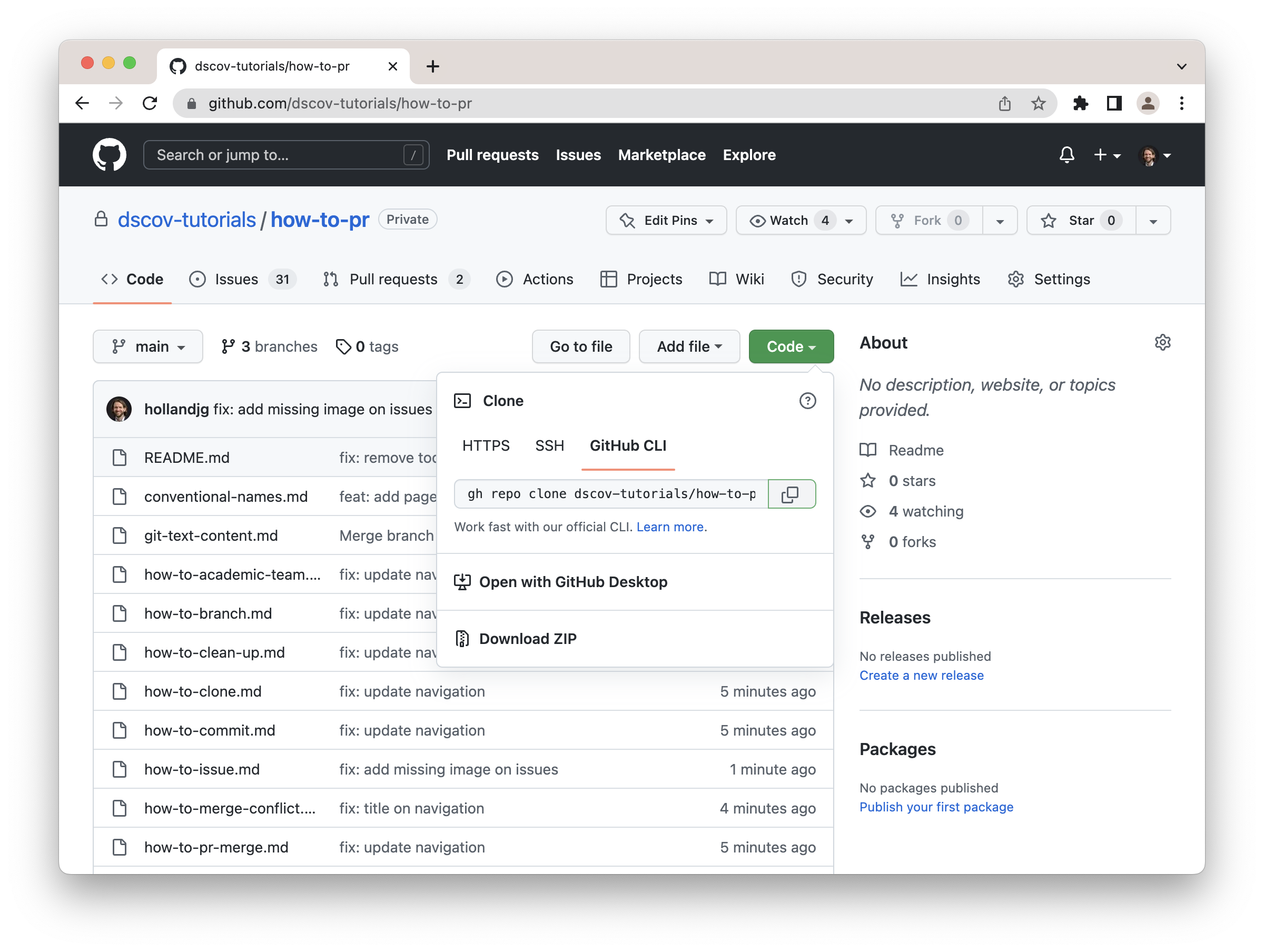
Press the "Code" button
-
Select GitHub CLI
-
Copy the command, which will look like this:
gh repo clone dscov-tutorials/how-to-pr -
In your terminal, find an an unsynced directory (i.e. a directory not synced using Google Drive, Dropbox, iCloud, OneDrive, Seafile...2)
-
Run the command in your terminal:
gh repo clone dscov-tutorials/how-to-pr
Footnotes
-
You can modify individual files on GitHub directly, using the built-in editor. However, most of the time, you'll want to do this on a computer. ↩
-
File synchronization tools like Google Drive, Dropbox, iCloud, OneDrive, Seafile don't do things the same way as
git, and they can interfere with each other. ↩