Your Dev Container (or Codespace) uses the powershell-extended
feature which provides a great out-of-box experience for your PowerShell.
Some advanced visual features depend on the availability of a Nerd Font, which are fonts that are extended with special characters to display glyphs/icons and other graphics right in your terminal window.
By installing such font and tweaking some settings of your Dev Container and Visual Studio Code settings, you unlock the best experience for your PowerShell terminal.
Since the Visual Studio (not Code) default font is Cascadia Code, we recommend to use it in VSCode as well. In May 2024 release it received native Nerd Font support with all the nice details we care about. Since it is not bundles with VSCode (yet), you will need to install it separately.
If you wish, you may also select any other font from nerdfonts.com.
-
Open new VSCode window:
- In Visual Studio Code (VSCode), open a new window:
File > New Window. - Alternatively, you may also open a PowerShell session in your favorite terminal app and skip next step no. 2.
If you are on Windows, it is preferable to use PowerShell 7 (
pwsh.exe) rather than Windows PowerShell 5.1 (powershell.exe). PowerShell 7 is the cross-platform version that is actively maintained and updated, whereas Windows PowerShell is the legacy version built into Windows.
- In Visual Studio Code (VSCode), open a new window:
-
Start a new PowerShell session:
- You can do this by opening the command palette
(
Cmd + Shift + Pon Mac orCtrl + Shift + Pon Windows/Linux) and selectingTerminal: Create New Terminal (With Profile). - Select
pwshfrom the menu. On Windows, it is preferable to use PowerShell 7 (pwsh.exe) rather than Windows PowerShell 5.1 (powershell.exe). PowerShell 7 is the cross-platform version that is actively maintained and updated, whereas Windows PowerShell is the legacy version built into Windows.
- You can do this by opening the command palette
(
-
Run the Nerd Font installer script in direct install mode:
-
Copy & paste the following code into the terminal window:
& ([scriptblock]::Create((iwr 'https://to.loredo.me/Install-NerdFont.ps1'))) -Name cascadia-code, cascadia-mono
-
Press
Enterto run the code.
-
-
Confirm installation:
-
You will see the following output to confirm the installation:
Nerd Fonts Installation
Do you confirm to install 'Cascadia Code Font Family' from github.com/microsoft/cascadia-code ?
[Y] Yes  [A] Yes to All  [N] No  [L] No to All  [S] Suspend  [?] Help (default is "Y"):
-
Type
Aand pressEnterto continue with the installation.
-
After this, you may continue with step 2, or install additional fonts as described below.
-
Open new VSCode window:
- In Visual Studio Code (VSCode), open a new window:
File > New Window. - Alternatively, you may also open a PowerShell session in your favorite terminal app and skip next step no. 2.
If you are on Windows, it is preferable to use PowerShell 7 (
pwsh.exe) rather than Windows PowerShell 5.1 (powershell.exe). PowerShell 7 is the cross-platform version that is actively maintained and updated, whereas Windows PowerShell is the legacy version built into Windows.
- In Visual Studio Code (VSCode), open a new window:
-
Start a new PowerShell session:
- You can do this by opening the command palette
(
Cmd + Shift + Pon Mac orCtrl + Shift + Pon Windows/Linux) and selectingTerminal: Create New Terminal (With Profile). - Select
pwshfrom the menu. On Windows, it is preferable to use PowerShell 7 (pwsh.exe) rather than Windows PowerShell 5.1 (powershell.exe). PowerShell 7 is the cross-platform version that is actively maintained and updated, whereas Windows PowerShell is the legacy version built into Windows.
- You can do this by opening the command palette
(
-
Run the Nerd Font installer script in interactive mode:
-
Copy & paste the following code into the terminal window:
& ([scriptblock]::Create((iwr 'https://to.loredo.me/Install-NerdFont.ps1')))
-
Press
Enterto run the code.
-
-
Select Nerd Font:
-
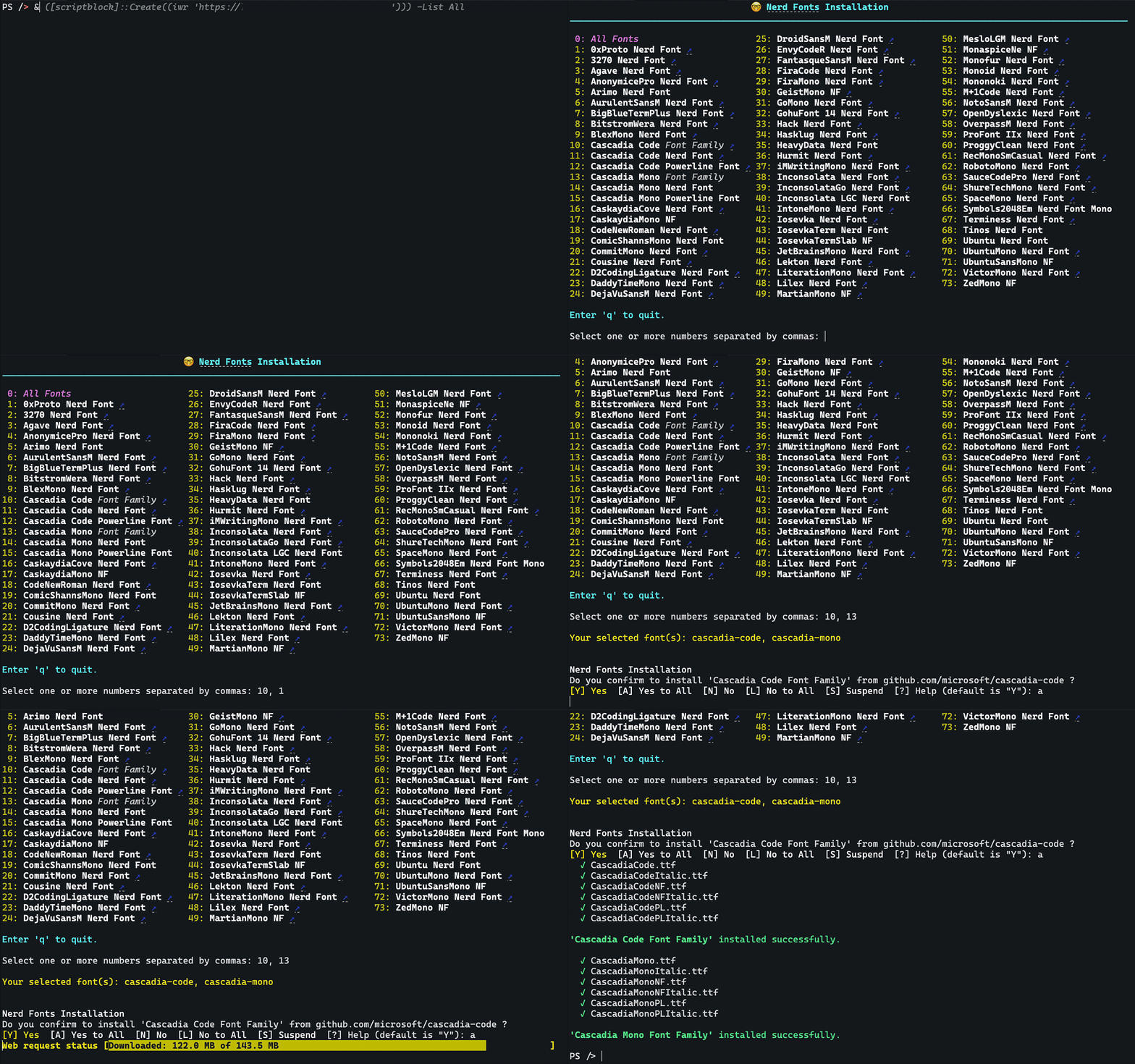
You will see a selection menu like this:
-
Enter a number corresponding to the list of Nerd Font names. To choose your favorite, you may want to visit nerdfonts.com for a preview. Depending on your PowerShell version and availability, there may also be an
↗upwards arrow you may click on. -
Press
Enterto confirm your selection.
-
-
Confirm installation:
-
You will see the following output to confirm the installation:
Your selected font: Meslo

Nerd Fonts Installation
Do you confirm to install 'Meslo' from GitHub.com/ryanoasis ?
[Y] Yes  [A] Yes to All  [N] No  [L] No to All  [S] Suspend  [?] Help (default is "Y"):
-
Press
Enterto continue with the installation, or repeat the steps to install more fonts.
-
After this, continue with step 2.
To change the font settings in Visual Studio Code (VSCode) for both the code editor and the terminal, follow these steps:
-
Open Settings:
- Press
Cmd + ,or go toFile > Preferences > Settings.
- Press
-
Search for Font Settings:
- In the search bar at the top, type
font.
- In the search bar at the top, type
-
Edit Font Family:
-
Look for the setting named
Editor: Font Family. -
Click on
Edit in settings.jsonor directly edit the text box to add your desired font before the existing ones. For example:"editor.fontFamily": "'Cascadia Code NF', Consolas, 'Courier New', monospace"
Note that font names with multiple words should be put into single quotes (
'). -
Enable Font Ligatures (optional):
If your font supports ligatures, you may optionally enable these to give you some (potentially) nice typographic enhancements in the editor :
"editor.fontLigatures": true,
Ultimately, the choice is yours. Some people appreciate it, while others do not. It's best to form your own opinion. If you have an interest in typography, you might enjoy it. However, if you prefer sticking to standards, you might not. It's a balance between the artist and the nerd within you.
-
-
Save Settings:
- Save the changes if you edited the
settings.jsonfile.
- Save the changes if you edited the
Usually, the terminal font is inherited from the editor font settings. You may optionally set a different font for the terminal like this:
-
Open Settings:
- Press
Cmd + ,or go toFile > Preferences > Settings.
- Press
-
Search for Terminal Font Settings:
- In the search bar at the top, type
terminal font.
- In the search bar at the top, type
-
Edit Terminal Font Family:
- Look for the setting named
Terminal > Integrated: Font Family. - Click on
Edit in settings.jsonor directly edit the text box to add your desired font. For example:"terminal.integrated.fontFamily": "'Cascadia Mono NF', 'Courier New', monospace"
- Look for the setting named
-
Save Settings:
- Save the changes if you edited the
settings.jsonfile.
- Save the changes if you edited the
By following these steps, you can customize the fonts used in both the code editor and the integrated terminal in VSCode to your preferred Nerd Font or any other font.
Now that you have installed a super nerdy font, you are ready to change your prompt to something more pleasing.
There is a selected preview of options on the Oh My Posh site, and many more out there in the depths of the internet like the community discussions.
To change the prompt to something of your taste, follow these steps:
-
Open
devcontainer.json:- In the file explorer of VSCode, open the
.devcontainerfolder and click on the.devcontainer.jsonfile to open it.
- In the file explorer of VSCode, open the
-
Search for
remoteEnvsection:-
Find the
remoteEnvsection in the bottom part of the file. -
If it does not exist, you may create an empty section like this:
If you are strugging to find the right spot, you may follow the video instructions from the VSCode website.
-
-
Change environment variables:
-
Now you want to change (or add) the environment variables shown below:
// ...
"remoteEnv": {
   // Set theme for regular PowerShell session
   "PSPROFILE_POSH_THEME": "devcontainers.minimal.omp.json",

   // Set theme for PowerShell Extension session
   "PSPROFILE_VSCODE_POSH_THEME": "devcontainers.minimal.omp.json"
},
// ...
Note that you will need to pay attention to keep a valid JSON format which might require adding some commas
,at the end of a section or existing environment variables.You may either enter the name of one of the included themes, or set a direct URL to download the theme automatically.
-
-
Save
devcontainer.json:- Save the changes.
-
Restart your dev container:
-
To apply the changes, you need to restart your dev container. You can do this by opening the command palette (
Cmd + Shift + Pon Mac orCtrl + Shift + Pon Windows/Linux) and selectingDev Containers: Reopen Folder Locally. If your container wasn't running, you may now simply start it again. Search forDev Containers: Reopen in Containerto start the Dev Container with the new settings. -
Note: This procedure is similar for GitHub Codespaces. Open the command palette and select
Codespaces: Stop current Codespace. Then, search forCodespaces: Connect to Codespaceto start the Codespace with the new settings.
-
By following these steps, you can customize your Oh My Posh PowerShell prompt to your liking.