| id | getting-started |
|---|---|
| title | Getting Started |
Create React App is an officially supported way to create single-page React applications. It offers a modern build setup with no configuration.
Create React App is in long-term maintenance mode.
It continues to receive critical bug fixes and security updates, but new features are unlikely to be added. The project remains a stable option for certain use cases.
Create React App may be a good fit if:
- You are learning React and want a zero-configuration setup
- You are maintaining an existing Create React App codebase
- You prefer a stable, well-known toolchain with minimal change
You may want to consider alternatives if:
- You are starting a new production application
- You need faster development startup times
- You require more flexibility in bundling or framework integration
For new projects, the React team recommends exploring modern alternatives such as:
- Vite
- Next.js
- Remix
npx create-react-app my-app
cd my-app
npm start
If you've previously installed
create-react-appglobally vianpm install -g create-react-app, we recommend you uninstall the package usingnpm uninstall -g create-react-apporyarn global remove create-react-appto ensure thatnpxalways uses the latest version.
(npx comes with npm 5.2+ and higher, see instructions for older npm versions)
Then open http://localhost:3000/ to see your app.
When you’re ready to deploy to production, create a minified bundle with npm run build.
You don’t need to install or configure tools like webpack or Babel. They are preconfigured and hidden so that you can focus on the code.
Create a project, and you’re good to go.
You’ll need to have Node >= 14 on your local development machine (but it’s not required on the server). You can use nvm (macOS/Linux) or nvm-windows to switch Node versions between different projects.
To create a new app, you may choose one of the following methods:
npx create-react-app@latest my-app(npx comes with npm 5.2+ and higher, see instructions for older npm versions)
npm init react-app my-appnpm init <initializer> is available in npm 6+
yarn create react-app my-appyarn create is available in Yarn 0.25+
You can now optionally start a new app from a template by appending --template [template-name] to the creation command.
If you don't select a template, we'll create your project with our base template.
Templates are always named in the format cra-template-[template-name], however you only need to provide the [template-name] to the creation command.
npx create-react-app my-app --template [template-name]You can find a list of available templates by searching for "cra-template-*" on npm.
Our Custom Templates documentation describes how you can build your own template.
You can start a new TypeScript app using templates. To use our provided TypeScript template, append --template typescript to the creation command.
npx create-react-app my-app --template typescriptIf you already have a project and would like to add TypeScript, see our Adding TypeScript documentation.
When you create a new app, the CLI will use npm or Yarn to install dependencies, depending on which tool you use to run create-react-app. For example:
# Run this to use npm
npx create-react-app my-app
# Or run this to use yarn
yarn create react-app my-appRunning any of these commands will create a directory called my-app inside the current folder. Inside that directory, it will generate the initial project structure and install the transitive dependencies:
my-app
├── README.md
├── node_modules
├── package.json
├── .gitignore
├── public
│   ├── favicon.ico
│   ├── index.html
│   ├── logo192.png
│   ├── logo512.png
│   ├── manifest.json
│   └── robots.txt
└── src
    ├── App.css
    ├── App.js
    ├── App.test.js
    ├── index.css
    ├── index.js
    ├── logo.svg
    ├── serviceWorker.js
    └── setupTests.js
No configuration or complicated folder structures, only the files you need to build your app. Once the installation is done, you can open your project folder:
cd my-appInside the newly created project, you can run some built-in commands:
Runs the app in development mode. Open http://localhost:3000 to view it in the browser.
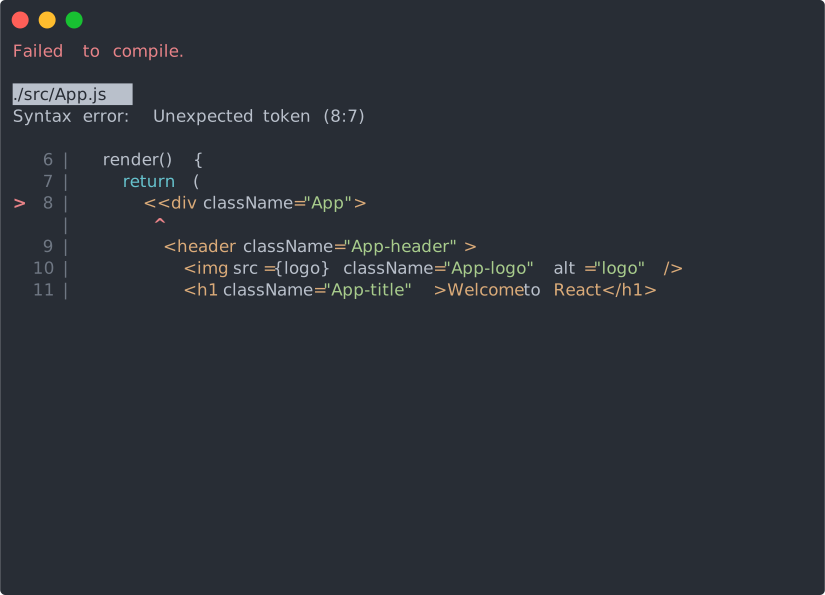
The page will automatically reload if you make changes to the code. You will see the build errors and lint warnings in the console.
Runs the test watcher in an interactive mode. By default, runs tests related to files changed since the last commit.
Builds the app for production to the build folder. It correctly bundles React in production mode and optimizes the build for the best performance.
The build is minified and the filenames include the hashes.
Your app is ready to be deployed.